


Contents
Printer properties cannot be displayed error
This page applies to:


Last updated August 20, 2026
Contents
If the PaperCut Hive or Pocket print client service isn’t running on a user’s workstation, the main issue is that the user’s Print job doesn’t appear for release in the Hive or Pocket app.
When investigating further, you might see the following specific Windows errors which all point to a central root cause:
- “Operation could not be completed (error 0x00002ef3)” when trying to print a Windows Test Page from Printer settings
- “Printing preferences cannot be displayed” when trying to open Printer Preferences
- “Printer properties cannot be displayed” when trying to open Printer Properties
- “Test page failed to print. Would you like to view the print troubleshooter for assistance" when trying to print a test page from Print Management Console (although this error can also happen for other reasons as detailed in “Test Page failed to print” error with Mobility Print and PaperCut Pocket/Hive.)
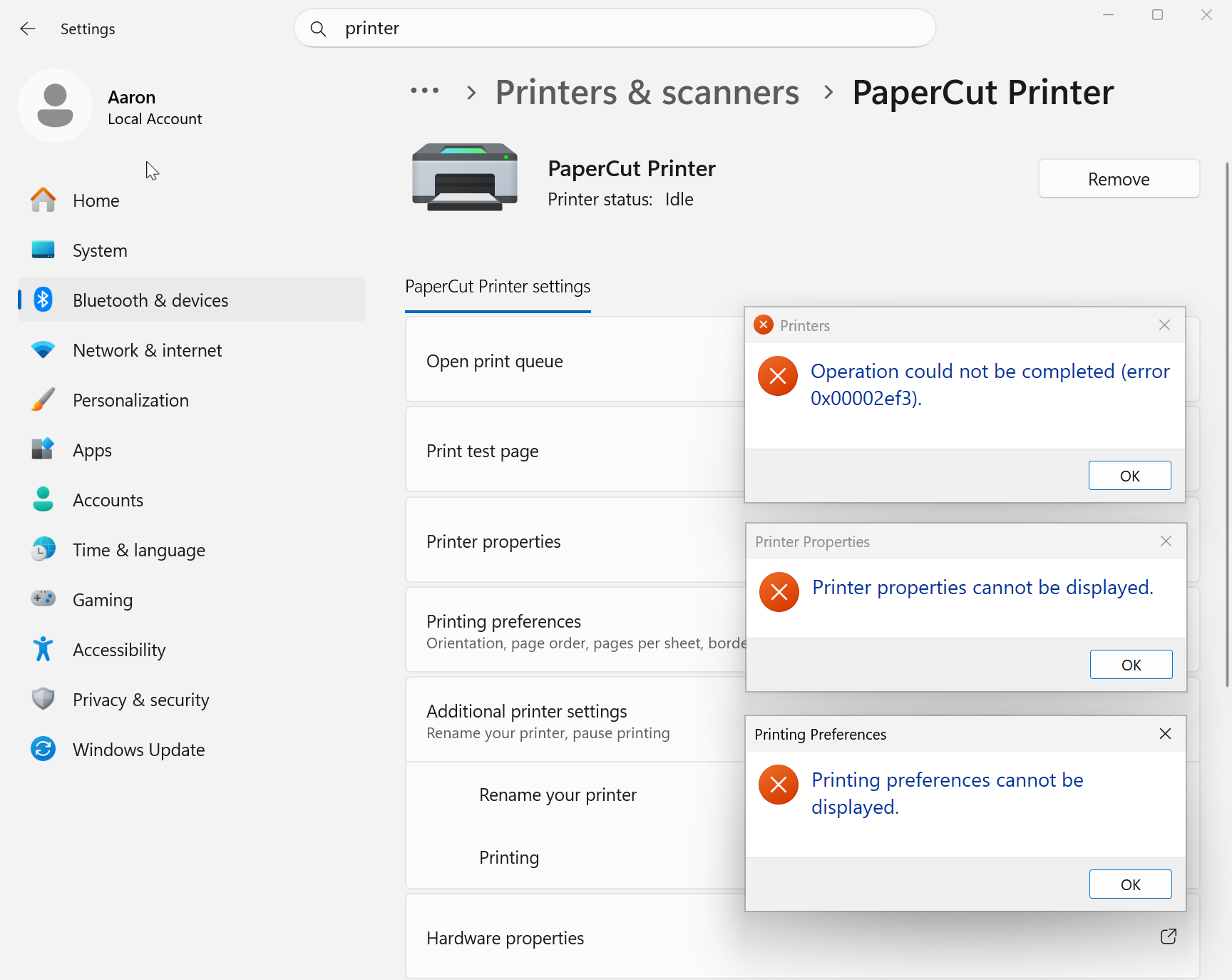
These errors occur when the PaperCut Hive or Pocket print client processes are stopped, disabled, or failed to start.
This can be confirmed with the following line in the pc-edgenode-service.log file:
pc-queue-handler.exe: STDERR|ERROR: Deployment failed: print client not ready to print: send request: Get "http://localhost:9265/status": dial tcp [::1]:9265: connectex: No connection could be made because the target machine actively refused it.
This article explains the root causes of these errors and how to restore printing functionality.
Check if pc-print-client.exe is running
Before changing any system settings, verify whether the core active worker process, pc-print-client.exe, is running in the user’s active session.
To check the process status:
- Open Windows Task Manager by pressing Ctrl + Shift + Esc.
- In Task Manager, select the Details or Processes tab.
- Look for pc-print-client.exe.
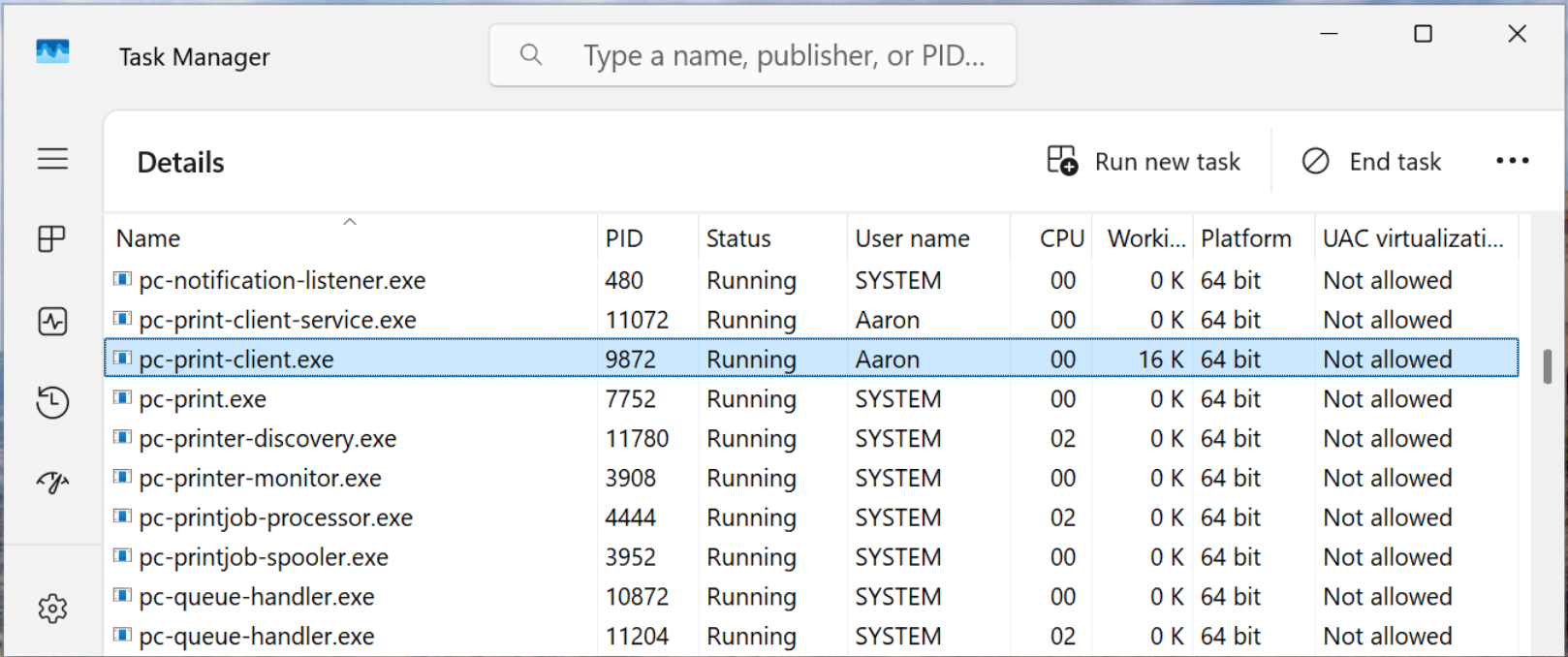
- The next step depends on whether you see the process. Jump to the relevant section below.
-
If pc-print-client.exe is not running…
-
If pc-print-client.exe is missing…
-
If pc-print-client.exe is running but you still get error 0x00002ef3…
-
If pc-print-client.exe is not running in Task Manager…
If pc-print-client is in Task Manager but it’s stopped.. there may be a few reasons.
See if the app was disabled in startup tasks
If the client isn’t running, it may have been disabled at startup. We’ve seen well-meaning users disable startup items to “speed up” their PC, sometimes by running or third-party “optimization” tools.
To re-enable the PaperCut Print Client:
- Open Windows Task Manager (Ctrl + Shift + Esc).
- Navigate to the Startup apps tab.
- Locate pc-print-client-service.
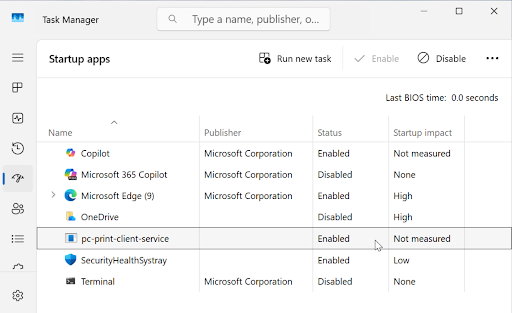
- If it is marked as Disabled, right-click it and select Enable.
- Log out and log back into Windows, or manually launch the executable to restore functionality.
- Test printing to see if the problem has been resolved.
Check for the Windows Registry Run Key
The PaperCut Pocket or Hive client creates a key in the Windows registry to ensure it runs on startup. However we’ve heard of this being removed by Antivirus or Endpoint Detection and Response (EDR) software.
To check the registry for the startup task:
- Open the Registry Editor (
Win+R, typeregedit, and press Enter). - Navigate to:
HKEY_CURRENT_USER\Software\Microsoft\Windows\CurrentVersion\Run - Ensure there is a String Value pointing to the service launcher. If it is missing, right-click an empty space in the right pane, select New > String Value, and configure it as follows:
- Name:
PaperCut Hive Client - Type:
REG_SZ - Data:
"%localappdata%\Programs\PaperCut Hive\pc-print-client-service.exe"
- Name:
- Test printing to see if the problem has been resolved.
If pc-print-client.exe is missing from Task Manager…
If pc-print-client is missing altogether from Task Manager, there may be a few reasons.
Make sure the app is installed
The end user may have uninstalled the print client app.
-
Open the Windows Installed Apps or Programs and Features menu.
-
Verify if the PaperCut Print Client is explicitly listed alongside the Edge Node software.
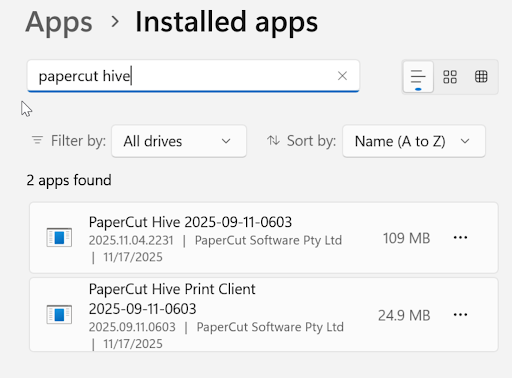
-
If it is missing, reinstall the Hive or Pocket client using the full installer.
-
Test printing to see if the problem has been resolved.
Check for missing files
We don’t know why these files wouldn’t exist, but if things aren’t working, we’re definitely going to check to make sure everything is where it’s supposed to be.
-
Navigate to the local installation directory:
%localappdata%\Programs\PaperCut Hive\ -
Verify that
pc-print-client-service.exeexists in this folder. -
Check the versioned subfolder (e.g.,
%localappdata%\Programs\PaperCut Hive\[version_or_date]\) to ensure the worker executablepc-print-client.exeis present. -
If either file is missing, check the installation logs located at
%localappdata%\Programs\PaperCut Hive\data\logs\and look for a file namedsetup Log [Date] #0XX.logto identify installation failures. -
Share the setup log with your PaperCut support contact to continue troubleshooting.
If pc-print-client.exe is running in Task Manager but you still get error 0x00002ef3…
Verify the Tray Icon Status
Once running, check the PaperCut “P” tray icon in the taskbar. The status should say “PaperCut: Connected”. However if you see warning icon on the status, check for these three common states:
- “PaperCut: Not logged in”: The user must interact with the client to sign in. If you deploy the client via an MDM or RMM and use an script to automatically link users review the deployment script configuration.
- “PaperCut: Limited connection”: The client cannot reach PaperCut cloud services. Check your local network firewalls and proxy configurations.
- “PaperCut: Client not configured”: The Edge Node component of the Hive client isn’t running (often due to an MDM deployment issue). See Bulk deploying edge node software to managed users’ devices.
Collect Logs for Support
If the worker process is active in Task Manager but the local IPP printing port still fails, collect the logs located in %localappdata%\Programs\PaperCut Hive\data\logs\ for deeper analysis:
- pc-print-client-service.log: Specific logs for the print handling service.
- Setup Log [Date] #0XX: The latest setup log provides details on what components the installer successfully ran or skipped. (Note: These logs may be absent if the Print Client app was never successfully installed).
About the PaperCut Printer - a deep dive
The PaperCut Printer is created during the Hive or Pocket Client installation process. More specifically, the PaperCut Printer is created during the initial Edge Node installation routine and before the Print Client processes are created and executed. This installation sequence is important, thereby knowing this sequence of events during installation can help you determine the best troubleshooting route to take, if for example, the installation fails or if the PaperCut Printer shows “unavailable” as a status.
The PaperCut Printer has 3 distinct differences when compared to a “traditional” Windows Print Queue:
- Driver: Windows Platforms use the PaperCut Global Postscript Driver
- Port: Windows devices will use an “Internet Port” (IPP) “http://locahost:9265/printers/papercutpocket”
- User Token: Used to validate the print job submitted is a valid “linked” user
So then we can ask…
- What is the host we are trying to reach at http://localhost:9265/printer/papercutpocket?
- How does this IPP Port affect the status of the PaperCut Printer?
When a user has logged on after successful installation, we execute 2 processes for the PaperCut Hive/Pocket Print Client:
1. pc-print-client-service.exe
- Location: “c:\%localappdata%\programs\PaperCut Hive\"
- Description: A process that starts invokes “pc-print-client.exe” and provides restart services if, for some reason, it has stopped.
- Execution: Runs at time after successful installation and at time of user login.
2. pc-print-client.exe
- Location: “c:\%localappdata%\programs\PaperCut Hive\%datestamp%\"
- Description: Is the endpoint for the PaperCut Print port “http://locahost:9265/printers/papercutpocket” and provides comms between the PaperCut Printer and the Edge Mesh as well as the Cloud
- Execution: Is invoked when pc-print-client-service.exe has started.
If, for any reason, the communications with this Web Service is lost, either by port blockage, policy or the pc-print-client.exe stops and cannot be restarted by pc-print-client-service.exe, the PaperCut Printer will become unavailable.
For example, on a Windows device, a common issue is seeing the PaperCut Printer status as “unavailable,” or the user is unable to open the queue or even “Properties” or the Printer.
For more information about PaperCut Hive and Pocket, check out the PaperCut Pocket and Hive Help Center.
Category: PaperCut Pocket and Hive Articles
Subcategory: Pocket & Hive Troubleshooting Articles
Keywords: Pocket, Hive, Logs
Comments
Comments are not available in this preview environment. On papercut.com, this space shows the live Disqus comment thread for this page.