



This page describes how to install the Print Deploy VDI client in your Azure Virtual Desktop environment.
Prerequisites
Ensure that you have the following already installed:
-
PaperCut MF version 23.0.0 or later
-
Review the Print Deploy VDI Deployment Considerations page for an overview of Print Deploy and supported VDI environments
-
Either AVD Personal or Pooled host access
The Print Deploy VDI Client comprises 2 components:
- System Context Service (SCS) - The main component of the Print Deploy VDI Client. It runs in the background in the provisioning servers. The SCS does most of the work, including session monitoring, communicating with the Print Deploy Server, and print queue management.
- User Context Tool (UCT) - The user-facing frontend of the Print Deploy VDI Client. It is mainly deployed to help users manage optional printers. It communicates with the Print Deploy Server via the SCS.
Azure Virtual Desktop Hosts will have Print Deploy VDI Client installed. Session Host Server(s) serve up unique Sessions to end-user terminals via Remote Desktop Protocol (RDP) Clients.
This procedure covers installing both components.
- On the PaperCut MF admin interface, click Enable Printing. The Print Deploy page is displayed.
- Click the Clients button.
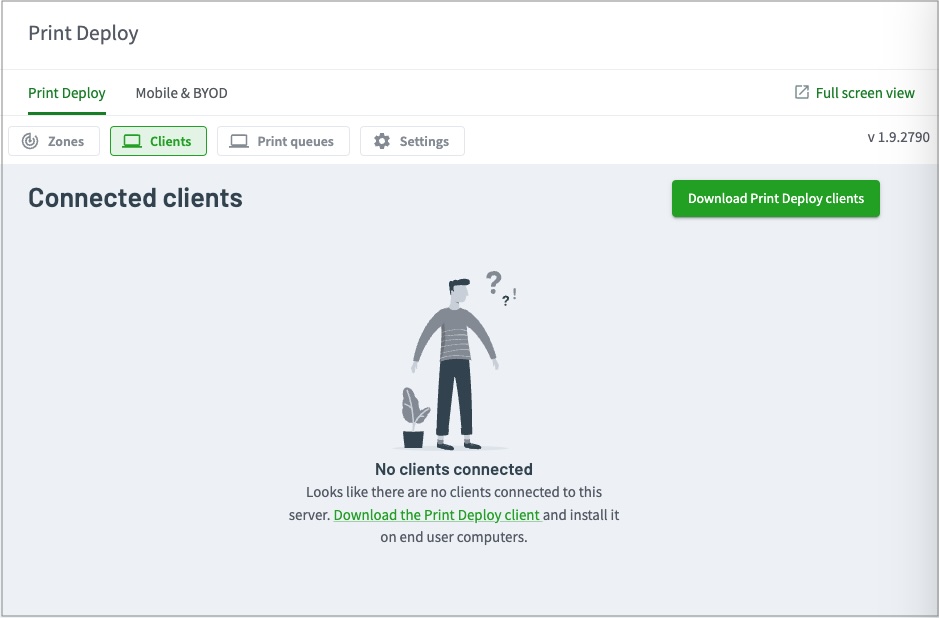
- Click Download Print Deploy clients. The Download Print Deploy clients page is displayed.
- Click the VDI tile and download the VDI client. The download file is named something like pc-print-deploy-client-vdi[10.50.60.2].zip, where the PaperCut MF app server IP address is included in the zip file name. [10.50.60.2] is just an example.
- Extract the zip file and rename the “pc-print-deploy-client-vd-installer.msi file to include the same IP address in the zip download file, for example:
pc-print-deploy-client-vdi-installer[10.50.60.2].msi - Leave the “pc-print-deploy-client-uct-installer.msi” filename as is. No IP address is required to install it.
- Run the
pc-print-deploy-client-vdi-installer[ip address].msiinstaller on the AVD host instance. - Install
pc-print-deploy-client-uct-installer.msiand deploy as needed. - In the Windows Services Management Console, confirm that these two related Windows services are up and running.
- PaperCut Direct Print Monitor
- PaperCut Print Deploy Client for VDI

- In the Install directory, open the config file and check that the Print Deploy VDI Client is pointing to the PaperCut MF Application Server.

- Go to C:\Program Files\PaperCut MF\providers\direct-print-monitor\win and check the Direct Print Monitor configuration is pointing to the same PaperCut MF Application Server as the VDI Client.

Comments
Comments are not available in this preview environment. On papercut.com, this space shows the live Disqus comment thread for this page.