




There are three options for Office/Microsoft 365:
- Configure an SMTP service over OAuth2 - We recommend this option.
- Configure an SMTP Relay. While it still works, it is not very straightforward.
- Use the Outlook.com pre-configure/basic auth option - We don’t recommend this option because Microsoft is deprecating it.
Set up an app or a client for PaperCut MF on Azure Active Directory
Registering an application notifies Microsoft services that an external application requires access to resources on Azure or other Microsoft services. Azure Active Directory manages application access. For more information, see the Microsoft documentation. The following instructions explain how to configure a client to interact with Microsoft resources on behalf of PaperCut MF.
-
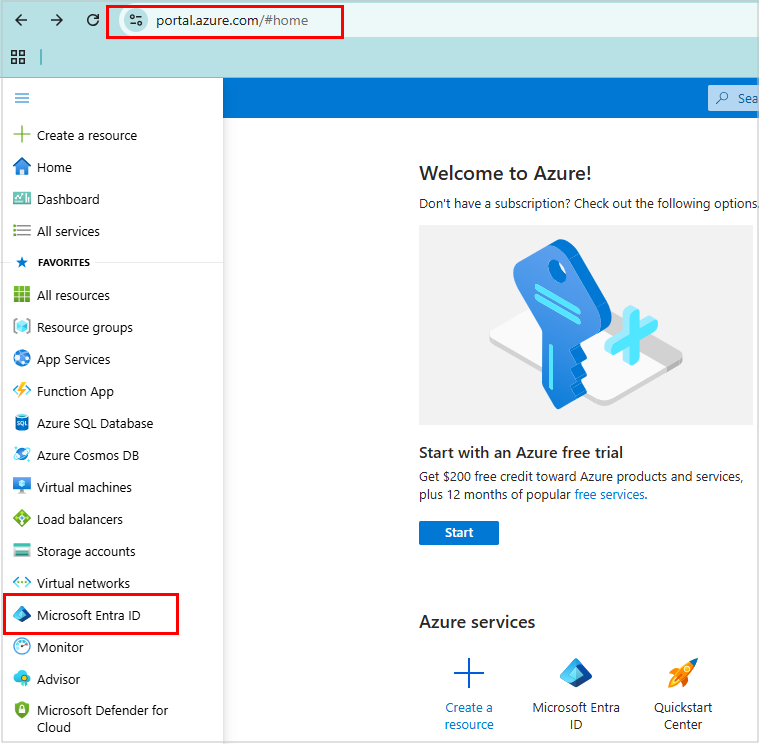
Navigate to https://portal.azure.com
-
In the menu, select Microsoft Entra ID.
-
In the navigation panel, under Manage, select App registrations. The App registrations page displays the registered applications for the entire organization.
-
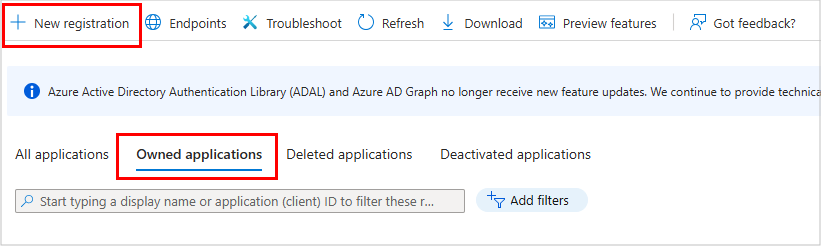
Select the Owned applications tab to view only the applications you registered. Reviewing the Owned applications tab speeds up the search. If the list is empty, no applications have been registered yet.
-
At the top of the page, click + New registration.
-
In the platform dropdown, select Web.
-
In the Redirect URI field, type the default callback URLs to configure the SMTP server based on your PaperCut MF server setup:
http://localhost:9191/azure-oauth2-callback
https://localhost:9192/azure-oauth2-callback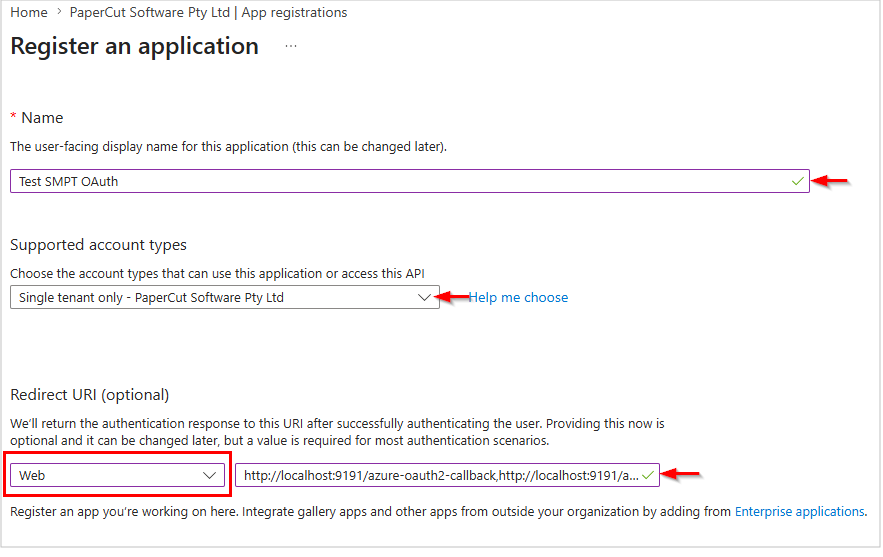
-
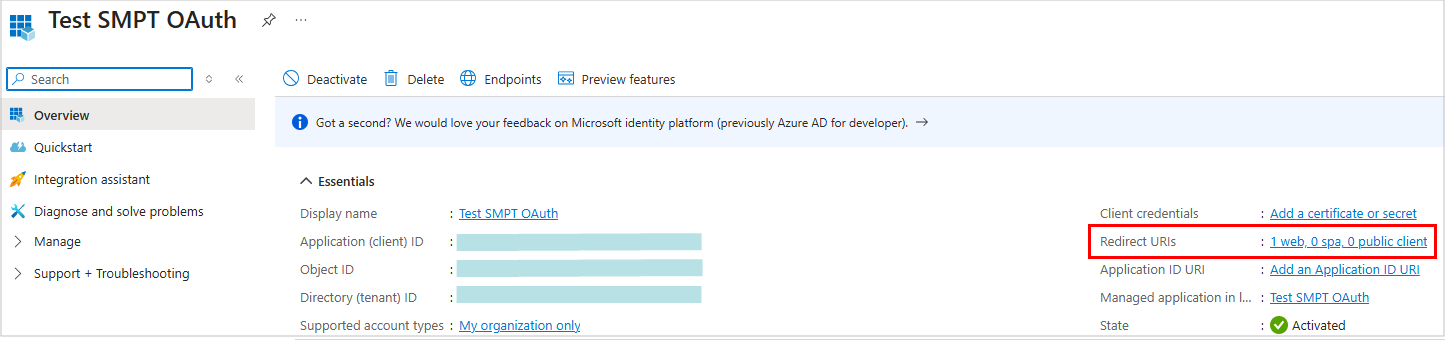
At the bottom of the page, click Register. The application overview page is displayed, and the Redirect URIs section displays zero public clients.
Note: You can change the client name later.
-
Copy and save the Directory (tenant) ID and Application (client) ID.
-
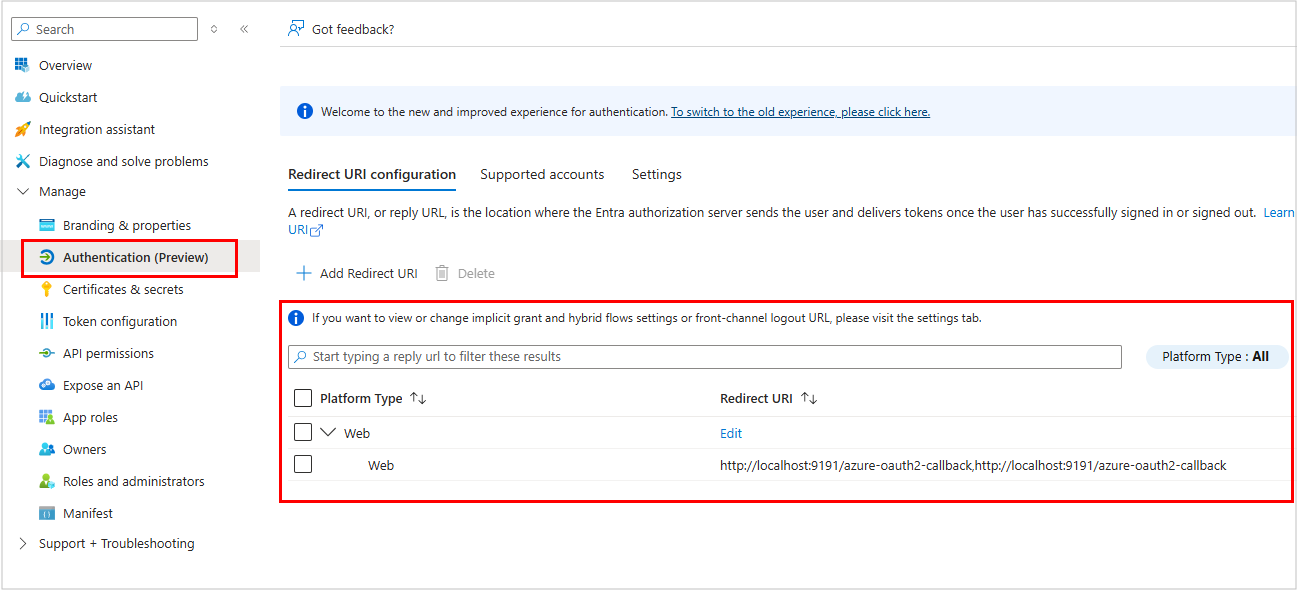
In the navigation panel, under Manage, select Authentication (Preview).
-
To use PaperCut NG/MF, ensure you only add the Web platform. Do not add other platform types. The redirect URLs are listed under the Web platform.
-
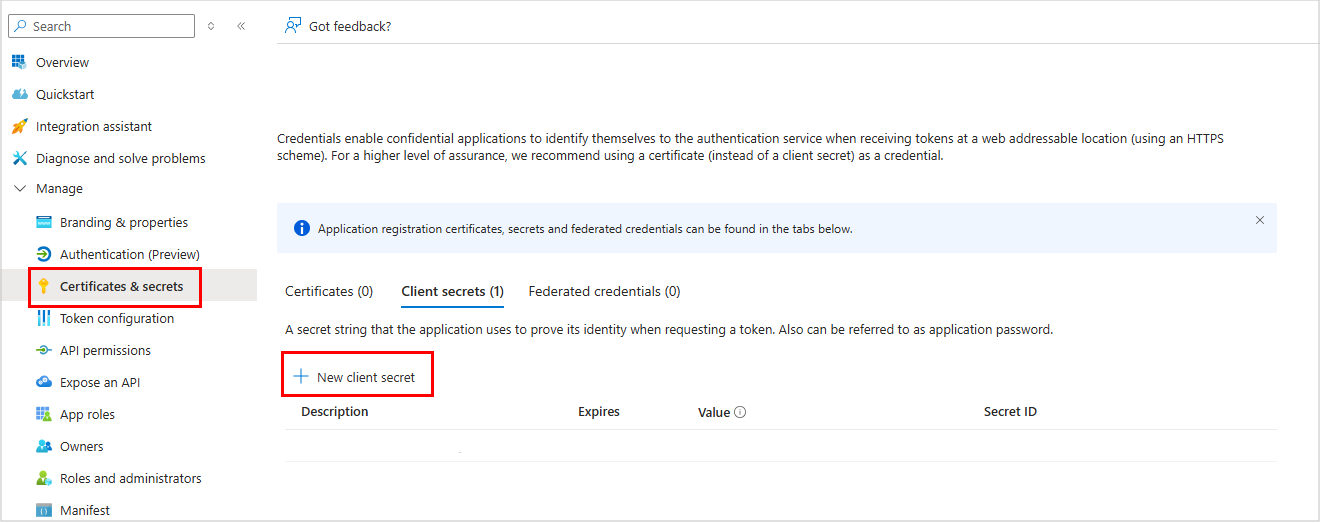
In the navigation panel, select Certificates & secrets. The Certificates & secrets page is displayed.
-
Click + New client secret.
-
In the Description field, type a description for the client secret.
-
Select an expiration option. The maximum validity period is 2 years. Alternatively, specify a custom expiration date.
-
Click Add.
-
Copy the client secret Value.
-
Save.
Add API permissions to the newly set up client
After creating the application client to act as an intermediary between Microsoft APIs and PaperCut MF, you must configure the API permissions.
-
In the navigation panel, select API permissions. By default, the application client has one permission (User.Read) under the Microsoft Graph category.
-
Click Add a permission.
-
Select the APIs my organization uses tab.
-
In the search field, type
Office 365 Exchange Online, then select Office 365 Exchange Online. -
Select Delegated permissions.
-
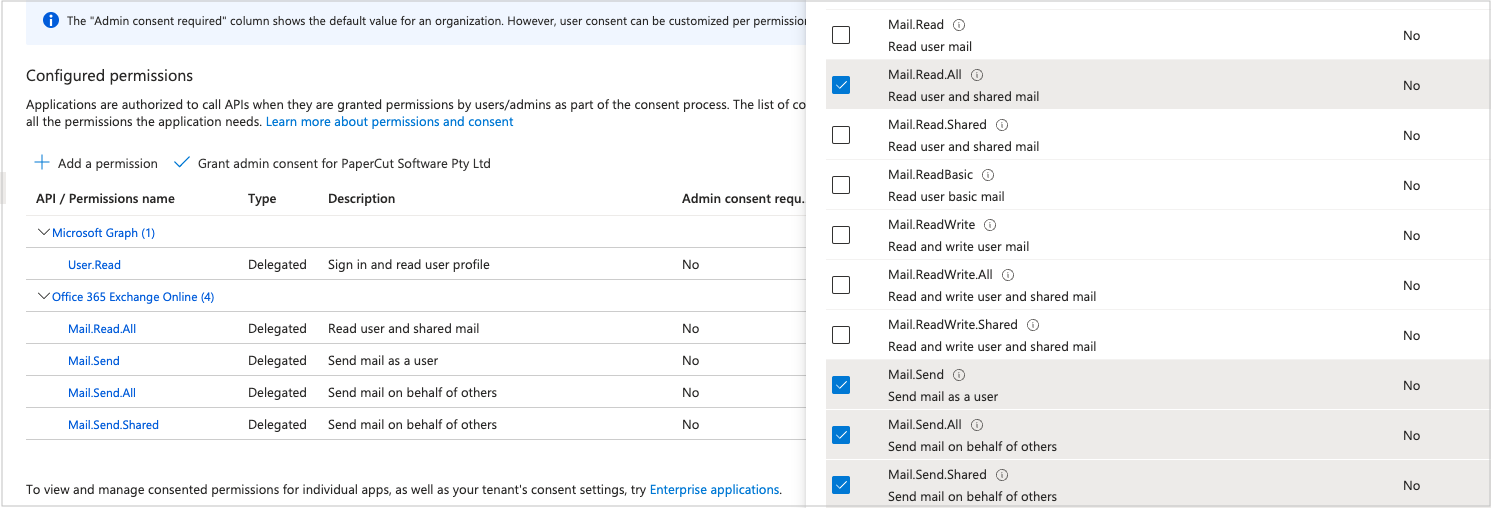
In the Mail section, select the Mail.Send checkbox.
-
(Optional) To use advanced options like Send As later, select the Mail.Read.All, Mail.Send.All, and Mail.Send.Shared checkboxes.
-
Configure the following Microsoft Graph delegated permissions:
- Delegated permissions > OpenId permissions >
offline_access, Maintains the connection without manual re-authorization. - Delegated permissions > SMTP >
SMTP.Send, Authorizes the mail flow. - Delegated permissions > IMAP >
IMAP.AccessAsUser.All, Fulfills the protocol requirements for the notification account.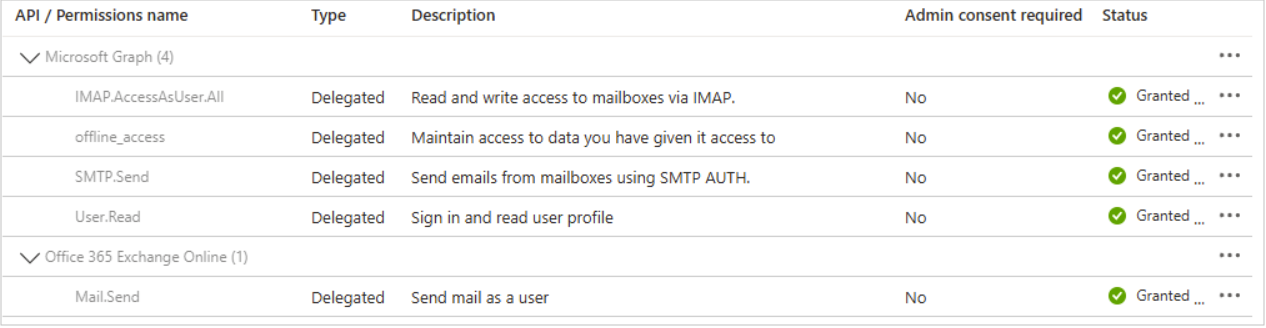
- Delegated permissions > OpenId permissions >
-
Be sure to grant the scopes admin consent so the status column of these permissions has green ticks.
Confirm the default SMTP sender email works
Just because the UPN of a user underneath your Azure organization looks like an email address, it doesn’t mean it is. It is more of a user@organization type of entry. To confirm that the email is indeed operational, you need to head to Microsoft to check.
- Go to Microsoft admin dashboard.
- In the navigation panel, click Users > Active Users.
- Search for the user you would like to use as the default SMTP sender, such as
notif@yourorg.com. It should exist here if you created it user under the Azure portal. - Select this user entity.
- Be sure that it has an active license to use Exchange Online.
This means the active user is using email services at the address that is the same as the UPN. Otherwise, the UPN is just a UPN. If you need to grant this user a license, it may take a few minutes for Exchange to set up the email service for the user.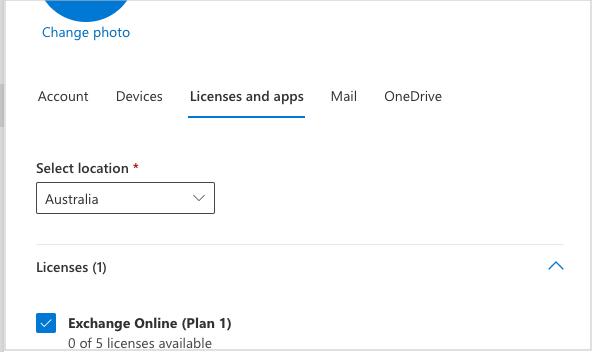
- In the same menu, click the Mail tab.
- For the Email apps, select the checkbox for the apps you want to be able to access Authenticated SMTP.
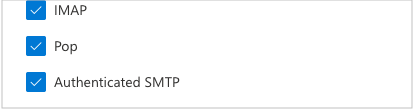
This concludes the permission setup from both Azure and the Microsoft admin console. When the email address is up and running, it can be used to send emails from PaperCut MF.
Set up the SMTP service on PaperCut MF
With the client and its permissions all set up, the last step is to use the client inside PaperCut MF to set up the SMTP service.
-
Go to Options > Notifications page.
-
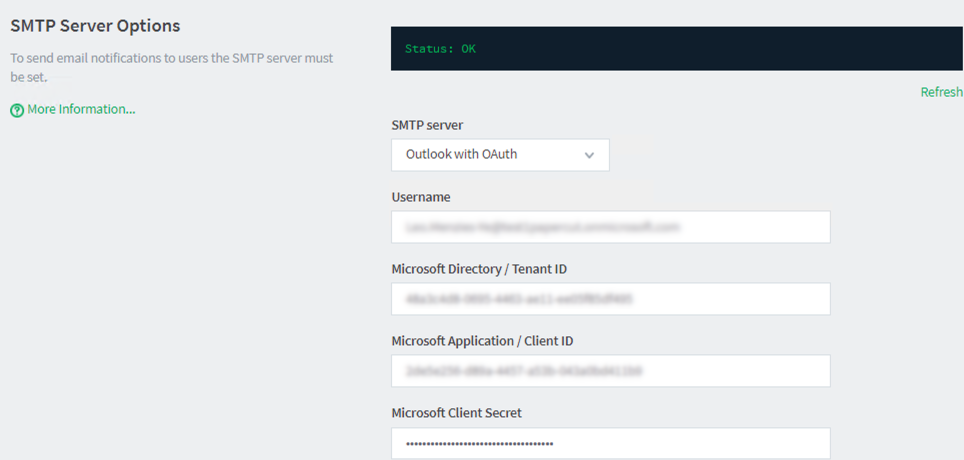
In the SMTP Server Options section, use the dropdown menu and select an Outlook with OAuth option that applies to you. Most users around the globe use the global option, which is Outlook with OAuth. If your subscription is on the US national cloud please choose the Outlook with OAuth (US Gov) option.
-
Fill in the SMTP server details such as details Username, Microsoft Directory/ Tenant ID, and Microsoft Application/ Client ID.
-
In the Microsoft Client Secret input box, enter the Client Secret Value (not the Secret ID).
-
Click Apply at the bottom of the page to save this information. The page reloads. You will see instructions in the status area and also an Authorize button below the client details.
-
Click Authorize. You will be asked to log in to a Microsoft account.
-
Log in. Be sure to log in to the account that you are using as the Username here! You are giving consent to PaperCut MF to send emails on behalf of that particular user by filling in the Username before.
-
If this email account also has the admin privilege for your Azure AD organization, you may opt to give consent on behalf of your organization when prompted. Otherwise, click Continue without trying to give consent on behalf of the organization. It shouldn’t affect the service on the account level.
-
Now the authentication must be for the same user.
-
Once the page is redirected back to the Options > Notifications page, the status area will say Status: OK.
-
Lastly, at the bottom of the Notifications tab find the Test Notifications area to test functionality.
Troubleshooting Error AADSTS50011
You might see error AADSTS50011 during the authorization step. This happens when the redirect URL in your browser does not match the one saved in Azure.
Azure requires redirect URIs to be secure. This means they must start with https or be a localhost address.

Why did this happen?
PaperCut builds the redirect URL based on what you type into your browser. If you access the admin interface via http://[server-name]:9191, PaperCut sends that insecure link to Azure. Azure then blocks the request because it isn’t https.
How to fix it (Option 1: The Localhost Method)
This is the fastest fix because it does not require an SSL certificate.
- Log in to the Azure portal and open your App registration.
- Click Authentication and find the Redirect URIs section.
- Click Add URI and enter
http://localhost:9191/azure-oauth2-callback. - Click Save at the top of the page.
- Log on to your PaperCut server desktop (via RDP or physical console).
- Open a browser on the server and go to
http://localhost:9191/admin. - Go to Options > Notifications and click Authorize.
How to fix it (Option 2: The HTTPS Method)
Use this if you want to authorize PaperCut from your own computer using the server name.
- Ensure your PaperCut server has a valid SSL certificate installed. See this page for details.
- In the Azure portal, add your server’s full HTTPS address as a Redirect URI.
- Example:
https://print-server.domain.com:9192/azure-oauth2-callback. - Access the PaperCut admin interface using that exact https address.
- Click Authorize to complete the setup.
Microsoft Client Secret field reverts to the old or expired value after updating
If you update the Microsoft Client Secret field under Options > Notifications > SMTP Server Options and the field reverts to the previous (often expired) secret after you click Apply, the OAuth configuration might be stuck or cached. This issue can prevent PaperCut NG/MF from sending email notifications or delivering scan-to-email jobs.
Before you start, ensure you are using a modern web browser, for example, Chrome or Edge. PaperCut NG/MF does not support Internet Explorer.
To fully reset the SMTP configuration:
- Go to Options > Notifications > SMTP Server Options.
- Delete the text in all of the following fields:
- Username
- Microsoft Directory / Tenant ID
- Microsoft Application / Client ID
- Microsoft Client Secret.
- In the SMTP server dropdown, select Gmail.
- Ensure both the Username and Password fields are blank, then scroll down and click Apply. Confirm that all fields are cleared.
- Restart the PaperCut Application Server service. For more information, refer to Stopping and starting PaperCut services.
- Log in to the PaperCut admin console and go to Options > Notifications > SMTP Server Options.
- In the dropdown, select Outlook with OAuth.
- Confirm all fields are blank, and reconfigure SMTP using your Tenant ID, Application / Client ID, and Client Secret Value (not the Secret ID).
- Click Apply, then click Authorize. Sign in using the same account you entered in the Username field. If the authorization is successful, the status area displays Status: OK and a green Authorized confirmation.
OAuth SMTP Workaround: Sending Emails from a Different Address, Configuration Steps and Limitations
Sometimes it is necessary, or at least preferable, to send an email from the notification system as another user rather than yourself. For example, if the public outgoing SMTP account is, say notifications@yourorg.com, you might want it to appear as if it were from another account, like johndoe@yourorg.com.
One such scenario is when you want to send a scan job from a scanner to another person within the organization instead of to yourself, and you want the email address to appear to be from you, not the public notifications@yourorg.com address.
You achieve this by following the available option; the steps are described below.
Configuring the From address for SMTP over OAuth
This section explains how PaperCut MF handles the From address when you use SMTP over OAuth with Microsoft Outlook or Google Gmail, and how to configure a workaround for users who need to send emails from another account.
How the OAuth From address behaves
Previously, when using traditional SMTP authentication (such as an email account with an app password), the Scan to Email feature could send emails that appeared to come directly from the scanned user’s email address.
When using Outlook with OAuth for SMTP, PaperCut MF instead uses the authenticated OAuth mailbox (for example, notifications@yourorg.com) as the email From address. If you attempt to change the From field in the Options > Notifications page to a different email address, such as the scanned user’s address, the value is automatically reset to the authenticated OAuth account. This behavior is by design for OAuth-based SMTP authentication.
The new email behavior [Outlook with OAuth for SMTP] functions as follows:
- The sender remains the public SMTP sender account. The recipient sees the email details in their inbox as coming from the public account, for example,
notifications@yourorg.com. - Next to the sender address, you see the user’s name, for example, John Doe, which makes the sender part look like John Doe -
notifications@yourorg.com. - When you click Reply, the reply-to address is the actual user who performed the scan, not the public sender address, such as
johndoe@yourorg.com.
This approach takes a few factors into consideration:
- It lets people quickly reply to the person who sent the email, even though it was a system-delivered email.
- With SMTP over OAuth, sending as other users requires stringent permissions to be set up in the background, which can be very time-consuming for the admin and offers very little extra benefit. Microsoft explicitly expects you to set up such permissions one at a time if you want to send an email from
j.doe@yourorg.comtonotifications@yourorg.com. If every user wants to have this, the admin will have to set it up for all users within the organization. - Consistency with previous user experiences. As mentioned above, right now, sending scan jobs over Gmail SMTP accounts uses a public account with the actual user’s name. In Outlook, the current experience doesn’t apply because forwarding is used.
- It makes it easy to recognize who initiated the scan job.
Workaround: Configure a Custom “From” Address for OAuth Email Notifications
By default, when using Outlook with OAuth for SMTP, PaperCut uses the authenticated OAuth account as the email From address and automatically resets any changes made to the From field in the UI.
This workaround allows you to override the default sender address by configuring the notify.mail.from advanced configuration key. It can be used to send an email from a different address, such as a shared mailbox, provided the OAuth account has the required Send As permission in Microsoft 365. Keep in mind that any subsequent changes to Options → Notifications may reset this configuration, requiring the key to be set again.
Configure the notify.mail.from Advanced Configuration Key
-
Log in to the PaperCut MF/NG admin web interface.
-
Navigate to Options > Config Editor.
-
Locate the
notify.mail.fromadvanced configuration key. -
Set the value of this key
notify.mail.fromto the required sender email address, then click Update.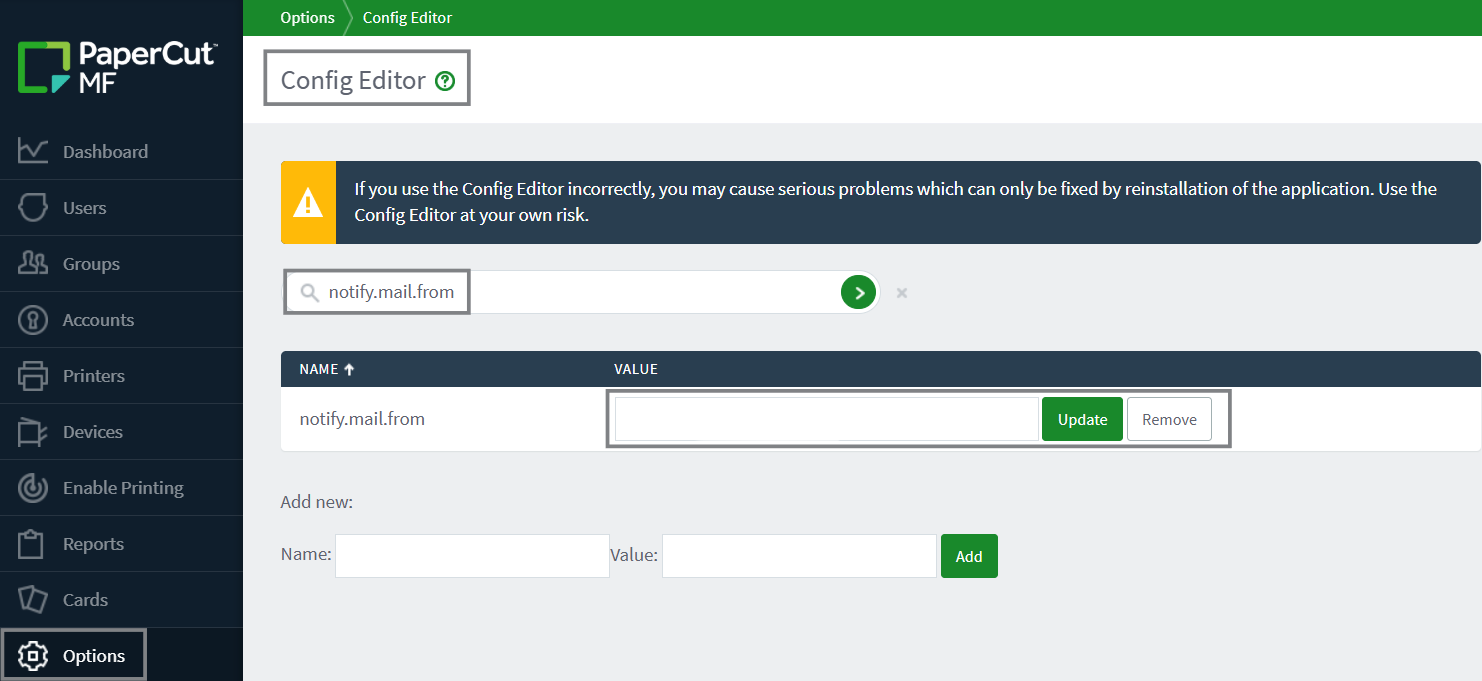
-
When the OAuth account sending parameters are updated and saved, PaperCut MF will apply the value configured in the
notify.mail.fromthe configuration key as the sender address.
Comments
Comments are not available in this preview environment. On papercut.com, this space shows the live Disqus comment thread for this page.