




You can customize the functionality of shared accounts to suit a wide range of uses. There are several advanced options available throughout PaperCut NG/MF to control this customization:
-
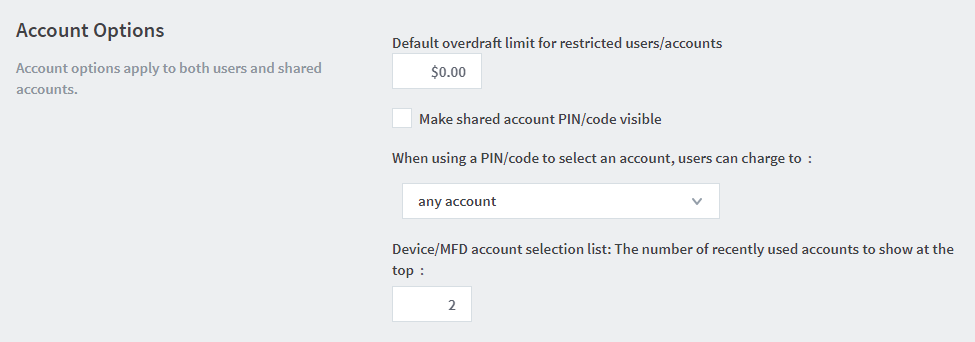
Make shared account PIN/code visible
When this option is active, the purpose of the shared account PIN is changed. Usually the PIN is equivalent to a password, and can be required before a user is able to charge to a shared account. When this setting is active, the PIN is treated as a ‘code’ instead; that is, a unique identifier for a given shared account. For example, an organization dealing with projects might allocate a shared account the project code123.When this option is active it has several effects throughout PaperCut NG/MF, including:
- The shared account list (on the Accounts tab) includes the shared account code.
- Reports dealing with shared accounts display the code.
- On the account selection popup dialogue of the User Client, the code is visible when entering (i.e. it is no longer hidden by stars). This allows charging to a shared account by code, rather than scrolling through the list to find the correct account by name.
To activate this option:
-
Click the Options tab. The General page is displayed.
-
In the Account Options area, select the Make shared account PIN/code visible check box.
-
Click Apply.
Shared Account Low Balance Notifications
Shared Account low balance notifications keep your printing on track. You can set up these email alerts starting in PaperCut Version 25.0.10 onwards.
Set up your alerts
Follow these steps to notify the right people before an account hits zero:
- Click the Accounts tab and select your chosen account.
- Select the Account Details tab.
- Locate the Low balance notification section.
- Enter your preferred limit in the Balance threshold field.
- Add the relevant addresses to the Email recipients field.
- Click Apply.
You can set a custom balance threshold and specify multiple email recipients to be notified when funds run low.
This ensures that account owners or department heads can replenish funds proactively, preventing print interruptions for users billing to those accounts.
Note: Only 1 notification is sent, repeat notifications are not sent by design

Comments
Comments are not available in this preview environment. On papercut.com, this space shows the live Disqus comment thread for this page.