




This page describes the subscription models for PaperCut Hive and PaperCut Pocket. It explains the differences between Hive’s entitlement-based recurring model and Pocket’s monthly user-based subscription. It also explains how to set up a trial, how to subscribe, and how to renew a subscription to both PaperCut Hive and Pocket.
Pricing and purchasing/subscribing details for PaperCut Hive and Pocket
If you’re ready to dive straight in, here’s where to go:
- PaperCut Hive: Head over to How do I buy PaperCut? and scroll down to Learn more about buying PaperCut Hive and PaperCut MF.
- PaperCut Pocket: For pricing and tiers information, head over to the PaperCut Pocket web page and scroll down to Pricing that scales with you.
Best practices for subscriptions and renewals
Always keep in mind this general advice:
- Review expiry notifications as soon as you receive them.
PaperCut sends renewal reminders before your trial or subscription expires. To avoid interruptions to printing and Secure Print Release, review these notifications promptly and begin the renewal process early. - Keep your reseller or MSP contact details up to date.
If your PaperCut Hive or Pocket subscription is managed through an Accredited Reseller or MSP, make sure you know who your renewal contact is. You can view their details at any time in the admin console under Billing and Subscriptions. - Renew before the expiry date to avoid service interruptions.
Once a trial or subscription expires, printing and Secure Print Release services are paused until a valid subscription is in place. Renewing before the expiry date ensures uninterrupted service for both administrators and end users.
Synchronize with hardware leases
This is the single best practice for general corporate environments. It’s important to be aware of the logistical lifecycle of software procurement and to keep the finance department happy! Some strategic planning goes a long way to making the most of your subscription(s).
- Tie in your PaperCut Hive subscription to your copier lease period. This ensures you don’t potentially waste the entitlements you’ve paid for.
- If you have a Managed Print Services (MPS) lease agreement for your copiers, be sure to bundle the Hive subscription directly for one clean invoice for the business. Hardware, maintenance, click charges, and print management software all live and die on the same date.
That way, when the old fleet goes back to the dealer, those Hive entitlements gracefully expire, and the new fleet drops in with fresh entitlements — allowing you to easily re-map the embedded apps to the new hardware profiles without leftover overhead.
Best practices in the education sector (K-12 and higher ed)
- Time subscription renewals so that renewal invoices are at the start of the new fiscal year.
- Add or change your print management during a downtime in student activity to avoid unnecessary complications mid-term/semester.
- Arrange for the renewal of any mid-cycle copier or print management changes to coincide with existing renewals.
Best practices for general business and enterprise
- Aim for flexibility over longevity. Unless you get a massive multi-year discount from your dealer, look for 12-to-36-month subscription terms. Businesses scale up or down rapidly due to mergers, acquisitions, or shifts to hybrid work. You want the agility to reduce your device or embedded count at the next renewal if office footprints shrink.
- When moving from a PaperCut Hive trial to a paid subscription, make sure you’ve worked with your reseller or MSP for the subscription to start before the trial expires. Whatever you’ve configured in your trial will continue to work seamlessly.
PaperCut Hive trial and subscription overview
PaperCut Hive is a cloud-native print management solution sold as a flexible subscription (minimum 12-month term) by Accredited Resellers.
Because Hive is a cloud service, it doesn’t use traditional license keys. Instead, your organization is granted entitlements that live in your cloud environment.
What are entitlements?
Think of entitlements as the “active ingredients” of your Hive subscription. They define what your environment is allowed to (entitled to) do. Common entitlements include:
- Printers: In the entitlement, this is called Device with basic functionality. Basic subscription that lets you use all of Hive’s basic functionality, for example, deploy print queues, secure mobile device printing, and print tracking.
- Embeddeds: The additional software (printer app) that runs on your MFD (copier) to add functionality on the touchscreen. Embeddeds are available in Lite Release or Full Embedded versions.
- The Lite Release app is a simple, lightweight option focused purely on Secure Print Release at the device.
- The Full Embedded app is the more feature-rich option, adding copy/scan/fax tracking, card authentication, and Integrated Scanning workflows.
- Cloud Services: Power-ups like Cloud OCR, which turn your scans into searchable digital files.
Can I trial PaperCut Hive before subscribing?
Absolutely! You can either find an Accredited Reseller for your country on the How do I buy PaperCut? page, under find a PaperCut Authorized Partner near you, or get in touch with Sales.
How to set up a PaperCut Hive trial or subscription
Because PaperCut Hive is sold through Accredited Resellers, the setup is a collaborative process:
- Partner activation: Your Accredited Reseller purchases the subscription and provisions your environment. To find out who your Accredited Reseller is, go to
- Customer invitation: You receive an invitation to register your organization. You register the organization and accept the PaperCut Terms of Service.
- Automatic delivery of entitlements: PaperCut automatically applies your entitlements to your organization’s instance.
How to add more features by using add-ons
Your PaperCut Hive environment can grow with your business by enabling add-ons. Add-ons are available for data and analytics, device management, printer apps, productivity, scanning, tech support, and user management.
- Free add-ons: You can enable these directly within the PaperCut Hive admin console at any time.
- Paid add-ons: If you need more devices or advanced features, contact your Accredited Reseller. After they process your order, the new entitlements will automatically appear in your Hive admin console, ready for you to connect to your organization.
PaperCut Pocket trial and subscription overview
A PaperCut Pocket subscription can be purchased from a Managed Service Provider (MSP), or directly from PaperCut’s website.
The core of the subscription model is “unique active user” billing, where organizations are charged based on the number of individual users who actually interact with the software during a billing period.
What is an “active user” in PaperCut Pocket?
A user is considered active and billable if they perform any of the following “qualifying” actions within a calendar month:
- Authenticated sessions: A user who runs an authenticated print client (Windows, Mac, or Chrome OS).
- Mobile app use: A user who opens the PaperCut Hive or Pocket mobile app on iOS or Android.
- User portal or admin console interaction: A user who logs into the User Portal or admin console.
If a user is active during a month but is set to ‘suspended’ at some point in that month, they are still classified as a billable user for that month. If they remain suspended for the entire following month or months, they are not billable.
How to set up a PaperCut Pocket trial and subscription
This is a summary of how to set up your free trial and configure your monthly subscription payment details ready for when your trial ends, to ensure there is no disruption to your organization’s printing.
- On the PaperCut Pocket web page, click Start Free Trial.
- Start your organization’s free trial.
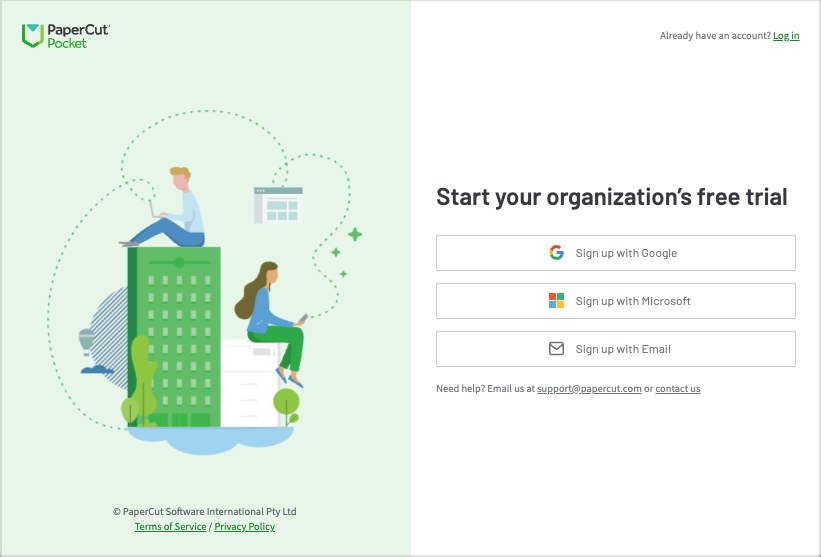
- Follow the online instructions to set up PaperCut Pocket in your organization. This includes adding your payment details, so printing continues automatically after the trial expires.
How to renew a subscription
At 30 days before your PaperCut Hive or Pocket subscription is due to expire:
- you’ll start seeing an orange banner in the Admin web console reminding you to renew
- you’ll receive a renewal reminder email.
At 15 days before the subscription is due to expire, you’ll receive another email.
If you purchased Hive from an Accredited Reseller, or Pocket from an MSP, get in touch with them to organize your renewal. You can find their contact details in the admin console’s top-right menu, under Billing and Subscriptions.
If you purchased a PaperCut Pocket subscription directly, there’s nothing you need to do — your subscription will automatically renew every month.
What happens when a trial expires?
At 15 days before your PaperCut Hive or Pocket trial is due to expire:
- you’ll start seeing an orange banner in the Admin web console reminding you to set up a subscription
- you’ll receive an email reminder to subscribe.
If your trial expires, your settings, printers, and users’ details are all saved and ready to keep using after setting up a subscription.
On the expiry date:
- you’ll see a red banner in the admin web console telling you the trial has expired
- you’ll receive an email explaining that printing services have paused until you set up a subscription
- your end-users will see a message on the copiers’ touchscreen explaining they can’t release a job because a subscription is required.
If you obtained the Hive trial from an Accredited Reseller, or Pocket trial from an MSP, get in touch with them to organize your subscription. You can find their contact details in the admin console’s top-right menu, under Billing and Subscriptions.
If you set up the PaperCut Pocket trial directly:
- In the admin console, in the top-right menu, select Billing and Subscriptions.
- Select Manage Subscription and follow the prompts.
What happens when a subscription expires?
On the PaperCut Hive or Pocket expiry date:
- you’ll see a red banner in the admin web console telling you the subscription has expired
- you’ll receive an email explaining that printing services have paused until the subscription is renewed
- your end-users will see a message on the copiers’ touchscreen explaining they can’t release a job because the subscription has expired.If your subscription expires, your settings, printers, and users’ details are all saved and ready to keep using after renewing.
If you purchased Hive from an Accredited Reseller, or Pocket from an MSP, get in touch with your Accredited Reseller or MSP to organize your renewal. You can find contact details in the admin console’s top-right menu, under Billing and Subscriptions.
If you purchased a PaperCut Pocket subscription directly:
- In the admin console, in the top-right menu, select Billing and Subscriptions.
- Select Manage Subscription and follow the prompts.
Comments
Comments are not available in this preview environment. On papercut.com, this space shows the live Disqus comment thread for this page.