




Your Users list is populated, your printers are plugged in, paper drawers filled, and even the magenta toner is full. Looks like you’re ready to get your users printing!
The User Portal lets users finish setup (amongst other print-related things). Using the User Portal is a good option for organizations that want their users to do most of their printer setup work themselves, without admin support.
The User Portal isn’t suitable for organizations that have a fully-centralized device management system with bulk deployment. Instead, users can authenticate on print, or log in via the Windows system tray / macOS menu bar. For more information, see Authenticating users and print jobs with PaperCut Hive and Pocket.
What is the User Portal?
The User Portal is PaperCut Hive and Pocket’s online self-serve space for end users, where they set up and track their printing. Users can sign in to the User Portal using any of your organization’s enabled authentication methods (Single Sign-on, Sign in with Microsoft, Sign in with Google, and/or Email & Password).
How users access the User Portal
To give users access to the User Portal, you can either:
- send them an invitation email (ensure you select the User Portal option)
- share your invite link URL via, for example, a messaging platform like Microsoft Teams or Slack.
Users can also discover the login page via the PaperCut home page, but giving them direct access to your organization’s login screen is a faster option.
Make sure you have at least one authentication method enabled before giving your users access to the User Portal!
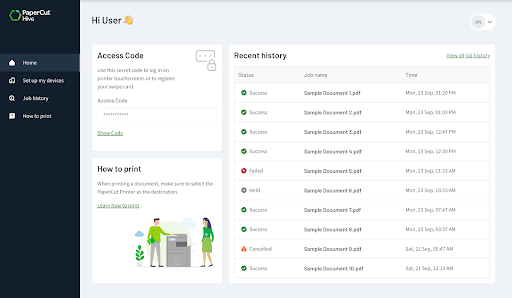
What users can do in the User Portal
In the User Portal, users can:
- download the PaperCut Hive or Pocket computer app (user client) and/or mobile/tablet apps
- automatically finish setting up the computer app (also known as “account linking via login”)
- select their own language
- learn how to print using PaperCut Hive or Pocket
- find their access code
- view their transactions (if enabled)
- view their job history.
What happens after users log in for the first time
After a user logs in to PaperCut Hive or Pocket for the first time, the following process occurs:
- The User Portal checks the user’s computer and detects if the computer app is installed or not.
- If the User Client is not installed, the User Portal asks the user to complete the download and setup steps. During setup, the computer app automatically links to the user’s PaperCut Hive or Pocket account without the user having to do any extra steps.
- After their User Client is installed, the user can start printing. The User Portal gives them access to how-to-print guides for different user device types.
For bulk deployment, if your organization uses mobile device management (MDM) software to deploy the User Client, linking the user’s identity to the User Client is simple: they just need to do one of the following:
- Go to the Windows system tray / macOS menu bar, select the PaperCut icon, and select Log in to print.
- If they received the Classic invitation email, they’ll need to click Get Started in their email to link their authentication token with the pre-installed software.
- Print a document to the PaperCut Find-Me printer: they’ll be prompted to log in to print. After they’ve logged in, they’ll be asked to reprint their document.
Learn more about authentication.
What is a classic invitation?
This is PaperCut Hive and Pocket’s classic email invitation experience to get users printing. Users receive the classic invitation email and select the Get Started button to go to a static, 3-step webpage where they:
- download the user client
- optionally install the mobile or tablet app
- learn how to print with PaperCut Hive or Pocket.
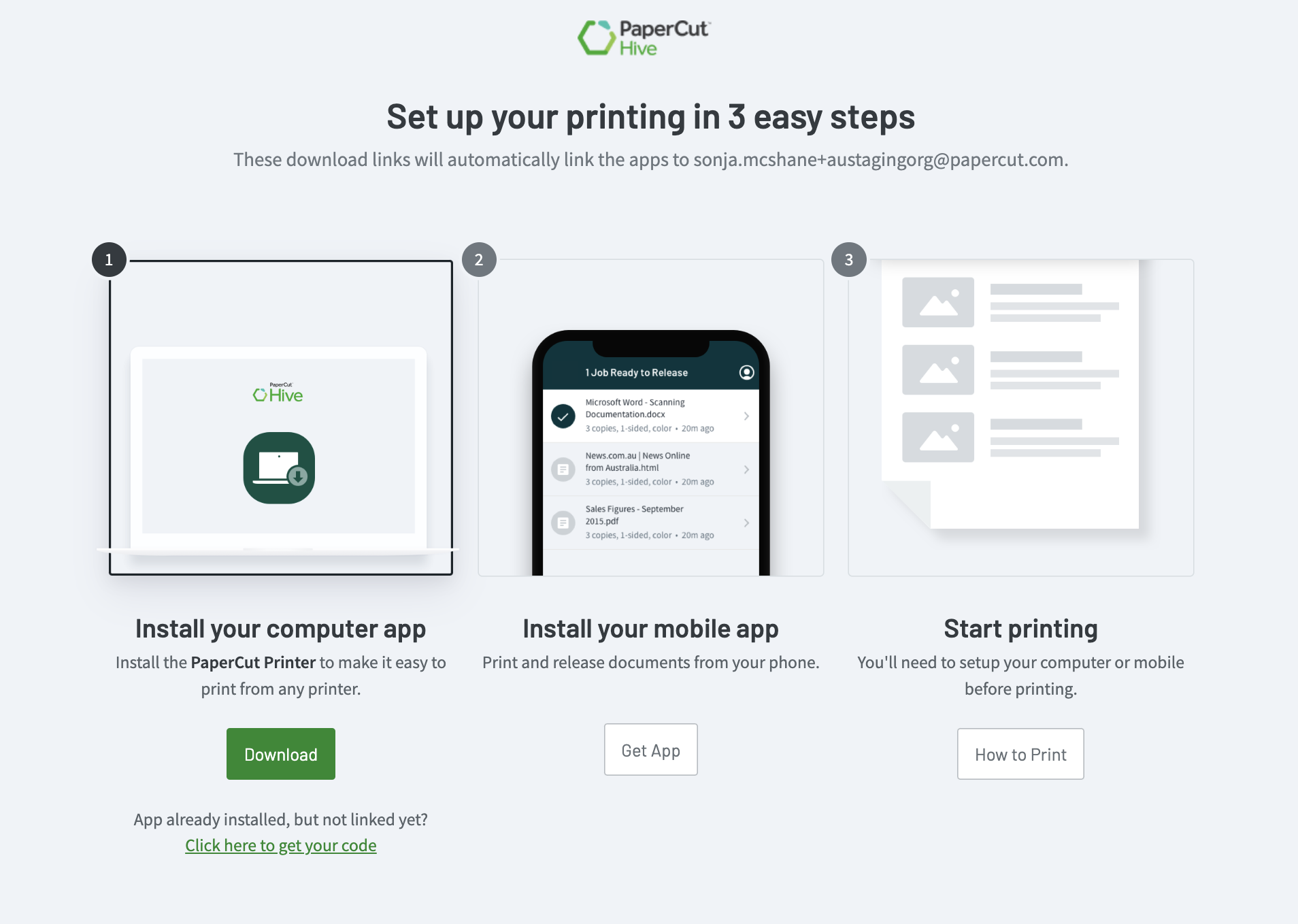
If the user needs to re-access the setup page in the future, they will need to find their invitation email again or request another invitation email from an administrator.
With classic invitations, there’s no need for users to log in anywhere (they don’t access the User Portal) or set up an account. However, these users don’t get the self-service benefits of using the User Portal. This means the user can’t access their job history, access code, or any of the User Portal’s other features.
If you want to, you can always give them access to the organization’s User Portal login page later by re-inviting them (using User Portal invitation type) or sending them a shared link.
Bulk deployment: For a classic invitation, if your organization uses mobile device management (MDM) software to deploy the User Client, users need to click the Get started button in their invitation email and follow the online steps to finish linking their client software. For computer client apps, the steps are web-based, and for mobile/tablet apps, the steps are in the app itself. Alternatively, users can log in via the PaperCut icon on the Windows system tray / macOS menu bar.
Comparison between the User Portal and classic invitation onboarding experience
What’s right for your organization can depend on many factors, such as how you manage your users, how many users you have, and whether they are permanent or guest users.
Here’s a quick comparison between the two initial user onboarding experiences:
User Portal | Classic invitation | |
Email invitations | Yes | Yes |
Shared link invitations | Yes | No |
No login setup | No | Yes |
Single Sign-on login | Available | Not required |
Sign in with Microsoft login | Available | Not required |
Sign in with Google login | Available | Not required |
Email & Password login | Available | Not required |
Users can see job history | Available | No |
User Access Code location | In User Portal | In email invitation |
Client app download links | In User Portal (customizable) | On web page |
Bulk-deployed client link method | Log in on first print | Follow instructions, starting with the invitation email |
Example organization setups and onboarding preferences
Let’s take a quick look at some ways that organizations might set themselves up with PaperCut Hive and Pocket:
Organization type | Potential onboarding preference |
Doesn’t use device management software, and just wants its users to set themselves up with minimum involvement by the IT admin | User Portal over classic invitation |
Has used PaperCut Hive or Pocket for a long time, and the users are familiar with the classic email invitation | Classic invitation over User Portal for continued experience |
No onsite IT admins and the users are familiar with self-serving software on their own devices | User Portal |
Deploys PaperCut Hive or Pocket via device management software and wants to give users a low-touch software experience |
|
Wants to give users maximum self-serve opportunities but not encourage usage of mobile app print job release (prefers use of Access Codes and/or Access Cards) | User Portal, but hide the mobile app download option |
Wants users to be mobile app only, with no option to install computer app | User Portal, but hide the computer app download option |
Users don’t use email, but only a messaging app | User Portal (share organization login page URL via message) |
Comments
Comments are not available in this preview environment. On papercut.com, this space shows the live Disqus comment thread for this page.