




One way to quickly configure printers and have a consistent charging policy across the board is to copy printer settings (costs, filters, etc.) from one printer within the PaperCut admin interface to another. Rather than pulling up multiple printers in the PaperCut admin interface and manully going through every setting ( or perhaps a specific one) we actually have a process that does these things automatically.
To copy printer settings from one printer to another in bulk:
-
Click the Printers tab.
The Printer List page is displayed. -
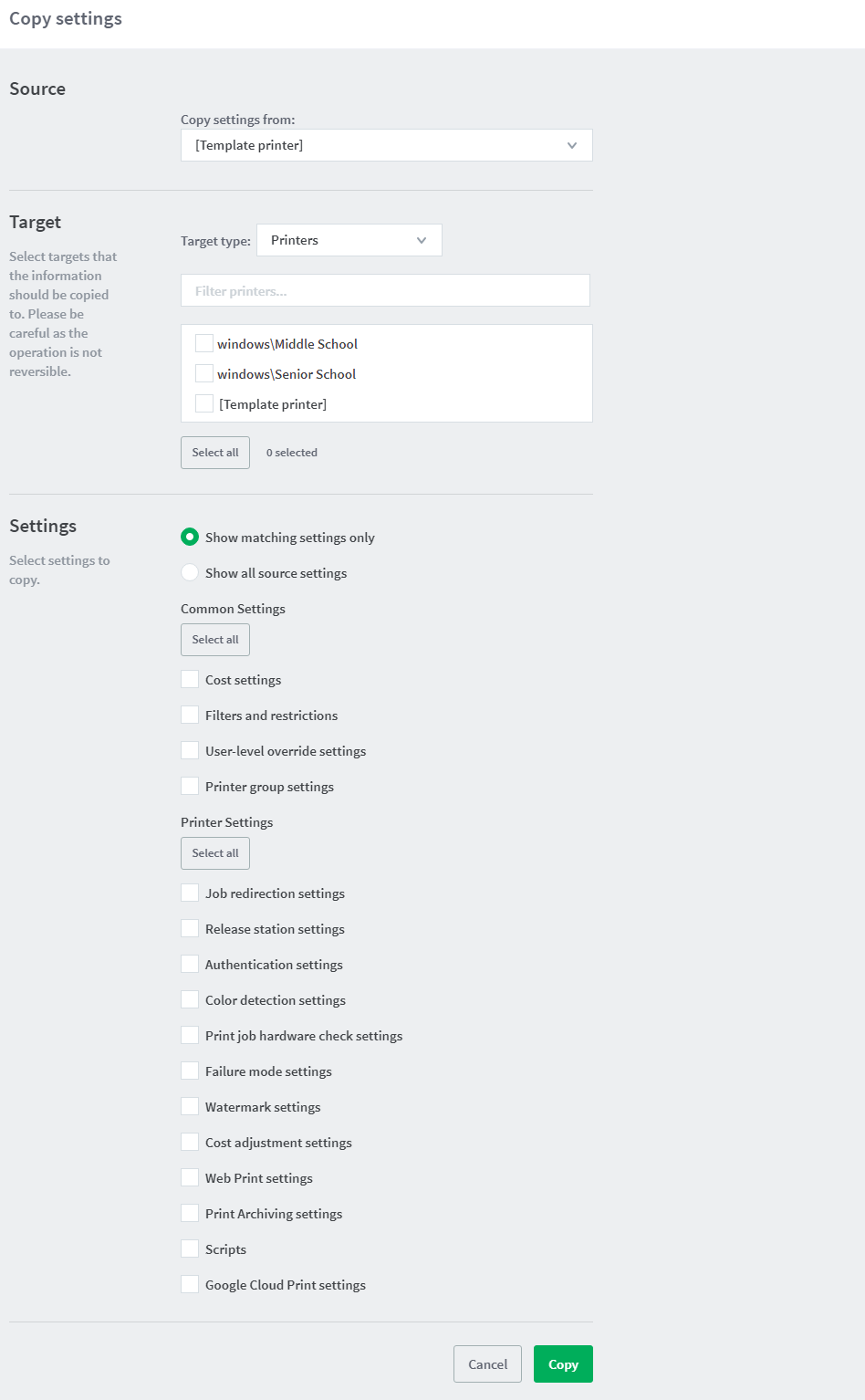
In the Actions menu, click Copy settings from printer to printer.

-
Choose a printer to use as a template for the other printers from the Source area
-
Choose one, or multiple target printers to copy the settings to.
-
Choose which settings to copy. There is a choice of the cost settings as well as many more.
-
Click Copy at the bottom of the page to perform the copy.
Comments
Comments are not available in this preview environment. On papercut.com, this space shows the live Disqus comment thread for this page.