




🔎 Admin console: Print Security > Secure Print Release
There are a number of different ways to let your users release their jobs - and you can mix ‘n match these according to your users’ needs.
📄 For a description of how it works and all of the release options, take a look at About Secure Print Release and Securing your print environment.
Steps
There’s plenty of guidance on the UI, if you want to dive straight in, or follow these steps:
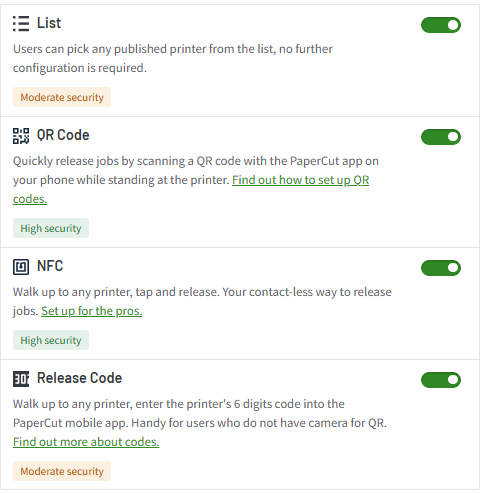
- In the admin console, go to Print Security > Secure Print Release. The Secure Release panel is displayed. You’ll see toggles for the options: List, QR Code, NFC, and Release Code.
- Do one of the following:
- Manually set the toggles to turn on (green) the options you want.
- Click Need a hand? Try these presets, then select the security level you require; Essentials, Moderate, or High. The toggles will update automatically.
- Click Save changes.
Available release methods
Appearance
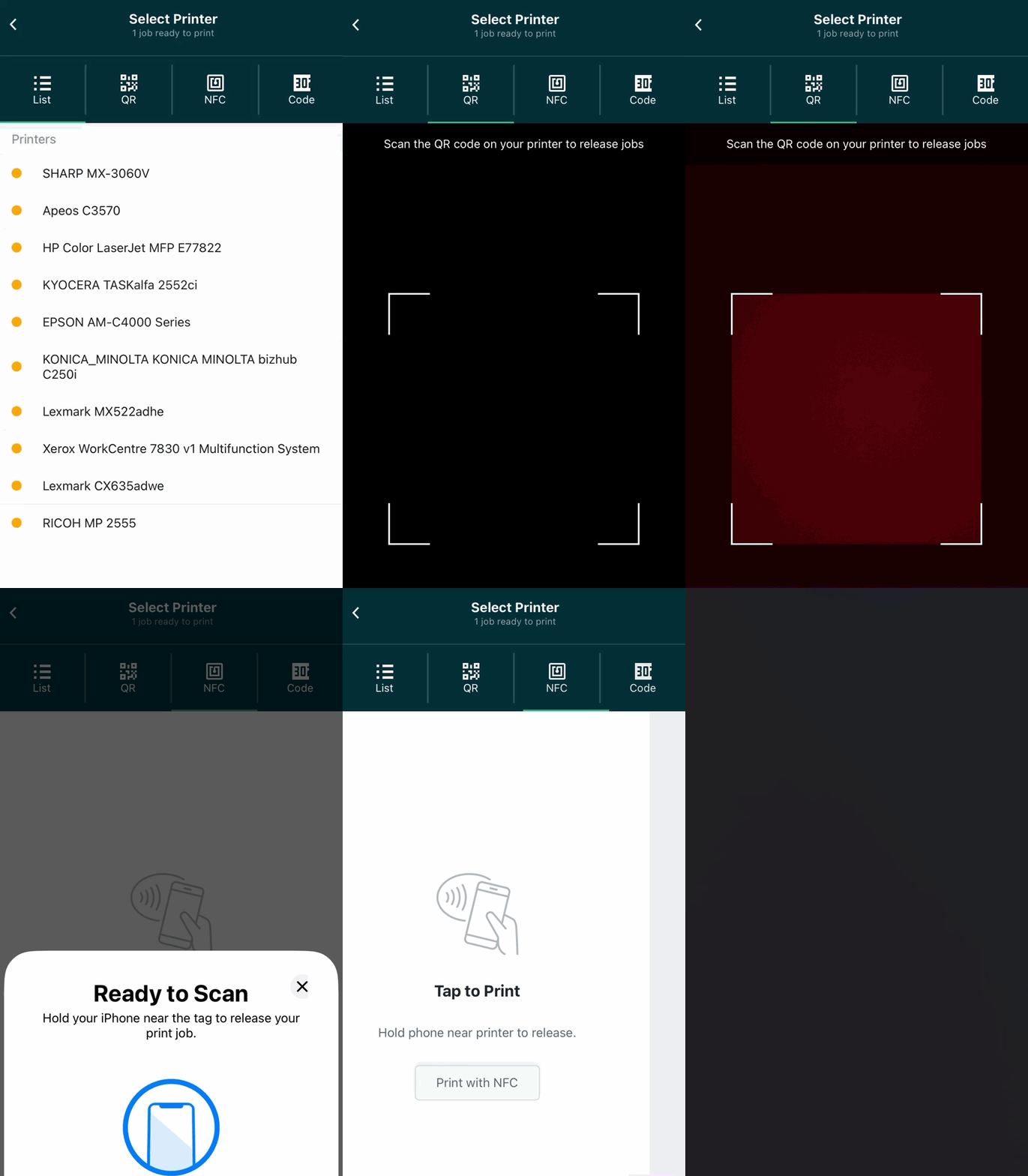
This is how the mobile release options will show the app.
Enabled
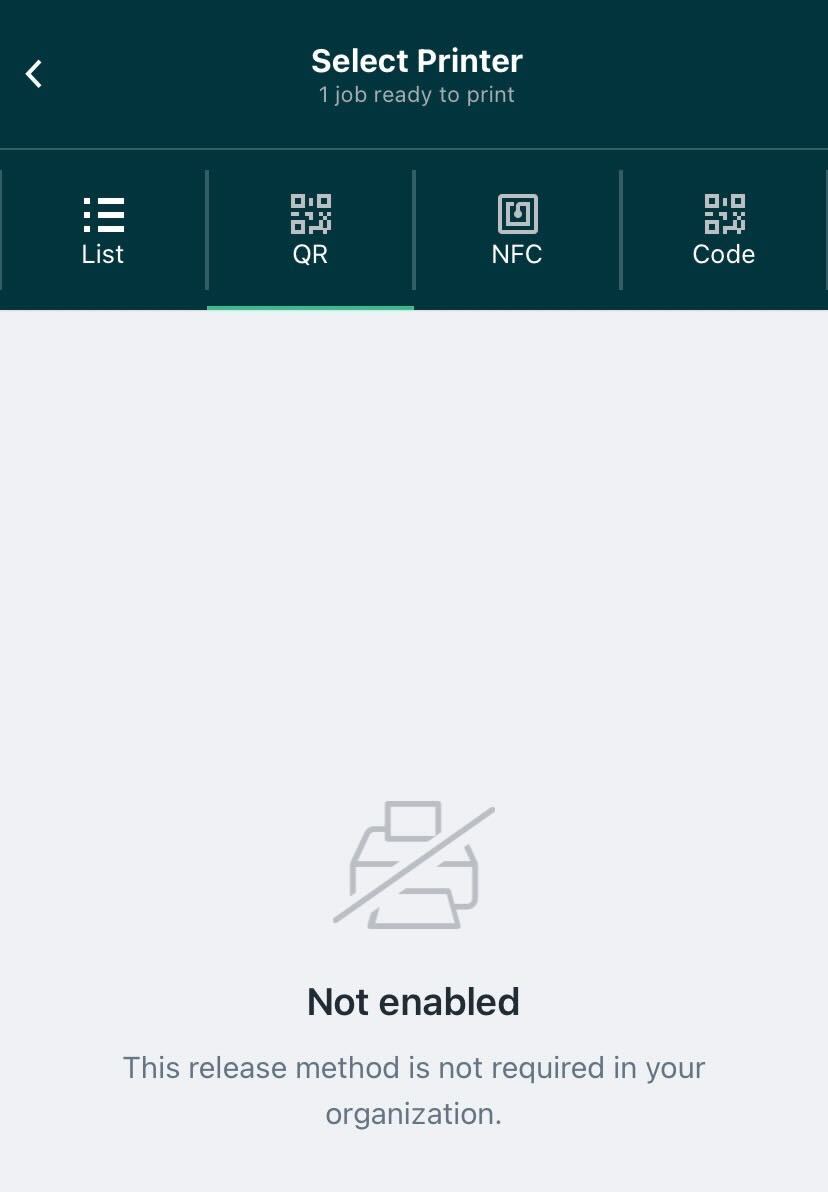
Disabled
Comments
Comments are not available in this preview environment. On papercut.com, this space shows the live Disqus comment thread for this page.