If a document doesn’t print or a print job shows an error, this guide will help you find out what went wrong and how to fix it.
PaperCut Hive and Pocket provide two tools that let you follow a print job from start to finish:
Activity tab – A user-friendly view of the print job’s journey with clickable error messages and recommended actions.
Job Trace – A detailed view of the print job’s journey, intended for advanced troubleshooting.
Both tools show the path a print job takes from the user’s computer (the origin node), through any replication nodes (other computers on the network), and finally to the print candidate node that sends the job to the printer. By identifying where the job failed, you can quickly determine the cause and use this guide to resolve the issue.
Before you begin
To investigate a print job, you’ll need:
Administrator access to the PaperCut Hive or Pocket admin console.
The user’s username.
The date and time the print job was submitted.
Investigating print errors using the Activity tab
The Activity tab provides an easy-to-read timeline of a print job, from submission through when the job is released, to which print node is selected to send the print job to the printer. It’s the quickest way to see a print job’s path.
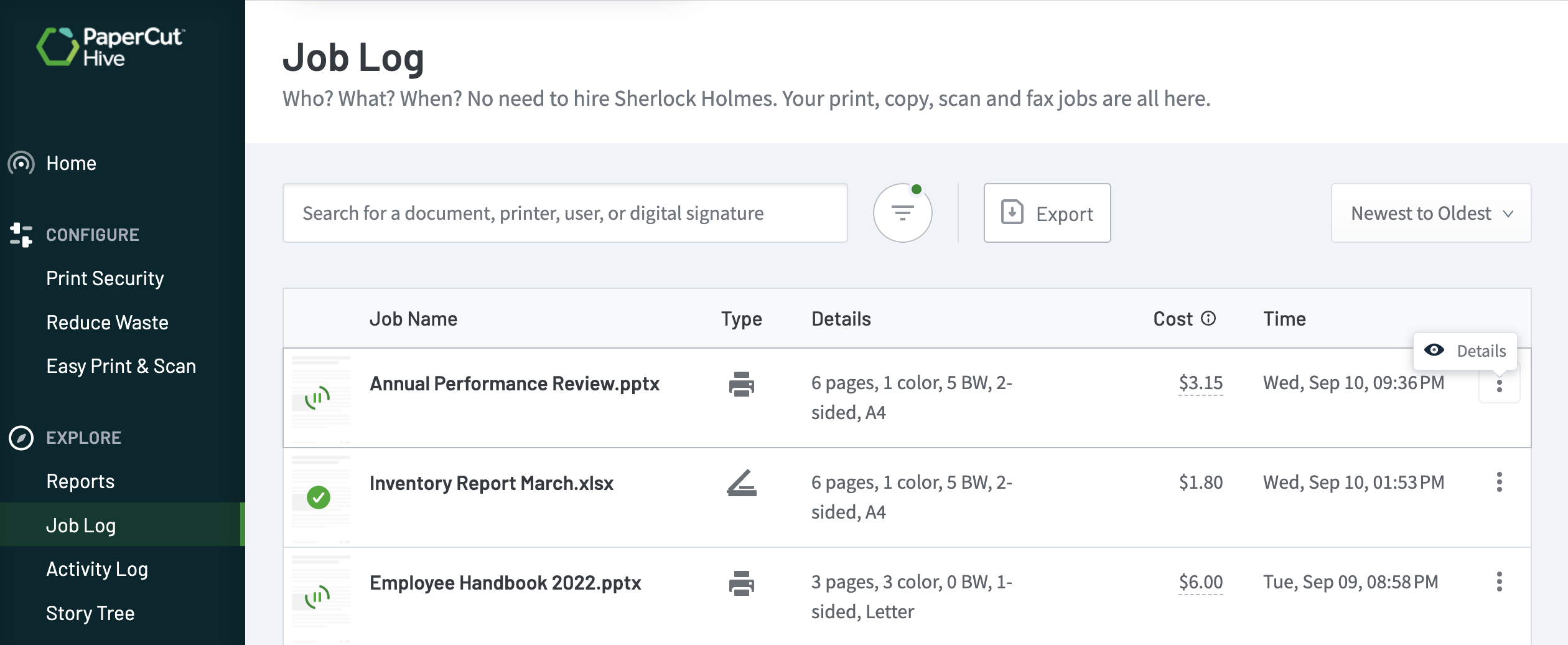
In the admin console, go to Logs > Job Log
Find the job and click the 3-dot menu ⋮ to open the Details.
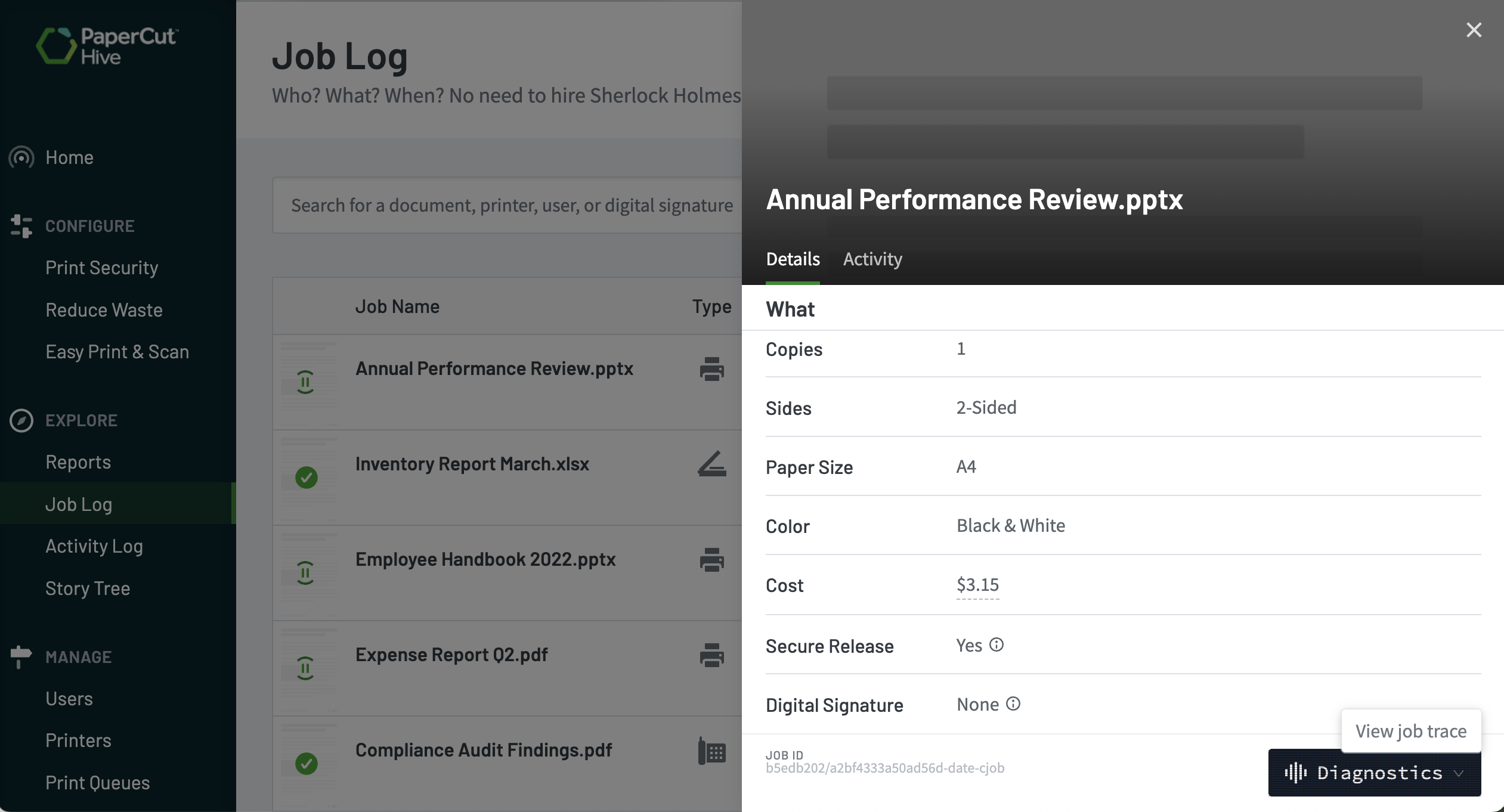
Select the Activity tab.
Review the timeline from the bottom up to identify any errors. If an error includes a link, click on the link to bring you back to this article for more information and troubleshooting guidance.
How to read a print job’s Activity tab
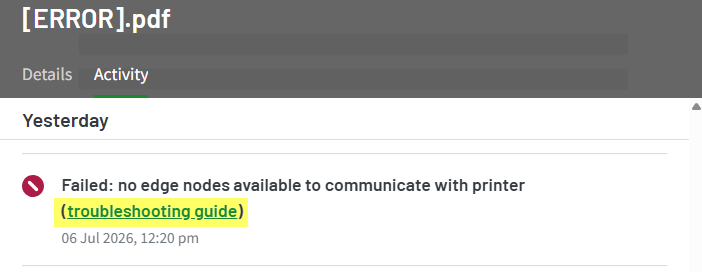
The benefit of using the Activity tab to troubleshoot printing issues is that the language is more user-friendly. Another great benefit is that if a “Failed:” error occurs, you can simply click the troubleshooting guide link, which redirects you back to this page with recommended actions.
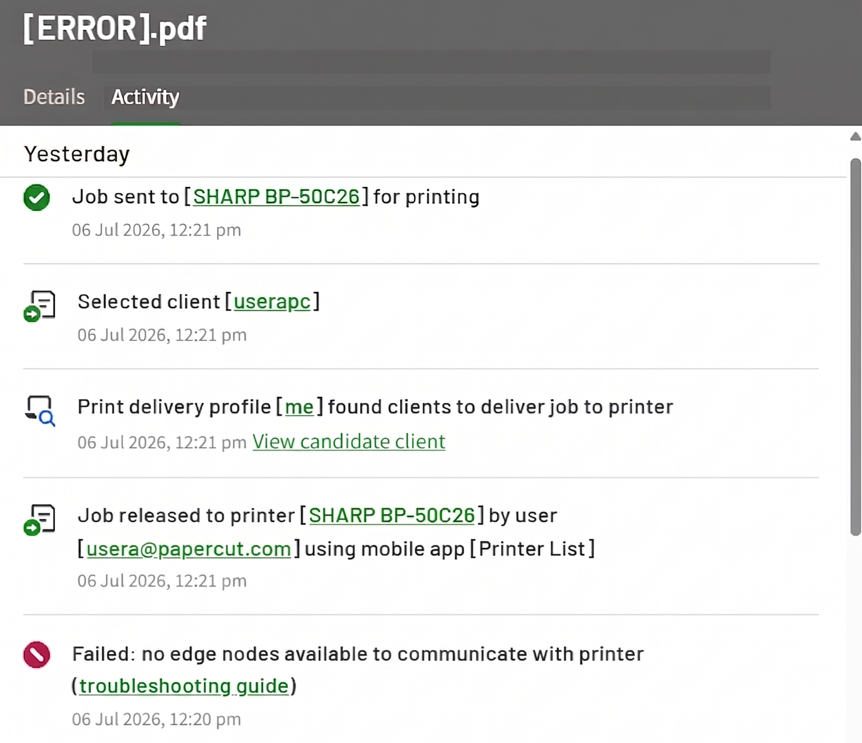
Here’s the typical end-to-end workflow of a print job in the Activity tab.
Job submitted by user [usera@papercut.com] via [userapc]
Job pending release
Job released to printer [printer_name]
Print delivery profile
Failed: – indicates any errors. While this is placed as step 5, an error can appear at any stage of the print workflow
Selected client – the node chosen to print the job
In PaperCut Hive or Pocket admin console, in the left menu select Logs > Job Log tab.
Find the job and click the 3-dot menu ⋮ to open the Details.
Scroll to the bottom of the details, click Diagnostics, then View job trace.
How to read a Job Trace
A Job Trace is broken into four parts:
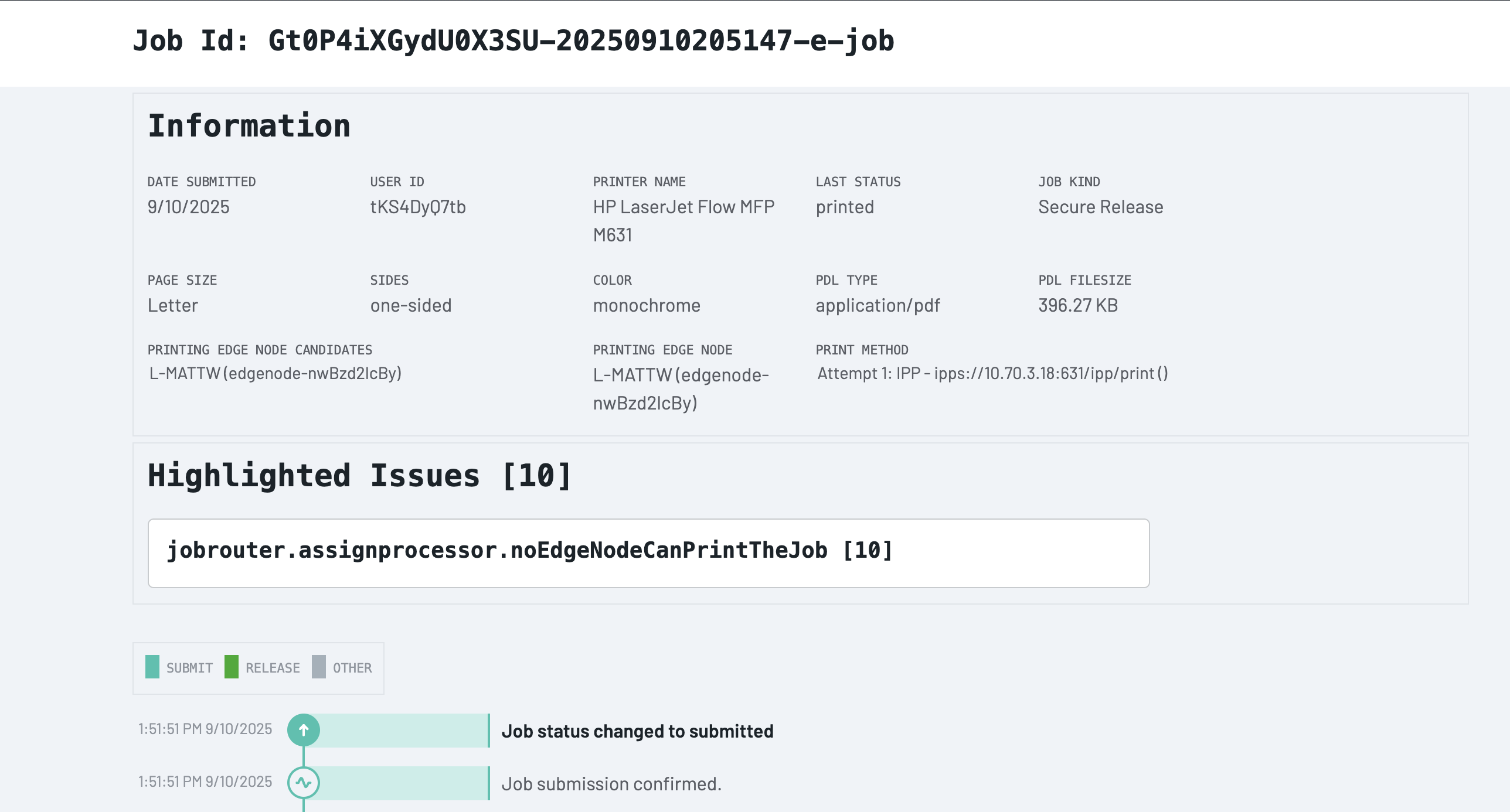
Job ID – The upmost section contains a unique identifier for each print job. We’ll ask for this ID when troubleshooting.
Information – Key print job details, like the printer name, print status, printing edge node, and edge node candidates.
Highlighted issues – Any issues during the job’s journey.
Job Trace details – The full print workflow, from submission to release. This includes the three major steps: submission, replication, and release.
Highlighted issues or Failed errors
This section provides an overview of the most commonly reported errors presented in a table format. For each Job Trace highlighted issue, and Failed: errors from the Activity tab, you’ll find a concise explanation of its meaning, as well as practical steps to resolve the problem.
documentcheck.inaccessible
This highlighted issue happens when an Edge Node is selected to forward the print job to the printer but fails to fetch the document from the user's computer (or Cloud Node if enabled). This often happens when the user who printed the job is outside the network and the Cloud Node is not turned on.
Possible causes:
The cloud node is not enabled, and one or more candidate edge nodes are unable to fetch the print job because the user’s workstation cannot be reached over port 9264.
The cloud node is enabled, but the candidate edge node was unable to reach the cloud URLs needed to fetch the job.
Be aware this message is logged when one or more of the candidate edge nodes can’t fetch the print job. Depending on network topology this may be expected, so this highlighted issue can sometimes be a red herring.
Recommendations:
Enable the Cloud Node — It helps avoid network limitations by replicating jobs through the cloud, facilitating printing even if users are outside the network.
Verify the printer’s IP — Search for the printer's IP in Hive. If this has changed recently, re-scan it in the Pocket/Hive admin console.
Make sure the Cloud Node is reachable — If the Cloud Node is enabled, verify the URL https://storage.googleapis.com/pmitc-cloudnode-spool is accessible from the Edge Mesh. Sometimes this is blocked or restricted by a content filter.
Check connectivity to the mesh — if the Cloud Node cannot be enabled, ensure the user is connected to the right network and can reach the Edge Mesh over port 9264. From the user's device, test connectivity to another node with a command like this: Test-NetConnection -Port 9264 -ComputerName <other-node-ip>
Check other highlighted issues — If there are other highlighted issues, this may not be the primary problem.
This highlighted issue, accompanied by the phrase "there are no printable edgenodes" means the job router couldn’t find an Edge Node capable of printing the specific job to the chosen printer (e.g., no Edge Node online with access to the target printer or the right type of queue) or the notification to the Edge Nodes failed.
In the Activity tab of a print job, this error will show as "Failed: no edge nodes available to communicate with printer".
Possible causes:
The user who submitted the job turned off their device before the job replicated to other edge nodes.
The user submitted the print job from a mobile device (Chrome, Android, iOS) but there's no edge node available on network which can reach the printer to relay the print job.
No Edge Nodes have access to the printer because it is offline, on a different network, or the ports are blocked.
The print protocol configuration is not compatible with the supported print methods for the printer (for example the printer does not support IPP an no other print protocols are configured).
Recommendations:
Review setup — Ask "which nodes are supposed to have access to this printer?". Make sure at least one or more reliable edge nodes are able to reach the printer on the network, especially when releasing print jobs from mobile devices. See Best Practices for print job delivery in PaperCut Hive and Pocket.
Educate users — If only one user is in the office, make sure they are aware they need to keep their computer turned on and connected to the network when releasing their print job.
Test network access — from the affected Edge Node to the printer open a browser and enter the IP address of the printer to try accessing the printer's web interface. Alternatively, use terminal or PowerShell commands from the Edge Node to test the connection to each port (SNMP/161, IPP/631 or 443, or RAW/9100). For example:
Check the logs — If there's one Edge Node which should have access to the printer, consider downloading and reviewing the Edge Node Logs to check for any issues, like low disk space.
Check the delivery type — For example, if the printer does not support IPP, make sure other delivery types are available. See: Print delivery protocols - overview.
jobrouter.assignprocessor.jobNotPickedUp
This highlighted issue means PaperCut Hive or Pocket identified one or more Edge Node candidates and tried to assign the print job to them, but none accepted the job in time. This may be accompanied by the message “job not picked up by any processors”. This error says the job was not picked up by any candidate Edge Nodes.
In the Activity tab of a print job, this error will show as "Failed: edge nodes selected for job delivery were unresponsive or unable to perform the job".
Connection issues. High network latency or low bandwidth between your site and the PaperCut Cloud prevented the Edge Node from accepting the print task in a timely fashion.
Performance problems. Edge Nodes are online but under heavy load (e.g. high CPU), and don’t respond to the job request.
Ports blocked. Edge Nodes can’t connect to the MQTT network (used to coordinate job delivery).
Recommendations:
Review other errors — There may be another highlighted issue which causes this error. Investigate other highlighted issues first.
Verify the ports— Check that Edge Nodes chosen to print are able to connect to the printer via the required delivery port (Port 9100 or IPP(s) 80/443/631) on the current network.
Check that Edge Nodes can reach the MQTT network — Some customers have let us know that disablingSSL packet inspectionresolved this issue. Confirm the Edge Nodes have access to these URLs for coordinating job delivery (as specified inPocket and Hive system requirements):
mqtt.notifications.cloud.papercut.com
mqtt2.notifications.cloud.papercut.com
mqtt3.notifications.cloud.papercut.com
Make sure candidate Edge Nodes (or Super Nodes) are not bottlenecked — (e.g. high CPU or limited memory). Make a note of the Printing Edge Node Candidates at the top of the job trace. The devices listed here are the candidates PaperCut Hive or Pocket tried to notify to deliver the job to the target printer. If restarting the edge node doesn't fix the issue, sharing the edge node logs with PaperCut support for review.
Set up a printer delivery profile — to route jobs through specific, reliable nodes on your network. See Configuring Print Delivery profiles.
jobrouter.releasequeue.previousJobAborted
This highlighted issue means a job failed to release because an earlier job in the same batch was aborted. It’s a follow-on error that appears during a batch release (for example, when a user clicks Release All). If the first job in the sequence fails, the later jobs inherit this error and return to the “Pending Release” state.
In the Activity tab of a print job, this error will show as "Failed: an earlier job in this batch failed. To preserve print order, remainder of batch including this job was cancelled".
To fix it, you’ll need to track down and resolve the error on the first job that failed.
Possible causes:
Since this is a follow-on error, the cause is always that a preceding job in the batch failed. The underlying cause is whatever error stopped that first job.
Recommendations:
Check other highlighted issues first — If there are other highlighted issues for the batch of jobs in the Job Trace, they might point to the root cause of the failure.
Find the first failing job in the Job Log — Go to the Job Log in the admin consol and look for the cluster of jobs that failed at the same time. Identify the first one, then check its specific error and trace to uncover the problem.
Release jobs individually as a workaround — If the issue only happens with batch-releasing jobs, users may be able to release their jobs one at a time while you troubleshoot. This skips the batch process and might avoid the cascading error.
printercheck.unreachable
This highlighted issue means the Edge Node failed to establish basic communication with the printer during the pre-check phase — before the job is sent to the printer. The Edge Node checks whether the printer is reachable first, and if that check fails, the job cannot be delivered. This is a general "unreachable" error that could stem from network problems (firewall, routing), the printer being powered off, or the printer not responding to the Edge Node's checks.
In the Activity tab of a print job, this error will show as "Failed: edge nodes are unable to establish connection with printer".
Possible causes:
This error may be logged even when the job prints successfully. Sometimes the printer is simply unreachable because SNMP on port 161/162 is blocked or the SNMP community string on the printer is not public, but the job will still print.
The edge node or super node cannot reach the printer on the network (e.g., due to network segmentation, firewall rules, or the printer being offline). This could be because users and devices are on separate subnets, preventing proper communication. Or network ports are blocked, preventing the edge node from accessing the printer.
The printer is not available or is in an error state.
Recommendations:
Check SNMP - when SNMP is blocked, print jobs may still go through, but PaperCut Hive and Pocket may not be able to fetch the toner levels of the printer or the Page Meter Count of the printer on the Analytics tab may not be current. For tips on troubleshooting SNMP connectivity, see: Why can’t I find my printer in the PaperCut Hive or Pocket admin console?
Check connectivity — Ensure that the printing edge node or super node can reliably reach the printer on the network.
Is the printer online — Confirm that the printer is online and not in an error state.
Test the ports — Check that necessary ports (such as 9100 for manufacturer drivers or 443 for IPPS) are open and accessible.
printercheck.unreachable.networkerror
This highlighted issue means the Edge Node failed to reach the printer during an IPP printer check, indicating a network-level failure when attempting to communicate with the printer over IPP/IPPS.
Possible causes:
The edge node cannot reach the printer on the network due to network segmentation or firewall rules, preventing the edge node from accessing the printer over IPP/IPPS (ports 443 or 631).
The printer is offline or is not available over IPP for some reason.
Recommendations:
Test the IPP/IPPS ports — From the edge node, verify the printer responds on port 443 or 631 by with these example terminal commands:
Set up a printer delivery profile — to route jobs through specific, reliable nodes on your network. See Configuring Print Delivery profiles.
Change the delivery method —In practice we’ve found IPP/IPPS is the least reliable option with certain printer brands. Consider setting up Raw printing (port 9100) using a manufacturer's driver as the primary delivery method. See: Print delivery protocols - overview.
printercheck.unreachable.9100ping
This message means the edge node couldn’t talk to the printer over TCP port 9100. It only appears if the print queue is set up with a manufacturer driver, which means PaperCut will try to use Raw printing: 9100 as the Primary delivery method.
In some setups, this error may even be expected — for example, if the end user’s computer can’t directly reach the printer over the network.
Possible causes:
The edge node is on a different network, subnet, or VLAN than the printer.
A firewall or antivirus on the edge node is blocking outbound connections on port 9100.
A network firewall between the edge node and the printer is stopping the traffic.
The printer is offline or its IP address has changed.
Recommendations:
Verify Port 9100 connectivity — From the edge node computer mentioned in the highlighted issue, check that the printer responds on its raw printing port 9100. For example:
Enable the Cloud Node — If the user is on a different network from the printer, this is often the simplest fix. A Cloud Node securely routes jobs through the internet, letting any edge node deliver them to the right printer.
Review security software — Local firewall or antivirus software can sometimes get in the way. Allow outbound traffic on TCP 9100 or create an exception for PaperCut Pocket/Hive.
printercheck.unreachable.cmdexecutiontimeout
PaperCut Hive or Pocket tried to query the printer using IPP/IPPS, but the request timed out. The system waited ~30 seconds for a reply over ports 631 or 443 from the printer and never received one. Because the pre-check failed, the job couldn’t be released.
Possible causes:
The printer does not have IPP/IPPS enabled.
The printer is offline or its IP address has changed.
The printer supports IPP but is overloaded or slow to respond.
The printer is not reachable on its IPP/IPPS port (443 or 631) due to a firewall silently dropping packets.
No other delivery method is configured or working when the job is being processed so PaperCut Pocket/Hive has defaulted to using IPP as a last effort.
Recommendations:
Check that IPP/IPPS is enabled on the printer — Some models ship with it disabled or require explicit setup. Confirm with your manufacturer or reseller.
Verify IPP connectivity — From the edge node, check that the printer responds on its IPP/IPPS port (443 or 631). For example:
Test IPP printing — Not all printers handle IPP well, especially during batch printing. If the job used IPP, try updating the printer firmware. You can also test the printer using the method in the article Some jobs failed to print. Try again" error message
Change the delivery method —In practice we’ve found IPP/IPPS is the least reliable option with certain printer brands. Consider setting up Raw printing (port 9100) using a manufacturer's driver as the primary delivery method. See: Print delivery protocols - overview.
printercheck.unreachable.queuecheckfailed
The Edge Node found that a local print queue was not in a printable state after checking it before accepting a job. This error appears in the Raw 9100 or local queue delivery pre-check paths when the resolved printer URI is a queue:// URI. Because the pre-check failed, the system cannot safely accept the job for delivery.
Possible causes:
The local print queue is in an error state, for example, a stuck or failed job is blocking the queue.
The queue is paused or is outside its scheduled availability window.
The queue has two or more pending jobs and is also reporting as unreachable.
The printer is offline or unreachable from the Edge Node.
macOS or Linux: The local CUPS daemon (localhost:631) is not responding, so the system cannot determine the queue state.
macOS or Linux: The lpstat command failed or timed out, so the system cannot resolve the printer device URI.
Recommendations:
Check the local queue on the Edge Node — On Windows, open Print Management to inspect the queue status and clear stuck jobs; on macOS or Linux, run lpstat -p to check the queue state.
Restart the spooler — If the print queue on the Edge Node is in error, try clearing the print job by restarting the print spooler (Windows) or CUPS (macOS and Linux).
Send a test page directly — On the affected Edge Node try printing a test page to confirm the queue and driver are working independently of the software.
Set up a printer delivery profile — to route jobs through specific, reliable nodes on your network. See Configuring Print Delivery profiles.
edgenode.processor.print.actionFailure
This highlighted issue means the Edge Node passed the pre-check, accepted the job, but then failed during the print delivery phase — when it actually attempted to send the job to the printer. The root cause depends on which print delivery protocol is in use (local queue, IPP, or Raw/9100). This error often comes with a sub-error that provides more detail about why delivery failed (such as edgenode.processor.print.actionFailure.ippCreateJobFailed)
In the Activity tab of a print job, this error will show as "Failed: edge nodes selected for job delivery were unresponsive or unable to perform the job".
Possible causes:
The root cause of this error message, is dependent on whichPrint Delivery Protocol is being used to send the job to the printer.
Local queue delivery - This happen because of a problem with the print queue on the Edge Node.
IPP (Internet Printing Protocol) - PaperCut Hive or Pocket is unable to communicate with the printer using IPP, for example the printer is busy and is not accepting IPP jobs.
Raw Printing: 9100 - because of network, firewall, or other reasons the printer may not be reachable on port 9100.
Recommendations:
Look for a sub-error with more detail: .socketConnectionTimeout (unable to establish connection), .socketWriteFailed (the connection was abruptly closed), .ippCreateJobFailed (IPP protocol issues), .jobStopped (job canceled at the printer), .jobTimeout (printing took too long).
Configure print queues in Pocket/Hive —when you set up a print queue in Pocket or Hive which uses a manufacturer’s driver, that can sidestep many printing pitfalls. Once you do this, PaperCut will default to using the OEM driver as the primary print delivery method. See: Creating and deploying PaperCut print queues and drivers.
Set up a printer delivery profile — to route jobs through specific, reliable nodes on your network. See Configuring Print Delivery profiles.
This highlighted issue means the Edge Node sent the job to the printer, but the printer stopped responding before the edge node could track the final status.
Possible causes:
The printer’s firmware or IPP service crashed while processing a complex job (for example, a large PDF).
The printer’s internal spooler is stuck and not accepting new jobs.
A network interruption (like a reboot, port failure, or power loss) made the printer unreachable mid-print.
Ongoing network issues, such as packet loss or a firewall closing the connection, disrupted communication.
Recommendations:
Check the output — Confirm with the user if the job physically printed, either fully or partially.
Restart the printer — Power cycle it to clear memory and reset the network stack.
Test IPP printing — Not all printers handle IPP well, especially during batch printing. If the job used IPP, try updating the printer firmware. You can also test the printer using the method in the article Some jobs failed to print. Try again" error message
Change the delivery method —In practice we’ve found IPP/IPPS is the least reliable option with certain printer brands. Consider setting up Raw printing (port 9100) using a manufacturer's driver as the primary delivery method. See: Print delivery protocols - overview.
edgenode.processor.print.actionFailure.jobStopped
This highlighted issue indicates the print job was halted on the printer, possibly due to a printer error, a user intervention, or a specific printer state.
Possible causes:
This error might be expected if a print job was cancelled by a user at the device.
A problem with the printer such as a paper jam, causing an error in the print queue.
Recommendations:
Ask the user — check with the user to ask whether they intentionally canceled the job at the printer.
Check the printer — to see if there was some condition that prevented the device from printing the job such as a paper jam. Restart the printer if needed.
Test the local queue — If printing via a local queue on an Edge Node, log onto the printing Edge Node and open Print Management Console on Windows. Ensure a Windows test page can be sent to the printer successfully.
This highlighted issue means the Edge Node successfully contacted the printer over IPP, but the printer repeatedly reported that it was not ready to accept jobs until PaperCut stopped checking after 600 seconds (10 minutes). In other words, the printer is reachable on the network, but is not accepting jobs. This error is exclusive to IPP delivery and is most common with Sharp printers.
Possible causes:
The printer reports it is not accepting jobs via IPP — for example because it is busy processing a large backlog of jobs. This is more likely to happen when multiple print jobs are released in batches.
Recommendations:
Update the printer firmware — Some printer models have known issues with IPP under batch printing conditions. Work with your copier dealer to update the firmware to the latest recommended version.
Change the delivery method — In practice we’ve found IPP/IPPS is the least reliable option with certain printer brands. Consider setting up Raw printing (port 9100) using a manufacturer's driver as the primary delivery method. See:Print delivery protocols - overview.
This error occurs when the Edge Node connects to the printer on port 9100 and starts sending the print job, but the connection is interrupted before the job is fully delivered.
Expand the highlighted issue to see more detail. For example:
jobprocessor [3]
1:01:40 AM 9/30/2025
err=error:write tcp 10.51.85.66:63004->10.51.85.50:9100: i/o timeout writing to printer: {10.51.85.50 9100}. Written 69632 bytes, duration:10m0.0076058s, {10.51.85.50 9100}, duration:10m0.017434
The above detail tells us specifically that the edge node (10.51.85.66) timed out when attempting to write to the printer at 10.51.85.50 using port 9100. This could be a printer or network issue.
In the Activity tab of a print job, this error will show as "Failed: edge node connection to printer via Port 9100 failed during print data transfer".
Possible causes:
The printer abruptly closed the connection while receiving data, which can happen if the printer is busy, out of memory, or processing too many concurrent jobs.
A network appliance such as a firewall or proxy terminated the session mid-transfer.
A network interruption (such as packet loss, port failure, or power loss) disrupted the connection during data transmission.
Recommendations:
Check the printer — Confirm with the user whether the job physically printed, either fully or partially. Power cycle the printer to clear its memory and reset its network stack.
Check for network issues between the Edge Node and printer — Use tracert (Windows) or traceroute (macOS/Linux) to examine the network path between the Edge Node and the printer to find hops that might be filtering or terminating connections.
Test printing outside of PaperCut — Print directly to the printer to confirm if the issue is with the printer or network rather than PaperCut. For more information, see Some jobs failed to print. Try again"..
Set up a printer delivery profile — to route jobs through specific, reliable nodes on your network. See Configuring Print Delivery profiles.
The Edge Node tried to send a print job to the printer using IPP, but the printer returned a non-recoverable error. This error is exclusive to IPP delivery and has been seen to happen so far with Sharp and HP devices. PaperCut Hive and Pocket automatically retry on temporary errors, so this message indicates the failure persisted after multiple attempts.
Possible causes
The printer returned a non-recoverable error code such as HTTP 503 ("Service Unavailable").
Recommendations
Restart the printer — Power cycle the printer to clear its memory and reset its IPP stack, which can resolve transient errors.
Update the printer firmware — Work with your copier dealer to update the firmware to the latest version to improve IPP reliability.
Change the delivery method —In practice we’ve found IPP/IPPS is the least reliable option with certain printer brands. Consider setting up Raw printing (port 9100) using a manufacturer's driver as the primary delivery method. See: Print delivery protocols - overview.
Contact Support — If you have tried these steps and the error persists, rasie a ticket with us so we can investigate the specific behavior of your printer model.
edgenode.processor.print.actionFailure.jobTimeout
This highlighted issue means that the job started sending to the printer but either took too long to print or there was no confirmation of successful delivery. Troubleshooting will depend on whether the job was delivered via a print queue or directly to the printer.
Possible causes:
The printer hardware is in an error state (e.g., paper jam, low toner, door open) and is not processing jobs.
The print spooler accepted the job but stalled during rendering or transmission to the printer, possibly because of a driver issue.
The printer became unreachable from the Edge Node after the job was already submitted to the spooler.
Recommendations:
Check the printer hardware — Make sure the printer is not in an error state. Check the printer's control panel for warnings like low toner, paper jams, or open doors.
Test the local queue — If printing via a local queue on an Edge Node, log onto the printing Edge Node and open Print Management Console on Windows. Ensure a Windows test page can be sent to the printer successfully.
Restart the spooler — If the print queue on the Edge Node is in error, try clearing the print job by restarting the print spooler (Windows) or CUPS (macOS and Linux).
Other Job Trace messages
These messages don’t appear in the Highlighted Issues, but we still get questions about them.
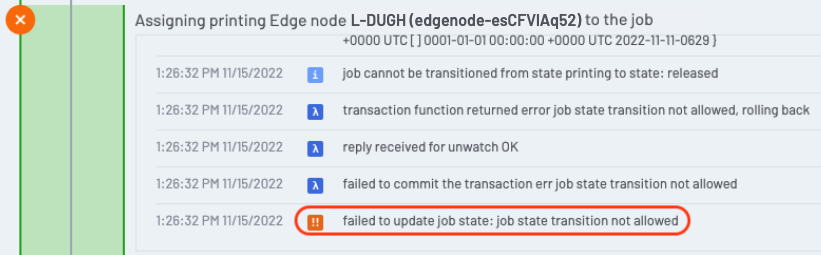
Failed to update job state: job state transition not allowed
This message does not indicate a problem and is safe to ignore. When you release a print job, PaperCut Hive asks multiple edge nodes to print the document. Whichever edge node responds fastest wins the opportunity to print the job.
The message "failed to update job state: job state transition not allowed" just shows that another, faster edge node is in the process of printing the job. Put another way, this message is saying says "No, you can’t move a job back from printing to released, it’s already happened".
Recommendations:
This is normal behavior in the PaperCut Hive print workflow and doesn't indicate a problem with your print job or system.
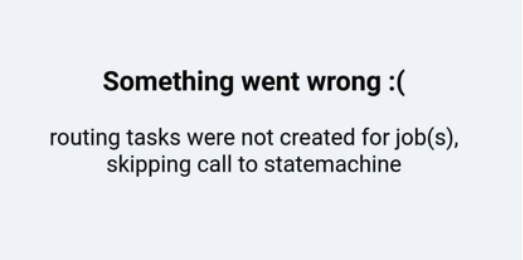
routing tasks were not created for job(s), skipping call to statemachine
This error might indicate a problematic edge node failed to analyze the print job and the job failed to move beyond the analysis task. When the user goes to release their job at the copier, the job doesn’t appear in the release list.
If the job is released using the mobile release app, the release will fail with the following error:
Stages of a Job Trace
This section explains the sequence of statuses a print job follows during a successful delivery. Use this flow to identify where a job is in the process or to troubleshoot delivery issues.
The system receives the print job after the user prints from their device. The originating Edge Node analyzes the job, encrypts the data, and replicates it to peer Edge Nodes on the local network.
2 - Pending-release
After the system successfully submits the job, the user’s queue securely holds the job. Replication to peer Edge Nodes might continue during this time. The job remains in this state until the user releases it on the printer or through the mobile app.
3 - Released
The user triggers the release on the MFD or mobile app. Job rules and plugins run after this trigger, including subscription checks, duplex promotion, and black and white promotion. After the rules complete, the system hands the job to the job router to find an Edge Node for delivery. If no Edge Node accepts the job within the routing window, the system records a jobrouter.assignprocessor.jobNotPickedUp error and the job returns to pending-release.
4 - Routed
The job router identifies candidate Edge Nodes and sends delivery instructions. These candidates appear in the Printing Edge Node Candidates field of the Job Trace. If the router cannot find candidates—for example, if no Edge Node reports access to the target printer—the job fails with a jobrouter.assignprocessor.noEdgeNodeCanPrintTheJob error.
5 - Assigned
One candidate Edge Node passes a pre-check to confirm it can reach the printer and accepts the job. This node becomes the designated printing Edge Node. Other candidate Edge Nodes might also attempt to accept the job, but only one proceeds while the system discards the rest. Errors during the pre-check phase, such as printercheck.unreachable, appear in this status.
6 - Printing
The assigned Edge Node sends the job to the physical printer using the configured print delivery protocol (IPP, Raw/9100, or local queue). The Edge Node reports progress to the cloud periodically. Errors that occur while sending the job to the printer, like edgenode.processor.print.actionFailure, appear here.
7 - Printed
The Edge Node successfully sends the job to the printer without error. This confirms delivery to the hardware; it does not confirm that the physical pages exist. For example, the printer may still be processing the data or the printer could be out of paper.
Comments
Comments are not available in this preview environment. On papercut.com, this space shows the live Disqus comment thread for this page.






Comments
Comments are not available in this preview environment. On papercut.com, this space shows the live Disqus comment thread for this page.