




About Windows Protected Print Mode
What is Windows Ready Print?
Before diving into Windows Protected Print, it’s important to understand Windows Ready Print—the official name for the evolution of the Windows Modern Print Platform. Windows Ready Print is a streamlined, standards-based printing architecture designed to transition the operating system away from legacy, third-party printer drivers. By leveraging the Internet Printing Protocol (IPP) and the native Windows inbox IPP printer driver, it delivers a more reliable, consistent, and stable printing experience.
The July 2026 Rollout: New printer installations will default to Windows Ready Print where supported, reducing the need for traditional driver management right out of the box. Admin Flexibility: While Windows Ready Print shifts the ecosystem toward a driverless future, it does not strictly enforce a “no drivers” policy on its own. IT admins and users can still opt for a legacy third-party driver if their environment requires it, using the “Default install printers using Windows Ready Print” toggle in Settings or Group Policy.
What is Windows Protected Print Mode?
Windows Protected Print (WPP) takes this modern architecture a step further by turning a preferred default into a strict security enforcement. When WPP is enabled, Windows operates exclusively on the Windows Ready Print architecture—completely blocking third-party drivers and forcing the print spooler to run with significantly reduced privileges.
Microsoft has NOT announced any dates for Windows Protected Print to become the default option in Windows.
By eliminating rogue third-party drivers and isolating the spooler, WPP removes critical vulnerabilities (like PrintNightmare) that attackers historically used to gain SYSTEM-level access.
Whether you’re an IT manager, security professional, or business owner, understanding how Windows Ready Print and WPP interact is essential for future-proofing your print infrastructure. This page provides a comprehensive overview of WPP, its deployment timeline, and how your organization can prepare for this powerful security feature.
Why Microsoft is introducing Windows Protected Print Mode
According to Microsoft, 9% of Windows security issues reported to the Microsoft Security Response Center (MSRC) were caused by print stack-related issues. The fact that the spooler runs with system privileges and has to load code over the network makes the entire operating system vulnerable to malware.
Print Nightmare allowed hackers to exploit this vulnerability to install programs remotely, view and delete data or even create new user accounts with full user rights.
Another spooler-related weakness was exploited by the Stuxnet virus, which was used as a digital weapon to gain remote access to the computers that controlled centrifuges at an Iranian uranium enrichment plant. This allowed the attackers to configure the fast-spinning centrifuges to tear themselves apart.
Print Nightmare patches are a temporary workaround that now requires admin rights to install printers. The admin rights requirement only protects a shared computer, where one user might have installed a printer driver with malware that would compromise others on the computer too. This change doesn’t fix the spooler privilege issue that is exploitable by a driver with malware, and it introduces user experience issues by forcing admin privileges just to install printers.
The proper solution is Windows Protected Print Mode, as it removes the fundamental flaw of drivers and moves the world of printers forward to finally settle on the IPP standard. At PaperCut, we support Microsoft’s decision, even though it will cause some adoption friction.
As an aside, Windows isn’t the only operating system plagued by a vulnerable print platform. CUPS, used in Linux, macOS, and ChromeOS, also has a long history of security issues. In September 2024, new reports showed how it is possible to remotely execute code on a Linux computer without requiring authentication.
Some Linux distributions, like Ubuntu, are planning to limit access to the rest of the operating system by moving CUPS into a containerized Snap App.
How Windows Protected Print Mode works
WPP uses modern standards and secure communication methods to ensure a robust and consistent printing experience. Here are some of the key details.
- Printer and job delivery is based on Internet Printing Protocol (IPP)
- WPP uses IPP as the core transport protocol - a well-established, open standard that provides a framework for printer discovery, job submission, and status tracking.
- IPP allows WPP to support advanced features such as finishing options, job status updates, and access control, enabling a richer printing experience.
- The port monitor used when adding a WPP print queue is Microsoft’s new IPP port, which provides a richer set of IPP functions.
- No more third-party printer drivers and modules
- WPP forces a driverless printing model. When it’s enabled, client computers can no longer load third-party printer drivers, eliminating the risk of attackers loading malicious code.
- In addition to the printer drivers, the loading of other, less well-known modules, such as third-party print providers, is blocked.
- WPP prevents Point and Print from ever installing third-party printer drivers. This eliminates the risk of an attacker pretending to be a printer and tricking users into installing malicious software.
- Common print spooler tasks are now run at lower privilege level
- Since the drivers are no longer required to run as SYSTEM, most common spooler tasks can now run as USER.
- This reduces the risk of a rogue or a buggy program taking down the whole machine. The impact will be limited to actions only the user can perform.
The impact of Windows Protected Print Mode in workplaces
The challenges of transitioning to Windows Protected Print Mode
When you switch on Windows Protected Print Mode, the existing print queues and drivers on the computer will be permanently deleted. You won’t get them back if you decide to switch WPP off. It is an all-or-nothing setting.
You can’t use a driver for some printers while using Windows Protected Print Mode for others. If WPP is enabled, print drivers are nonexistent.
Not all printers are equal. Based on a sample of thousands of printer models we assessed, roughly 70% of printers will work seamlessly over IPP. For the rest, they will either function with reduced speed, lower quality or not at all.
Existing scripts that system admins may have in use, such as printui scripts to manage printers, won’t work anymore.
How enabling WPP will affect organizations and their print infrastructure
To understand how enabling Windows Protected Print Mode might affect organizations, let’s use a hypothetical scenario:
Getting started with Windows Protected Print Mode
Will my printer work with Windows Protected Print Mode?
Mopria has an online list of certified printers you can use to check your printer models.
Although a printer could be listed as Mopria-certified, it doesn’t necessarily mean it will work with WPP or that you will get the most out of your printer once you switch over to using IPP in WPP mode.
At the time of writing, Windows Protected Print Mode deems some IPP attributes mandatory, even though they are technically specified as optional according to Mopria standards, such as the hardware ID. Additionally, WPP requires some IPP values to be in a specific format that some printers do not follow.
Some printers that support IPP don’t necessarily support PDF-based spool files; instead, they only support formats like URF/raster or JPEG. This still follows the specification, but these spool files will be much larger and often print in lower quality. In addition to being larger, these formats require the entire print job to be submitted to the printer before the printer can start printing them, which results in slower printing or even failure to print larger documents as the printer can’t store the entire print job.
For now, the best way to confirm that your printer is ready for WPP is to enable WPP on a test Windows machine and print from it. If your printer can’t be found when WPP is enabled, you know it’s incompatible.
Check different finishing options, especially more advanced options like stapling and tray selection if the printer supports it.
Options for printers that are non-compliant with Windows Protected Print Mode
For customers with WPP-enabled computers, PaperCut MF and NG currently support printing via Mobility Print queues that are deployed by Print Deploy. This enables printing to all printers, even those that are non-IPP-compatible.
Alternatively, if your printers are not ready, your printer manufacturer may soon provide a firmware update if your printers are not too old, so keep an eye out.
How to switch on Windows Protected Print Mode
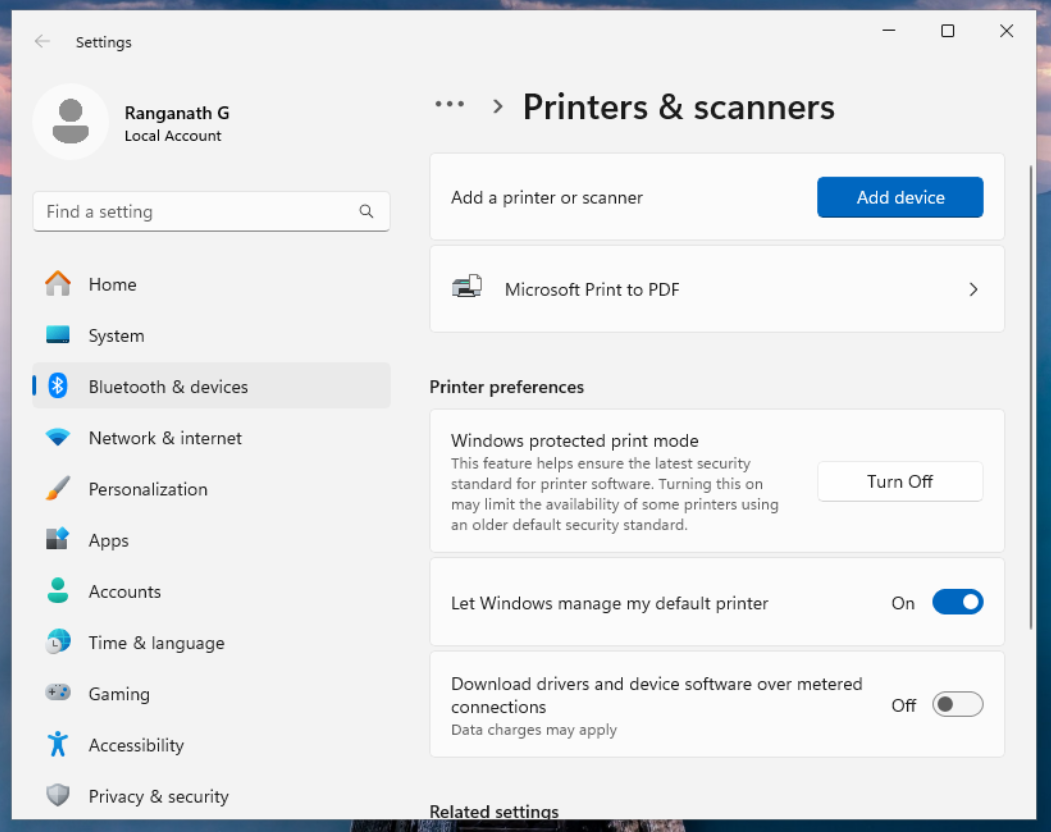
Enable WPP mode via Settings
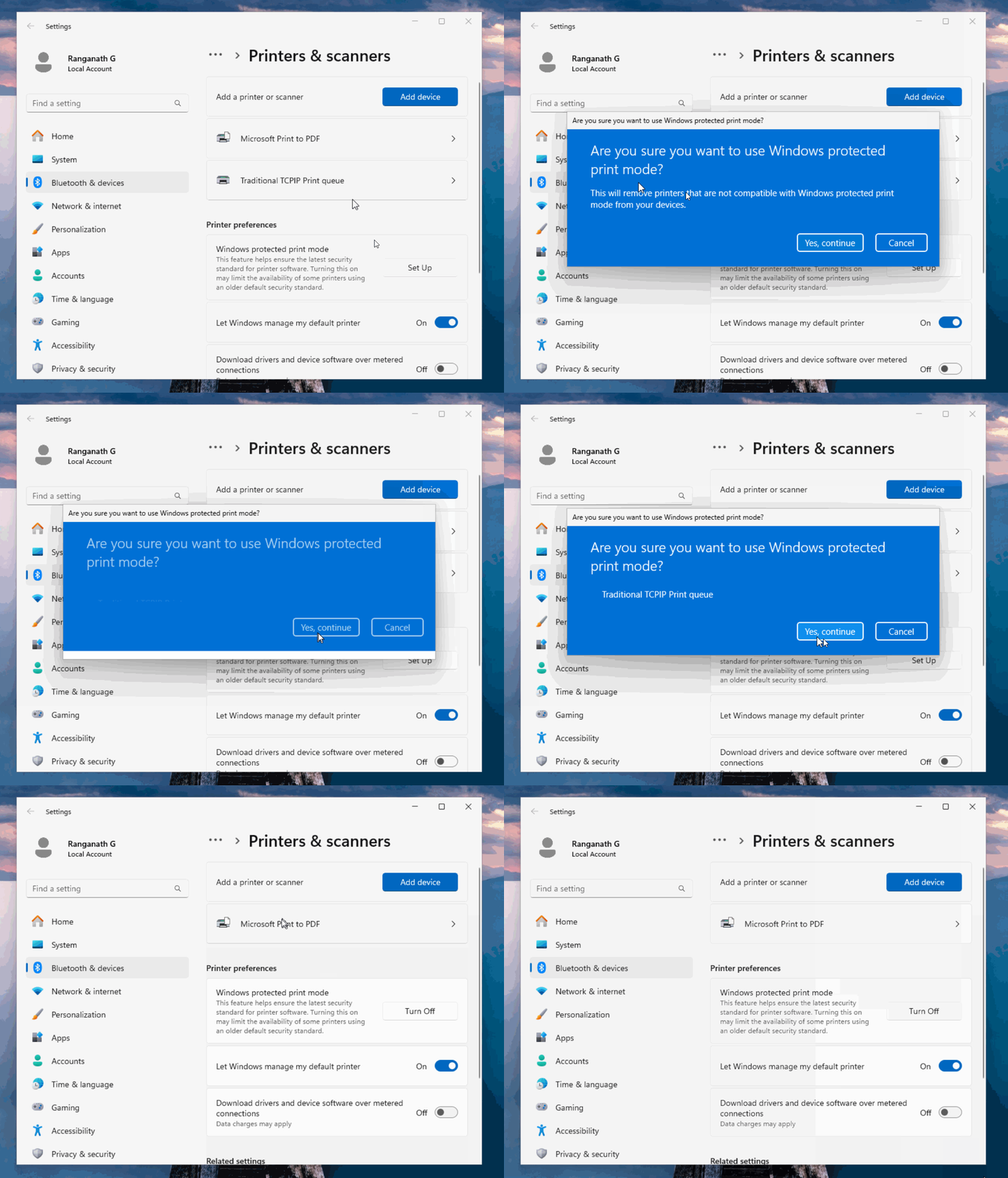
1. Navigate to Settings > Bluetooth & devices > Printers & scanners > Printer preferences
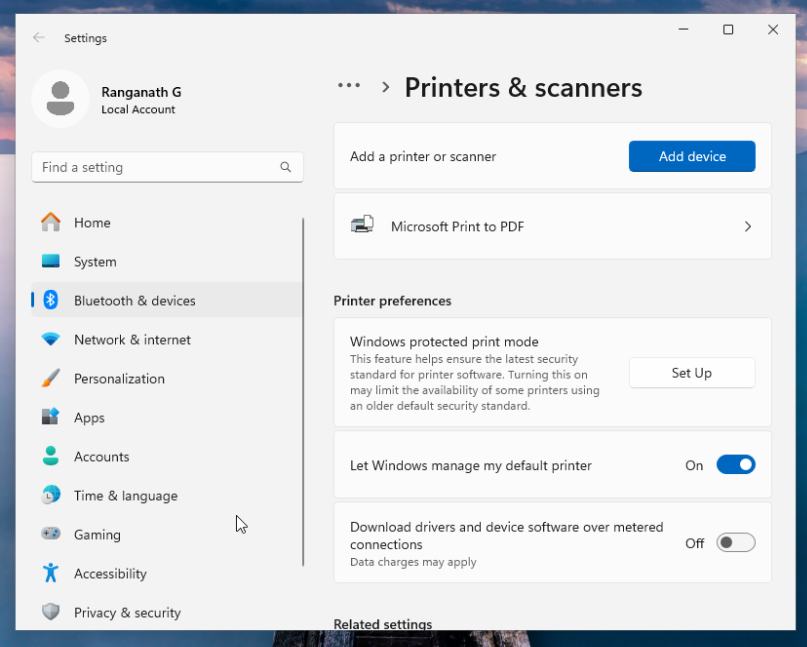
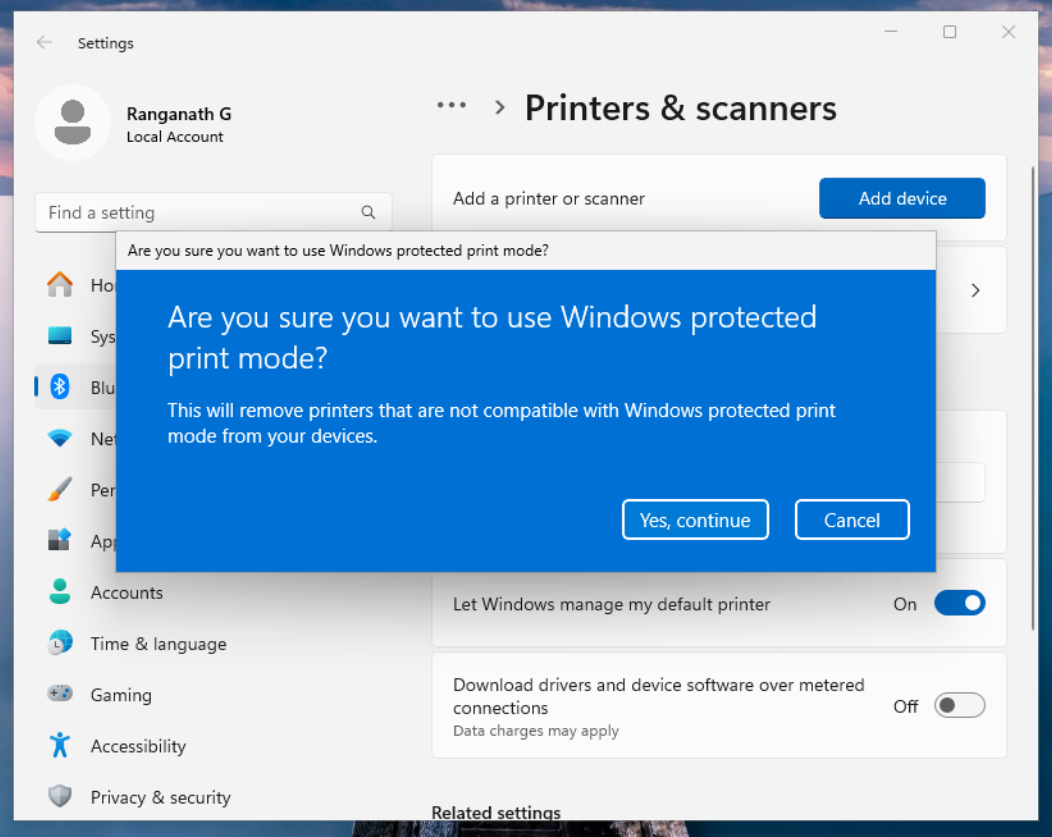
- Click ‘Set Up’. Windows will display a warning message.
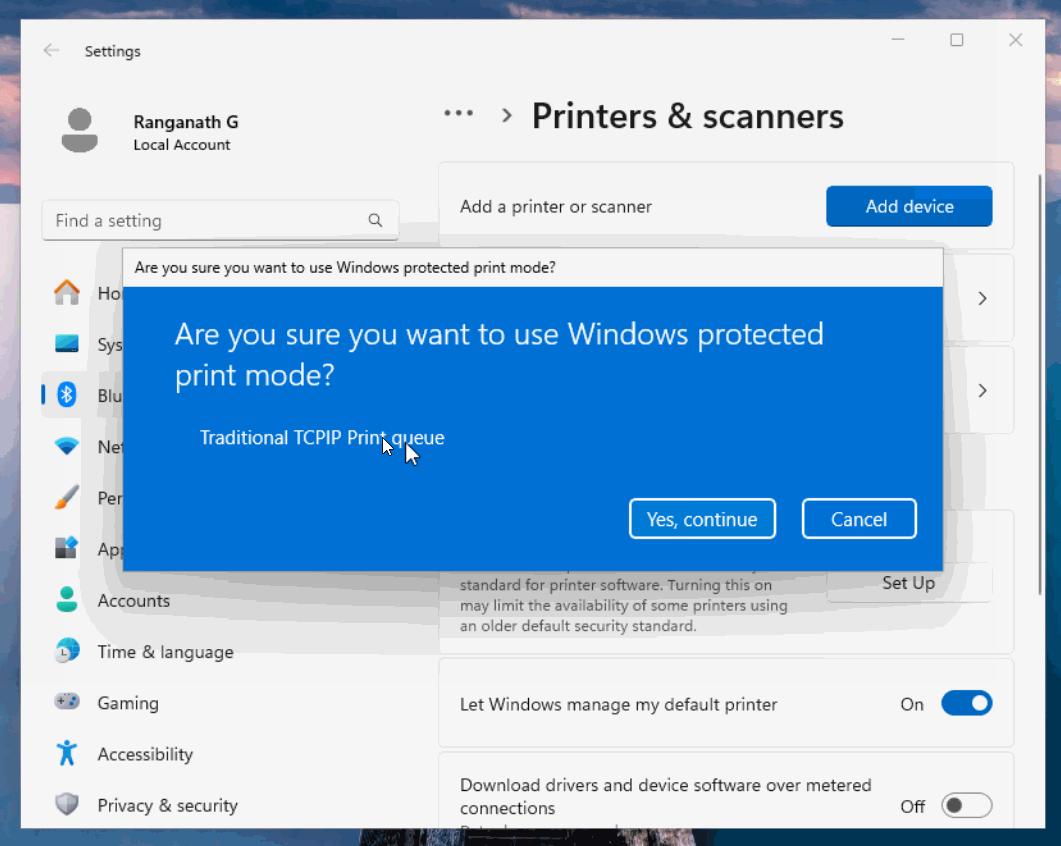
- Additionally, if WPP-incompatible print queues (such as standard TCP/IP queues) were already installed, Windows would warn that they would be removed.
- After successful completion, WPP should be turned on.
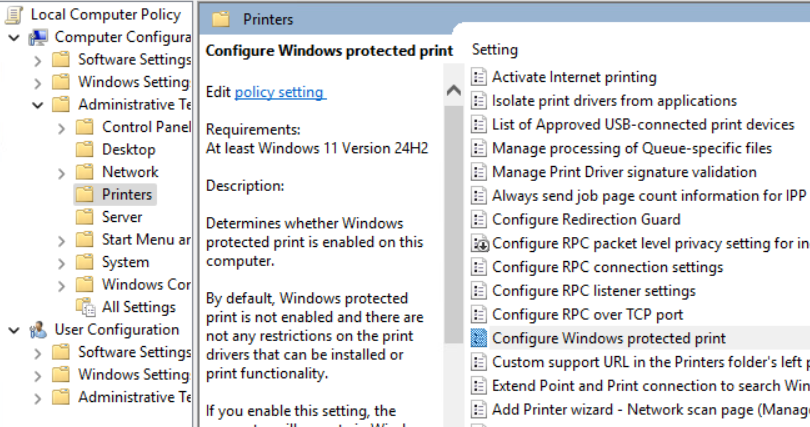
Enable WPP mode via Group Policy
Via Group Policy Editor > Administrative Templates > Printers > Configure Windows protected print > Edit
Timeline and updates
Note that these dates are subject to change:
01 OCTOBER 2024
When you enable Windows Protected Print Mode for the first time after the 24H2 upgrade, the existing incompatible (such as TCP/IP) queues may not get deleted. Also, you may still be able to create TCP/IP print queues. A system reboot may fix the issues. This is a known issue, and Microsoft is working on fixing it.
04 OCTOBER 2024
Microsoft is pushing the patch KB5043178 to fix Windows protected print anomalies soon. The estimated rollout date is 8th October.
26 NOVEMBER 2024
PaperCut MF/NG 24.1 released (includes introductory support in Print Deploy for Windows Protected Print Mode - see release notes).
For customers with WPP-enabled computers, PaperCut NG/MF currently supports printing via Mobility Print queues that are deployed by Print Deploy, enabling printing to all printers, even those that non-IPP-compatible.
PaperCut’s beta support release includes simple finishing options:
- paper size selection
- copy count
- duplex (two-sided/single-sided) printing
- color or grayscale printing
19 DECEMBER 2024
Enabling the WPP feature will result in the removal of the Internet Printing Client feature. Disabling WPP does not reinstall the Internet Printing Client feature. This is a known issue and Microsoft have been made aware. This impacts printing through PaperCut Hive and the PaperCut Mobility Print feature, causing silent failures when installing queues on computers that have been used to check out the Microsoft WPP feature and roll back to the existing print workflow.
9 JUNE 2026
Microsoft rebrands the Modern Print Platform to “Windows Ready Print” and adds a new driver choice setting.
The New Default: Starting July 2026, when you add a new printer, Windows will default to using its built-in IPP driver (Windows Ready Print) instead of manufacturer drivers.
You Still Have a Choice: If your printers aren’t ready for a driverless setup, you don’t have to use it yet. Microsoft added a toggle in Settings and a new Group Policy (Configure Windows Ready Print driver ranking) so you can choose between the new IPP driver or the manufacturer’s (OEM) driver. How it Affects WPP: If you turn on Windows Protected Print (WPP) mode, this choice goes away. WPP locks the setting to Ready Print and completely blocks all third-party drivers.
DATE TBC
Windows Protected Print Mode will eventually be enabled by default.
Further reading
- Windows Protected Print for PaperCut NG/MF
- PaperCut MF 24.1 release notes page
- The official Microsoft Windows Protected Print Mode announcement
- More from Microsoft about WPP
- Microsoft’s Windows protected print mode FAQ
- Microsoft’s Windows Ready Print announcement