




This page covers how PaperCut Hive and Pocket facilitate users printing when their devices aren’t connected to the main network, and outlines the end-to-end technical workflows for remote job submission and release. Two primary use cases are detailed: printing securely to printers on the main network from off-site locations via the Cloud Node, and auditing off-premises print jobs using Print Tracking and Direct print queues.
Examples of remote printing scenarios
Many organizations need to both enable and manage printing for users who are not connected to the main network. For example, organizations now routinely have staff who work in remote or hybrid setups.
Typical user scenarios requiring remote access include:
- Remote workers: Users who permanently work away from the company offices. They might work interstate, from a home office, or from a remote office or franchise location not connected to the main network.
- Hybrid workers: Users who split their time between the office and their home.
- Traveling staff: Users who move between offices or travel for their job and are rarely in the office.
Recommended solutions for remote printing
There are two core methods for users who want to print while disconnected from the company network.
Method 1: Print to office printers from outside the company network
An example of this scenario is a traveling staff member, or a staff member working from home, who is heading into the office later in the day.
For this solution to work, first ensure that end-user clients (devices) have access to the public internet at the time of print.
Next, to allow these users to print, enable the Cloud Node in the admin console. After the user prints from off the network, a copy of the print job is sent to the Cloud Node.
For Secure Print Release jobs, users release their print jobs normally when they arrive at the office. When the user releases the job, the Cloud Node routes its copy of the job to devices connected to the main network.
If users need to release their print jobs while remote, they need a mobile device with internet access and the Mobile App installed.
To enable remote release:
- In the admin console, go to Print Security > Secure Print Release.
- Select the List checkbox. This allows the end user to search for and select the output printer from the Mobile App. The job then releases to that printer on the main network.
Method 2: A remote user wants to print to their local printer, and you want to capture and track the print jobs
An example of this scenario is a user working from home who wants to print to a home printer, but the company wants to log the document names to monitor for sensitive information leaving the premises.
We recommend using the Print Tracking feature. This feature allows the PaperCut client to detect and report on any local direct print queues installed on the user’s machine that PaperCut Pocket or Hive does not deploy or manage. When the user prints, the system tracks and reports the job in the Job Log. These jobs immediately print on the user’s local printer instead of going into a hold/release queue. For more information, refer to About print tracking.
You can also provision Direct print queues using the Print Queue Deployment feature for printers not connected to the main network. This allows easy management of printer drivers and default finishing options for these printers.
The Print Tracking feature works best for tracking print jobs on home printers that a user has configured themselves, whereas Print Queue Deployment is better suited for tracking printing at remote locations (not connected to the main network) where the organization still manages the printers, for example, a store location or remote office.
You can configure deployment rules so that Direct queues for printers at various remote locations only appear on user devices connected to the network at that location. That way, users only print to those printers when they are nearby and can easily collect the job. For more information, refer to Managing deployed print queues.
How printing with PaperCut Hive and Pocket works
For detailed information on print job submission and release in remote printing scenarios, refer to Job submission process and Find-Me job release process below.
Pros and cons of remote printing environments
| Pros | Cons |
|---|---|
| Ability to print to any office printer from anywhere. | Direct print queues for printers on the main network do not function for users connected to remote networks. |
| Track printing to a home office printer. | The Cloud Node runs in several regions including North America, Canada, Australia, the United Kingdom, and the European Union. A PaperCut Hive organization can only be connected to one of these data centre regions. If your company needs to keep data in a specific location (data sovereignty), note that enabling the Cloud Node causes encrypted copies of each print job to be temporarily stored within PaperCut Cloud Services in the selected region. For more information, refer to Data center locations. |
Network diagram
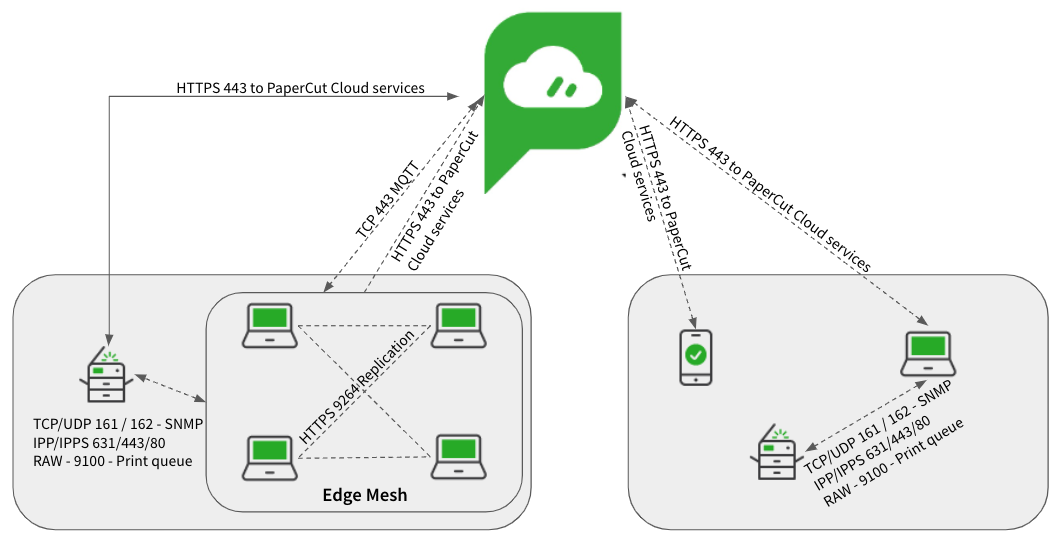
Ports
If you run the Full Embedded Printer App, some MFD platforms need additional ports opened between edge nodes and the MFD to facilitate certain device tasks. For the complete list of ports, refer to System requirements.
Job submission process
The following sections explain the process when a user prints in a remote environment.
Process for Find-Me printing from Windows, macOS, ChromeOS, and Android
| Action | Comms |
|---|---|
1. The user submits a print job from a computer (PaperCut client) or a mobile device, neither of which is connected to the main network. | N/A |
2. The PaperCut client requests a list of available edge nodes from PaperCut Cloud Services to submit the print job to. | HTTPS/MQTT via port 443/8883 |
3. PaperCut Cloud Services returns a list. The client checks the list to find a suitable edge node (Windows or macOS computer) and sends the job. At a remote location, suitable edge nodes are typically unavailable, except for the edge node running on the user’s device (client) when printing from a Windows or macOS computer. | HTTP/S via port 9263 (ChromeOS) 9264 (Win, macOS, Android). HTTP via port 9265 (localhost only - Win, macOS). |
4. If an available edge node accepts the job, it contacts PaperCut Cloud Services to verify it was submitted by a valid source. It then requests a list of available edge nodes to replicate the job. | HTTPS/MQTT via port 443/8883 |
5. The edge node checks the list and delivers the job to additional edge nodes on the network. Remote network locations usually lack other suitable edge nodes for replication. By default, the system replicates jobs to two edge nodes, but you can change this to one or zero in the print job replication advanced configuration. If set to zero, the system submits jobs only to the initial edge node and the Cloud Node. | HTTPS via port 9264 (Win, macOS) |
6. Because the Cloud Node is enabled, the edge node securely submits the encrypted print job to the Cloud Node over the public internet. If the remote network lacks edge nodes, the printing device submits the job directly to the Cloud Node. | HTTPS via port 443 |
7. The Cloud Node stores the job. Depending on configuration and availability, between zero and three edge nodes also store the job. The system uses a multi-part encryption key to encrypt stored jobs. | N/A |
Process for Find-Me printing from iOS
| Action | Comms |
|---|---|
1. The user submits a print job from an iOS device connected to a remote network. | N/A |
2. The iOS device securely submits the encrypted print job to the Cloud Node over the public internet. The URL to submit print jobs to the Cloud Node is provided by an AirPrint profile installed by the Mobile App on the iOS device. | HTTPS via port 443 |
3. The AirPrint profile also provides URLs for configured Super Nodes. When printing off-network from an iOS device, reachable Super Nodes are unavailable, so the device does not submit the job to one. | N/A |
4. The Cloud Node stores the job in an encrypted format using a multi-part encryption key. | N/A |
Process for Direct printing from Windows and macOS
| Action | Comms |
|---|---|
1. The user submits a print job to a Direct print queue from a Windows or macOS computer (client) not connected to the main network. The Direct print queue must target a printer on the same remote network as the user’s device. | N/A |
2. The client sends the print job to the edge node running on the user’s computer. | HTTPS via port 9264 (Win, macOS). HTTP via port 9265 (localhost only - Win, macOS). |
3. The edge node contacts PaperCut Cloud Services to verify the print job was submitted by a valid source. The edge node then requests the destination printer's known IP address. | HTTPS/MQTT via port 443/8883 |
4. PaperCut Cloud Services returns the printer IP address, and the edge node attempts to reach the destination printer. If the printer and printing port are available, the edge node sends the job to the printer. If the destination printer cannot be directly reached by the edge node, the job is cancelled. | SNMP via port 161/162. RAW printing via port 9100. |
Find-Me job release process
When a user releases a Find-Me print job, they can use two methods:
Releasing jobs at the MFD
| Action | Comms |
|---|---|
1. At the MFD, the end user logs in to PaperCut Hive using the touchscreen. | HTTPS via port 443, plus additional ports for certain brands |
2. PaperCut Cloud Services returns a list of available jobs. The jobs appear on the touchscreen. | HTTPS via port 443 |
3. The user selects the print jobs they want to release, modifies the job settings if necessary (for example, double-sided), and selects Print. | HTTPS via port 443 |
4. If the Cloud Node is enabled and Pull Delivery is configured for the MFD, the MFD retrieves the jobs directly from the Cloud Node and prints them. | HTTPS via port 443 |
5. If Pull Delivery is not configured, PaperCut Cloud Services contacts edge nodes to issue the job release command. If a Print Delivery Profile applies to the printer, PaperCut Cloud Services contacts the clients specified in the profile. Otherwise, the Autopilot algorithm nominates edge nodes based on reliability. | HTTPS/MQTT via port 443/8883 |
6. The selected edge node retrieves a copy of the job. For remote network printing, the edge node usually retrieves the copy from the Cloud Node. The edge node can also retrieve jobs from other edge nodes holding a replicated copy if they are accessible on the main network. | HTTPS via port 443 (Cloud Node retrieval). HTTPS via port 9264 (edge node retrieval). |
7. The edge node holding the job attempts to reach the specified MFD. If available, the edge node sends the job to the MFD using a configured print delivery protocol (for example, IPPS), and the job prints. | SNMP via port 161/162. IPP/IPPS printing via port 80/443/631. RAW printing via port 9100. |
Releasing jobs from a mobile device
| Action | Comms |
|---|---|
1. The user launches the PaperCut Mobile App on their mobile device (iOS or Android). The Mobile App contacts PaperCut Cloud Services to find the user's print jobs. | HTTPS via port 443 |
2. The Mobile App displays a list of print jobs ready for release. | HTTPS via port 443 |
3. The user selects the print jobs and modifies the job settings if necessary (for example, double-sided). | N/A |
4. The user selects Print document, then selects the printer from the list. Depending on the mobile release options configuration, the user can also select the printer using a QR code, NFC tag, or printer Release Code. The Mobile App relays this release request to PaperCut Cloud Services. | HTTPS via port 443 |
5. If the Cloud Node is enabled and Pull Delivery is configured for the printer, the printer retrieves the jobs directly from the Cloud Node and prints them. | HTTPS via port 443 |
6. If Pull Delivery is not configured, PaperCut Cloud Services contacts edge nodes to issue the job release command. If a Print Delivery Profile applies to the printer, PaperCut Cloud Services contacts the clients specified in the profile. Otherwise, the Autopilot algorithm nominates edge nodes based on reliability. | HTTPS/MQTT via port 443/8883 |
7. The selected edge node retrieves a copy of the job. For remote network printing, the edge node usually retrieves the copy from the Cloud Node. The edge node can also retrieve jobs from other edge nodes holding a replicated copy if they are accessible on the main network. | HTTPS via port 443 (Cloud Node retrieval). HTTPS via port 9264 (edge node retrieval). |
8. The edge node holding the job attempts to reach the selected printer. If available, the edge node sends the job to the printer using a configured print delivery protocol, and the job prints. | SNMP via port 161/162. IPP/IPPS printing via port 80/443/631. RAW printing via port 9100. |
Releasing jobs from a mobile device using Print Offline
If the link to PaperCut Cloud Services is unavailable (for example, an Internet Service Provider outage), users can still release print jobs using their mobile device if:
- the Print Offline feature is enabled
- the mobile device is connected to Wi-Fi on the organization’s main network
- the mobile device can communicate with nearby edge nodes
- a nearby edge node stores a replicated copy of the job.
Print jobs submitted off-network are usually only stored on the Cloud Node and the user’s Windows or macOS device. Because the Cloud Node is unreachable during an outage, these jobs are only available to release with Print Offline if both the user’s mobile device and their Windows or macOS device are now connected to the main network. For more information, refer to About printing offline.
| Action | Comms |
|---|---|
1. The user launches the PaperCut Mobile App. The Mobile App detects that the internet connection is down and switches to looking for local edge nodes. | HTTPS via port 9266 |
2. The edge nodes return a list of available print jobs to the Mobile App. | HTTPS via port 9266 |
3. The user selects the print jobs and modifies the job settings if necessary (for example, double-sided). | N/A |
4. The user selects Print document, then selects the printer from the list. Depending on the mobile release options configuration, the user can also select the printer using a QR code, NFC tag, or printer Release Code. The Mobile App relays the release request to nearby edge nodes. | HTTPS via port 9266 |
5. The edge nodes communicate to find the node holding the print job to issue the release command. | HTTPS via port 9264 |
6. The edge node holding the job attempts to reach the selected printer. If available, the edge node sends the job to the printer using a configured print delivery protocol, and the job prints. | SNMP via port 161/162. IPP/IPPS printing via port 80/443/631. RAW printing via port 9100. |
Comments
Comments are not available in this preview environment. On papercut.com, this space shows the live Disqus comment thread for this page.