


Troubleshooting "Network Timeout" scanning errors on Ricoh devices
This page applies to:

Last updated September 30, 2026
This page describes how to resolve network-related issues that surface when attempting to leverage Integrated Scanning on Ricoh devices.
What causes network timeout errors?
“Network Timeout” errors on Ricoh devices occur when data packets exceed network size limits (MTU) and get dropped. Administrators can resolve this by matching MTU settings across all network components or enabling TCP MSS Clamping on the router/firewall.
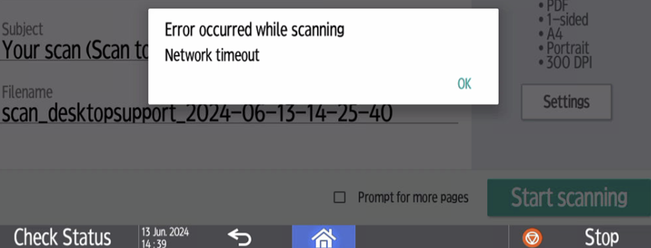
When network devices communicate, they agree on a maximum packet size (MTU) and maximum content size (MSS).
When a packet exceeds size limits due to VPNs or security wrappers, the following actions occur:
- The packet fragments into smaller pieces or gets dropped entirely
- The PaperCut server or Ricoh MFD waits for data that never arrives
- The Ricoh device stops attempting to transfer data and displays a “Network Timeout” error
How to prevent scanning timeout errors
To resolve the scanning timeout error, match the MTU values across your network components, or apply MSS clamping to packet fragmentation. This will prevent traffic interruption without dropping packets. Since these network settings vary from environment to environment, we recommend working with your network administrator to configure them.
Perform the following steps:
-
Align MTU Values across network equipment.
Ensure the MTU settings match across all components on the network, specifically the Ricoh copier, local routers, network switches, and the PaperCut server itself. The standard is typically 1,500 bytes, though some network setups require 1,492 or lower.
-
Configure MSS Clamping on your router/firewall.
If your network uses VPNs or specialized tunnels between the copier and server, enable TCP MSS Clamping on your firewall or router. TCP MSS Clamping forces the copier and server to automatically negotiate smaller packet sizes right when the connection starts, preventing packets from exceeding the network limits mid-scan.
Category: Troubleshooting Articles
Subcategory: Devices
Comments
Comments are not available in this preview environment. On papercut.com, this space shows the live Disqus comment thread for this page.