


Contents
- Overview
- Application Server version
- Mobility Print server version
- Print Deploy server version
- Print Deploy client version
- Universal Print connector version
- Print Enablement Versions (file system level version check method)
- Job Ticketing server version
- Site Server version
- Database version and database driver version
- Payment gateway module version
- Overview
- Application Server version
- Mobility Print server version
- Print Deploy server version
- Print Deploy client version
- Universal Print connector version
- Print Enablement Versions (file system level version check method)
- Job Ticketing server version
- Site Server version
- Database version and database driver version
- Payment gateway module version
How to check PaperCut NG/MF component version numbers
This page applies to:


Last updated July 1, 2026
Contents
- Overview
- Application Server version
- Mobility Print server version
- Print Deploy server version
- Print Deploy client version
- Universal Print connector version
- Print Enablement Versions (file system level version check method)
- Job Ticketing server version
- Site Server version
- Database version and database driver version
- Payment gateway module version
- Overview
- Application Server version
- Mobility Print server version
- Print Deploy server version
- Print Deploy client version
- Universal Print connector version
- Print Enablement Versions (file system level version check method)
- Job Ticketing server version
- Site Server version
- Database version and database driver version
- Payment gateway module version
Finding your current software version is easy! It’s just not always where you might first look.
You would probably think that the installed version of each of these applications could be found in [Programs and Features], however, this will only tell you the version that was originally installed. To find the actual version, you will need to check in a number of locations.
Application Server version
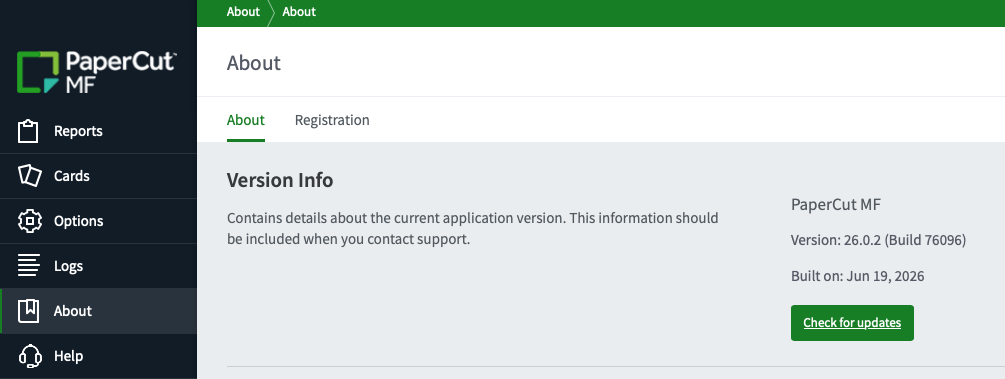
Check the version of the PaperCut NG/MF Application Server through the PaperCut NG/MF admin interface (e.g. http://my-papercut-server:9191/admin), then About > Version info:
Release history:
- PaperCut MF: https://www.papercut.com/products/mf/release-history/
- PaperCut NG: https://www.papercut.com/products/ng/release-history/
Mobility Print server version
Check the version of the Mobility Print server through the PaperCut NG/MF admin interface (e.g. http://my-papercut-server:9191/admin), then Enable Printing > Mobile & BYOD > Mobility Print, where each of your Mobility Print servers are listed, along with the version number in use.
Or, through the Mobility Print admin interface (e.g. http://my-mobility-print-server:9163/) directly, where the version number is listed in the top right hand corner:

Release history:
Print Deploy server version
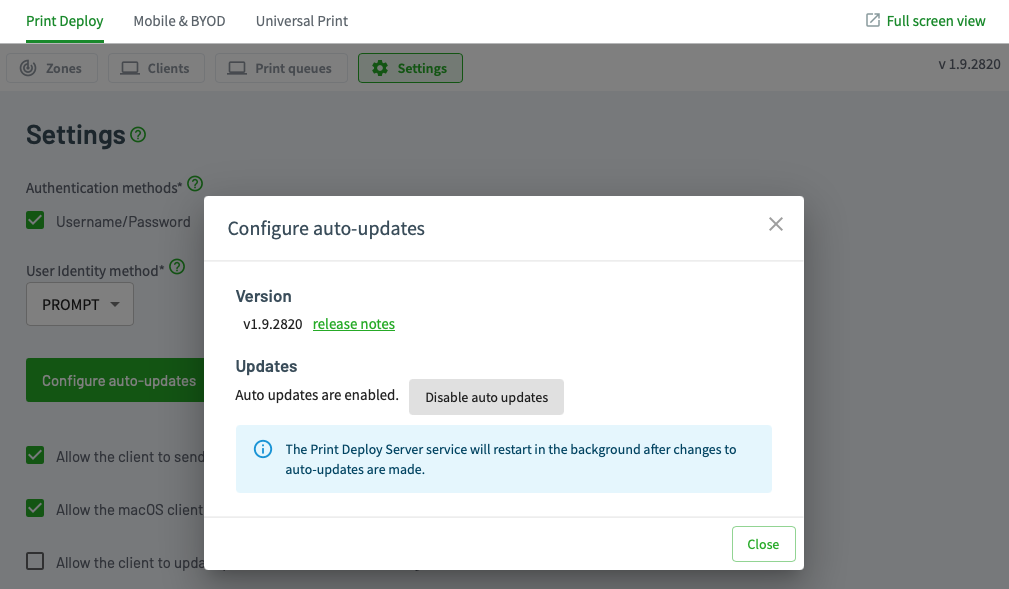
Check the version of the Print Deploy server through the PaperCut NG/MF admin interface (e.g. http://my-papercut-server:9191/admin), then Enable Printing > Print Deploy then checking the version number at the top right of the screen:

Or within that same area, you can use the Settings tab the click the Configure auto-updates button to view version information and auto-update information.
Release history:
Print Deploy client version
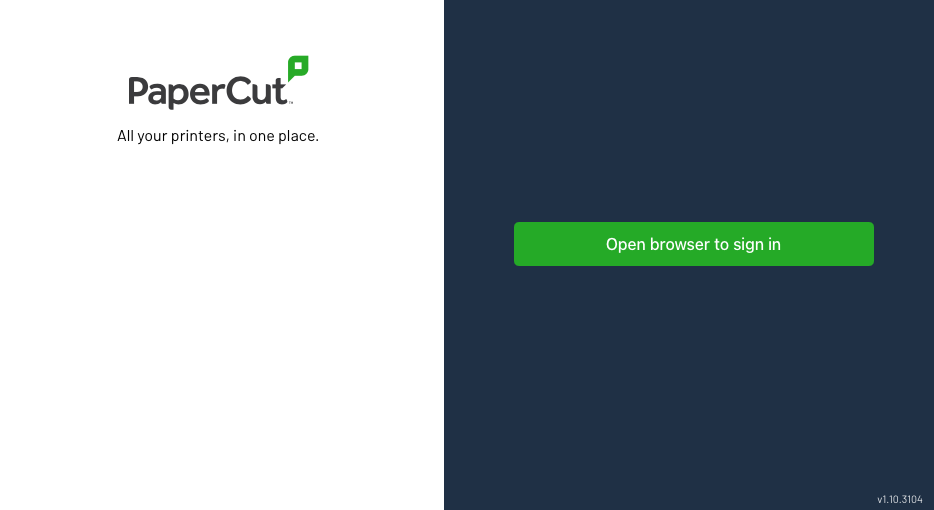
Check the version of the Print Deploy client through the Print Deploy client user interface. Before logging in, you can see the client version number in the bottom right of the login screen:
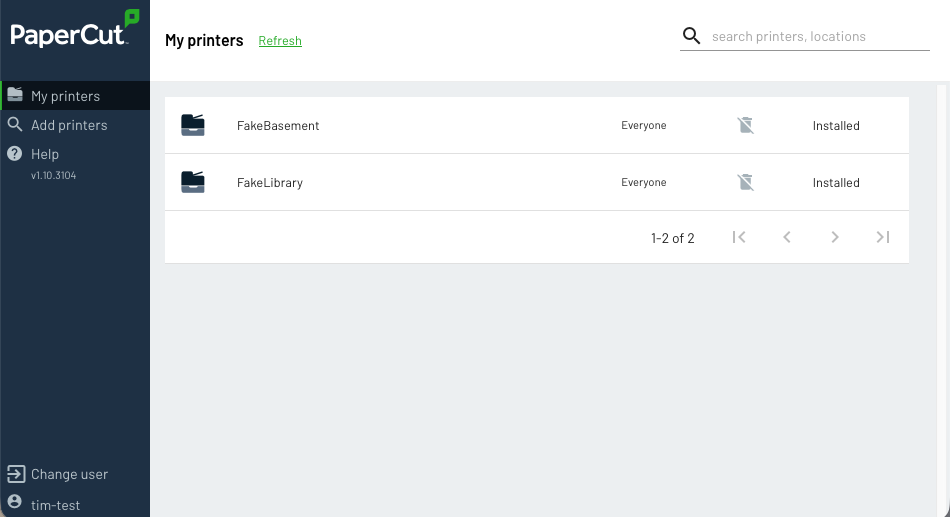
Or after logging in, you can see the client version number under the Help menu on the left hand side:
Release history:
Universal Print connector version
Check the version of the Universal Print connector through the Application Server (or secondary server) file systems where you have the Universal Print connector installed.
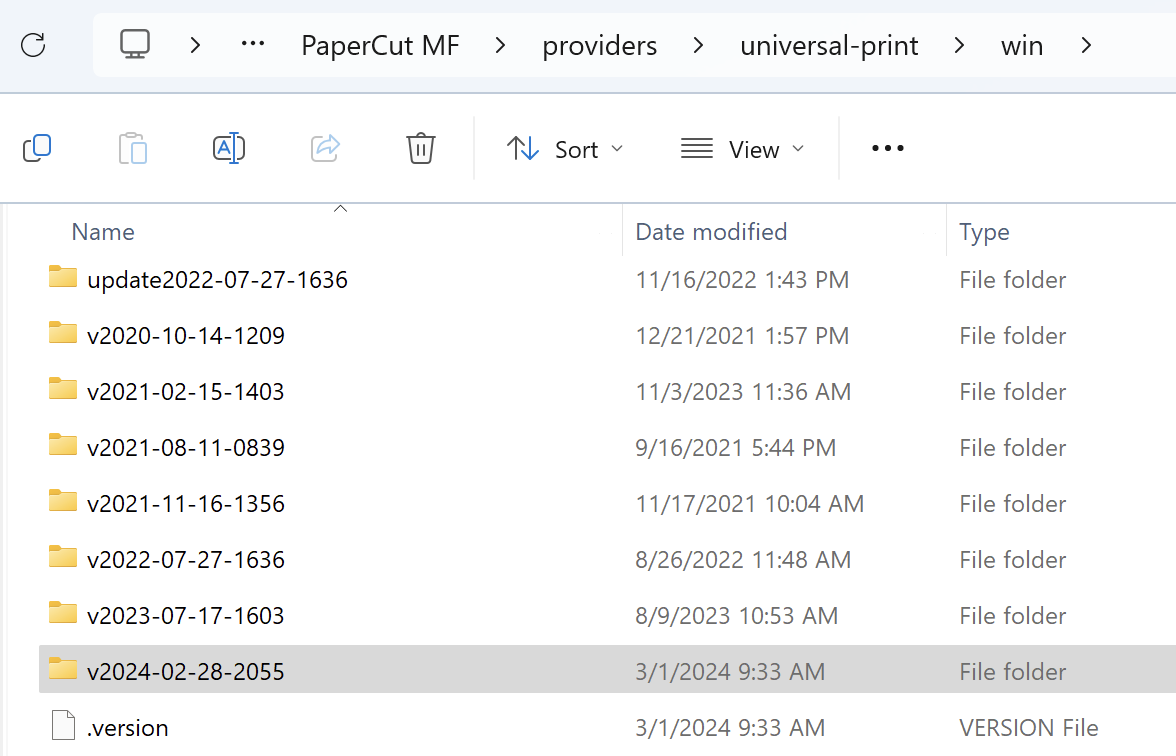
Check the directory [installation directory]\providers\universal-print\win\ (e.g. C:\Program Files\PaperCut MF\providers\universal-print\win) and check for the latest ‘version’ folder - e.g. v2024-02-28-2055 (or later - it’s in the format of vYYYY-MM-DD-xxxx).
Release history:
- Universal Print: https://www.papercut.com/kb/Main/ReleaseNoteUniversalPrint/
Print Enablement Versions (file system level version check method)
Mobility Print, Print Deploy and Universal Print share the same update technology. The current and previous versions can be seen in the install directory. We use parallel version deployment for updates. Think of it like a library getting a new edition of a book. It keeps the old one on the shelf for a short time, just in case.
Our software does the same thing! New updates live in their own versioned folders inside the main program folder. This makes your updates smooth, seamless, and super reliable.
Find Your Current or Past Versions
Ready to find your true version number? Just follow these steps.
Open File Explorer (Windows) or Finder (macOS) and go to the application’s main installation folder.
- Mobility Print:
[Mobility Print Server installation path]- e.g. on Windows: C:\Program Files (x86)\PaperCut Mobility Print
- e.g. on macOS: /Applications/PaperCut Mobility Print
- Print Deploy:
[Print Deploy Server installation path]\providers\print-deploy\win- e.g. on Windows: C:\Program Files\PaperCut MF\providers\print-deploy\win
- e.g. on macOS: /Applications/PaperCut MF/providers/print-deploy/win
- Print Deploy Client:
[Print Deploy Client install path]- e.g. on Windows: C:\Program Files\PaperCut Print Deploy Client
- e.g. on macOS: /Applications/PaperCut Print Deploy Client
- Universal Print:
[App Path]\providers\universal-print\win- e.g. on Windows: C:\Program Files\PaperCut MF\providers\universal-print\win
- e.g. on macOS: /Applications/PaperCut MF/providers/universal-print/win
Look inside the main folder for a sub-folder that contains more folders named with version numbers. Universal Print example shown below.
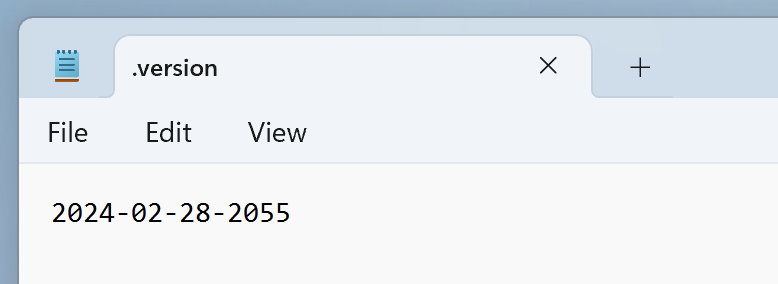
An additional check can be made by looking at the .version file in the same folder, and see which version it’s pointing to:
Job Ticketing server version
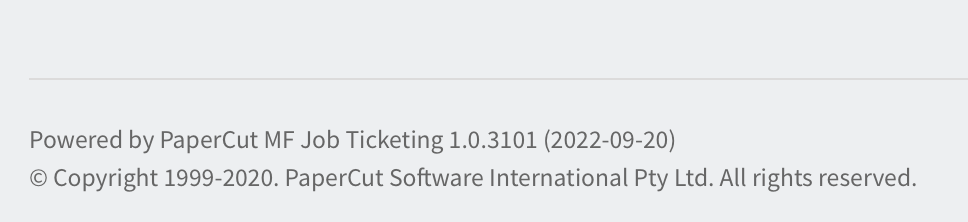
Check the version of the Job Ticketing server through the PaperCut NG/MF interface (e.g. http://my-papercut-server:9191/admin), then Options > Job ticketing > Manage rooms. In the Job Ticketing screen, check the version number listed at the bottom of the screen.
Release history:
Site Server version
Check the version of the PaperCut NG/MF Site Server through the PaperCut NG/MF admin interface (e.g. http://my-papercut-server:9191/admin), then Sites > Site Server List > [select Site Server] > Details > Installed version.
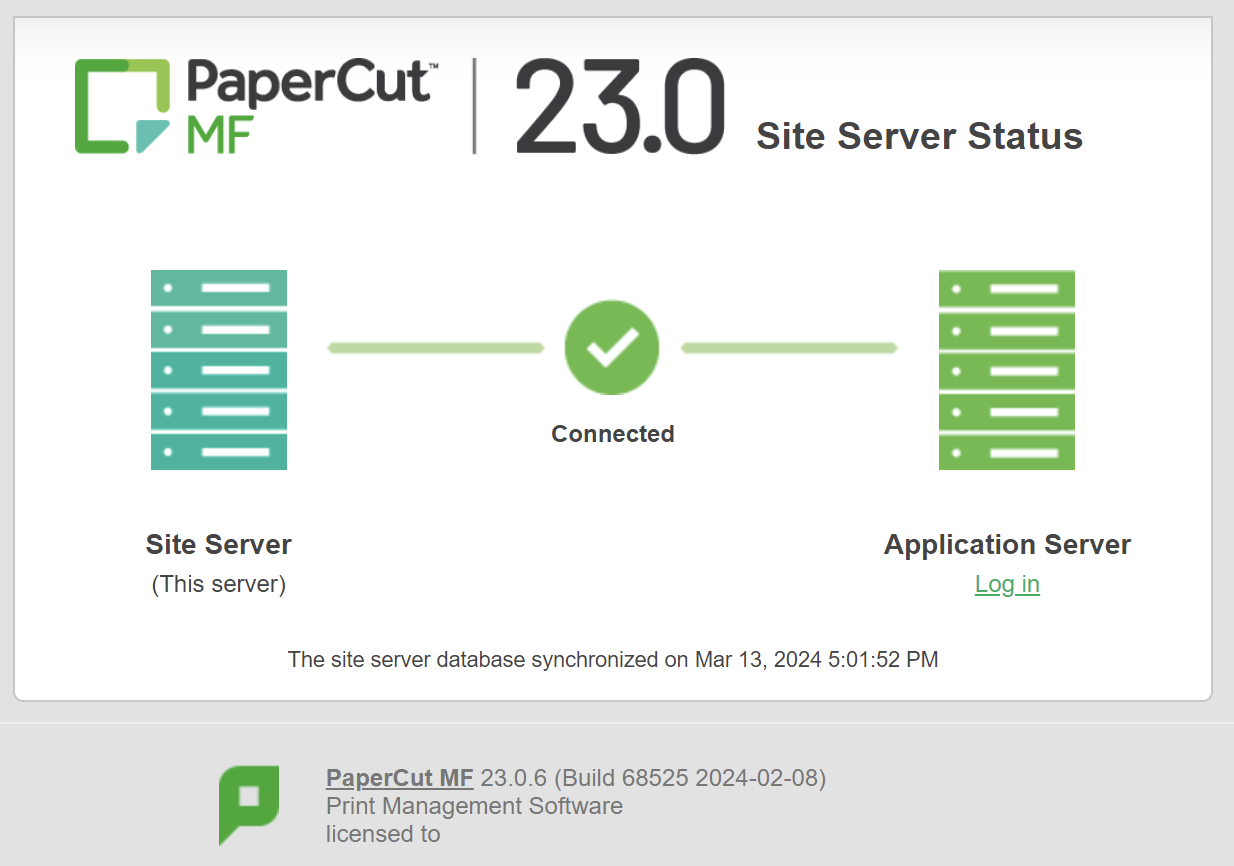
Or check the version of the PaperCut NG/MF Site Server through the PaperCut NG/MF Site Server Status page (on the Site Server itself - e.g. http://my-papercut-site-server:9191/admin), then check below the sync-status box at the bottom of the screen for the PaperCut NG/MF Site Server version:
Release history (same as the Application Server release history):
- PaperCut MF: https://www.papercut.com/products/mf/release-history/
- PaperCut NG: https://www.papercut.com/products/ng/release-history/
Database version and database driver version
PaperCut NG/MF admin interface
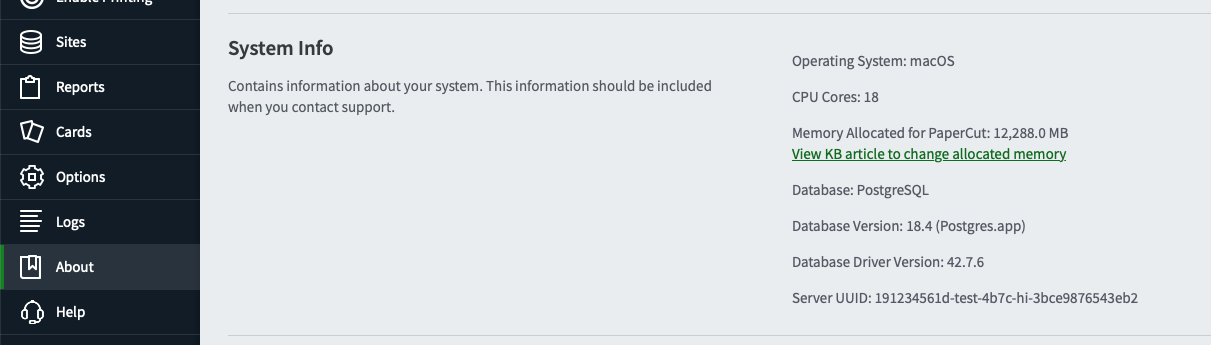
In PaperCut NG/MF version 25.0.0 and later, sys admins can now easily view the Database Version and Database Driver Version within the PaperCut Admin Interface. This information is available by navigating to About > System Info.
Application Server log files
In PaperCut NG/MF version 24.1.1 and later, sys admins can check the database version and the database driver version in use (especially if you’re using an External database like MS SQL or PostgreSQL or others) by reviewing the Application Server log files.
The following lines are displayed immediately after the Application Server start up. These entries can be found in the file system under [app install]/server/logs/server.log for example C:\Program Files\PaperCut MF\server\logs\server.log (or if there are multiple logs, the information may be within server.log.*).
- The “Database version” will list the database platform version in use (e.g. if you’re using Microsoft SQL Server and you see version 13.0, that means you’re using SQL Server 2016.
- The “Database driver” version will show the version of the driver in use, normally this is a default packaged version of the driver, or one selected when you originally set up the external database.
- If you’re using MS SQL Server version 2016 or later, check that you are using an updated driver as documented on Upgrading the Microsoft SQL JDBC Driver.
Example connecting to the default (internal) Derby database:
2024-11-13 13:47:33,588 INFO AppServer - Database: Apache Derby, Version: 10.14.2.0 - (1828579), Database version: 10.14 [main]
2024-11-13 13:47:33,589 INFO AppServer - Database driver: Apache Derby Embedded JDBC Driver, Version: 10.14.2.0 - (1828579) [main]
Example connecting to a Microsoft SQL database:
2024-11-13 13:55:09,669 INFO AppServer - Database: Microsoft SQL Server, Version: 13.00.6450, Database version: 13.0 [main]
2024-11-13 13:55:09,671 INFO AppServer - Database driver: Microsoft JDBC Driver 12.6 for SQL Server, Version: 12.6.1.0 [main]
Example connecting to a PostgreSQL database:
2025-02-28 13:35:21,721 INFO AppServer - Database: PostgreSQL, Version: 14.17 (Postgres.app), Database version: 14.17 [main]
2025-02-28 13:35:21,721 INFO AppServer - Database driver: PostgreSQL JDBC Driver, Version: 42.6.0 [main]
Payment gateway module version
To find out which version of the Payment Gateway module is installed and running:
-
Within the Application Server file system, navigate to:
[MF/NG installation directory]/server/lib-ext. -
Open the file
ext-payment-gateway-version.txt. -
Check the line with
version-build=number. This will match up with the last 3 digits of the ‘Version’ notes on the Payment gateway module release history page.
As an example, this installation’s .txt file indicates version 21.2 (build 214).
See the Payment gateway module release history page for more information on the build numbers, release dates and release notes.
Category: Troubleshooting Articles
Subcategory: Upgrading or Downgrading
Comments
Comments are not available in this preview environment. On papercut.com, this space shows the live Disqus comment thread for this page.