


Contents
Google Chrome or Microsoft Edge crashes when printing on Windows
This page applies to:


Last updated July 17, 2026
Contents
This page explains how to diagnose and resolve Chromium-based browser crashes that occur on Windows devices after clicking Print in the browser print dialog.
Why Chromium-based browsers crash during printing
Google Chrome or Microsoft Edge might crash immediately after you click Print in the browser print dialog on Windows devices. Meanwhile, printing from other applications, for example, Microsoft Word or Adobe Acrobat, works correctly.
The crash is usually not caused by PaperCut software. PaperCut software operates on top of the Windows print environment. However, modern browser security features can flag the PaperCut print job analysis process as suspicious because the process hooks into the print stack to pause, track, and modify jobs. This conflict triggers a browser crash. Additionally, outdated or malfunctioning print drivers can cause identical crashes, specifically in Chromium-based browsers.
For more information, see the following related articles:
- Driver Isolation Mode in Windows
- Disabling Advanced Printing Features
- Improving Windows Print Spooler stability
- Tracking print-related application failures back to a print driver name
- Best practices for configuring Windows Print Servers
Signs of browser printing crashes
You might observe one or more of the following symptoms when this crash occurs:
- The browser print preview loads correctly, but clicking Print causes Google Chrome or Microsoft Edge to close immediately.
- The crash only affects Google Chrome or Microsoft Edge. Other applications, for example, Microsoft Word and Adobe Acrobat, or other browsers, for example, Mozilla Firefox, print without errors.
- The crash affects all print queues, or only queues deployed by PaperCut software, for example, Find-Me or virtual queues.
- The crash only occurs when you are off the corporate network.
- Windows Event Viewer logs an Event ID 1000 (Application Error) at the moment of the crash.
How modern browser security affects printing
Since 2020, Microsoft and browser vendors have progressively tightened security protocols surrounding the Windows print stack. Chromium-based browsers, for example, Google Chrome and Microsoft Edge, utilize Hardware-enforced Stack Protection to monitor calls made into the print subsystem. When PaperCut software hooks into the print process to analyze and pause a job, the browser might flag this action as a security threat and terminate immediately.
Separately, malfunctioning or outdated print drivers, especially older vendor-specific Dynamic Link Libraries (DLLs), can crash within the browser rendering process. This happens because the browser security model prevents the driver code from executing historical behaviors.
This reflects a broad industry trend. Microsoft addresses this through Windows Protected Print Mode (WPP), which replaces traditional print drivers with Internet Printing Protocol (IPP) driverless printing.
Diagnosing the root cause
Work through the following checks before applying a solution to determine the appropriate fix.
Check A: Verifying Windows OS and spooler errors
Print to Microsoft Print to PDF or XPS Document Writer from a Chromium browser. If the browser still crashes, the fault resides at the Windows OS or print spooler level and is not related to PaperCut software or the print driver.
In this scenario, open the Windows Event Viewer, check for Event ID 1000, and verify if WINSPOOL.DRV is the faulting module. You might need to open a support case with Microsoft to repair the Windows Print Spooler.
Check B: Checking off-network behaviors
If you can print correctly on the corporate network but Google Chrome crashes when you work remotely, the cause is likely Mobility Print queues configured with an IP address instead of a hostname.
When you are off-network, Windows attempts to connect to the IP address and waits for a full network timeout before failing. This delay causes Google Chrome to hang or crash. For more information, see the Configuring Mobility Print hostnames section.
Check C: Comparing PaperCut deployed queues and manual installations
If you manually install the printer using TCP/IP and it prints without crashing, but the identical printer deployed through Print Deploy crashes Google Chrome, the cause relates to the queue or driver configuration in Print Deploy. Verify the driver version and the port name length. For more information, see the Updating or replacing the print driver section.
Check D: Collecting Windows Event Viewer logs
Review the Windows Event Viewer to find crash details:
- Press Windows key + R to open the Windows Run dialog.
- In the Open field, type
eventvwr.mscand press Enter to open the Event Viewer. - In the navigation tree, navigate to Windows Logs > Application.
- Filter the log for Event ID 1000 (Application Error).
- Locate the entry timestamped to the exact moment of the crash.
- Locate the Faulting module name field to identify the diagnostic details.
Make your decisions based on this diagnostic matrix:
Faulting module | Likely cause | Recommended fix |
A vendor driver DLL, for example, | Outdated or malfunctioning print driver | |
| Windows OS or Windows Print Spooler error | Contact Microsoft support |
No crash event logged when the browser closes | Hardware-enforced Stack Protection or Exploit Protection conflict | Isolating the print driver |
Updating or replacing the print driver
If the Event ID 1000 log identifies a vendor-specific driver DLL as the faulting module, update or replace that print driver.
- Identify the driver name from the faulting module by running the PowerShell command detailed in Tracking print-related application failures back to a print driver name.
- Check the printer manufacturer website or Windows Update for an updated driver version.
- Test the updated driver on a single computer before deploying it widely.
- Switch the print queue to the PaperCut Global PostScript driver if an updated vendor driver is unavailable. This alternative driver resolves browser crashes where a vendor PCL6 driver causes conflicts.
Configuring Mobility Print hostnames
If the crash only occurs when no network connection is available while using Mobility Print queues, the cause might be a print queue configured with an IP address instead of a hostname for its known host address.
When the IP address is unreachable because no network connection is available, Windows waits for a full network timeout before failing. This extended delay causes Chromium browsers to crash. Configuring a hostname allows Domain Name System (DNS) resolution to fail faster, which prevents the browser from hanging or crashing.
Mobility Print can be configured to use Known Host (FQDN) quite simply.
-
Log in to the Mobility Print administrator page
http://<server_address>:9163/admin -
Select Discovery Options.
-
Change to Known Host selecting your server FQDN.
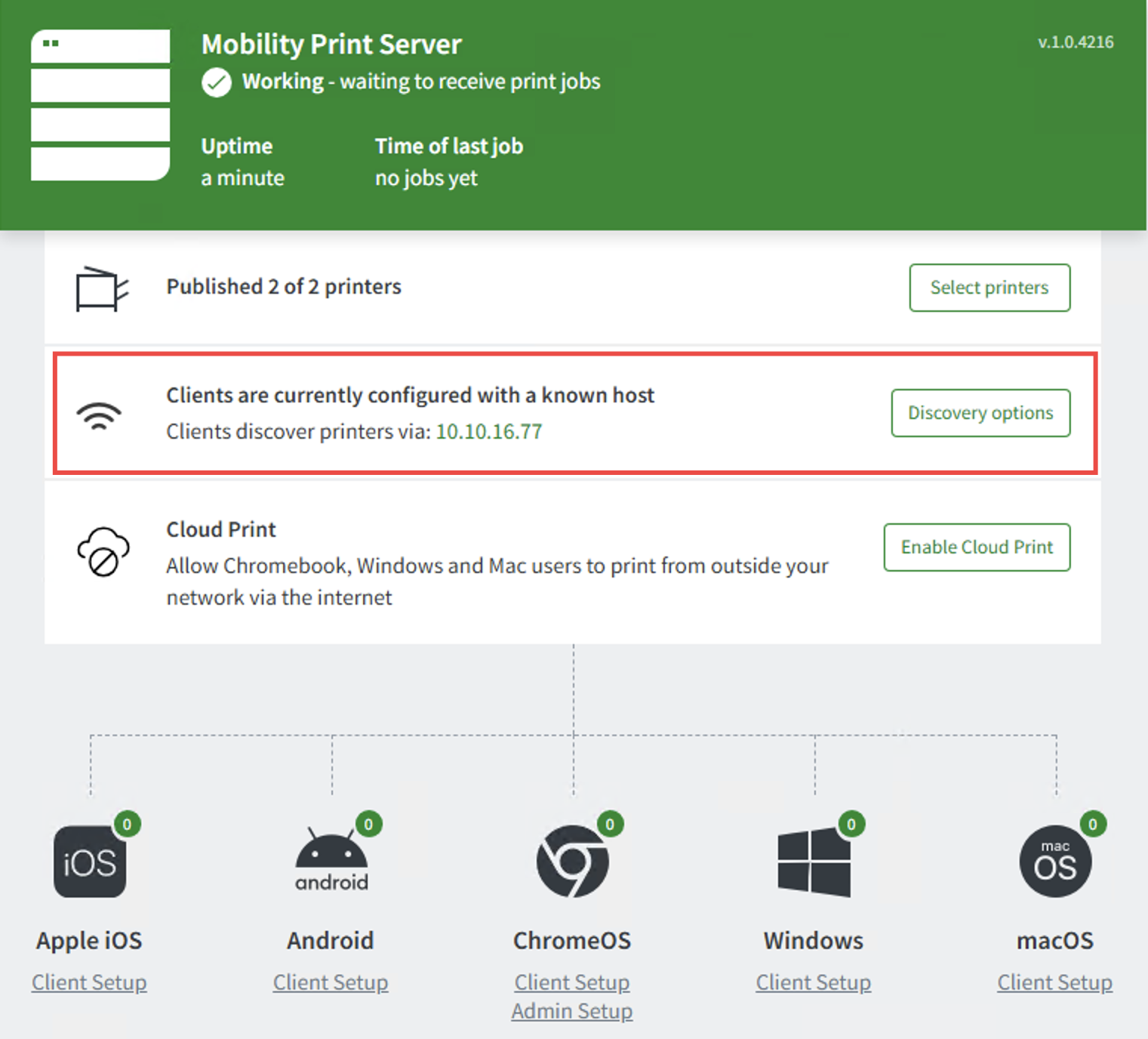
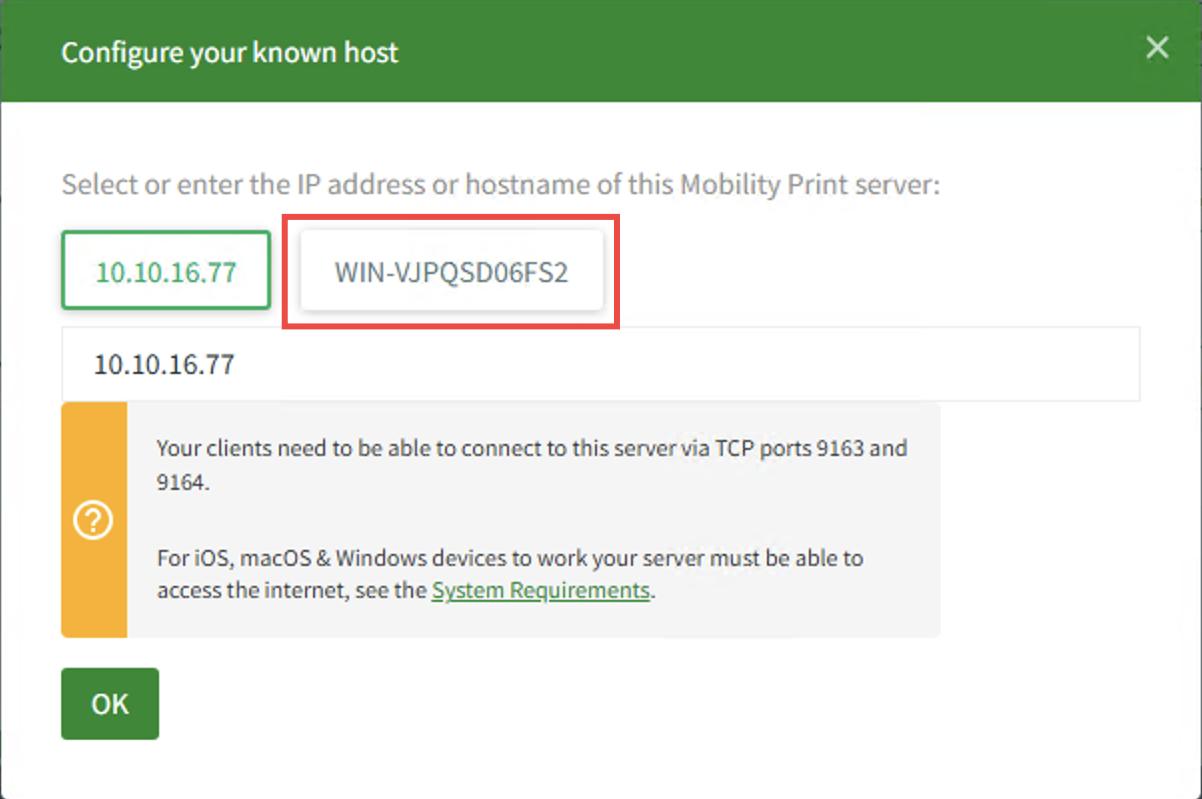
If printing away from the corporate network is needed consider using Mobility Print Cloud.
Exempting browsers from Hardware-enforced Stack Protection
If you are still reading this article and the previous steps have not resolved the crash, the browser Hardware-enforced Stack Protection setting might block the PaperCut print-hooking behavior. To exempt the affected browser executables, follow these steps:
-
Open the Windows Start menu, type
Exploit protection, and open Exploit protection. -
Select the Program settings tab.
-
Select Add program to customize, then select Add by program name.
-
In the entry field, type
chrome.exeand select Add. -
In the settings panel, scroll to Hardware-enforced stack protection.
-
Select the Override system settings checkbox, and toggle the switch to Off.
-
Select Apply to save the exception.
-
Repeat this procedure for
msedge.exeif Microsoft Edge is also affected.
Security implications of disabling Hardware-enforced Stack Protection
Disabling Hardware-enforced Stack Protection modifies the security profile of your web browsers. Review the technical modifications and vulnerabilities before applying this exemption:
- The browser loses one layer of protection against specific memory corruption exploits, particularly return-oriented programming (ROP) attacks.
- The browser continues to utilize alternative security mitigations, including application sandboxing, Data Execution Prevention (DEP), Address Space Layout Randomization (ASLR), Control Flow Guard (CFG), and regular security updates.
- The web browser does not become completely unprotected; instead, you remove a single defense-in-depth mitigation layer.
Browsers represent a high security risk because they process untrusted content from the internet and remain frequent targets for exploit kits and zero-day vulnerabilities. Hardware-enforced Stack Protection prevents attackers from converting discovered browser vulnerabilities into arbitrary code execution. Disabling this protection removes that operational obstacle.
If you changed this configuration to resolve browser crashes, open a support ticket. PaperCut support will link your ticket to the internal known issue PIE-51 for tracking.
Category: Troubleshooting Articles
Subcategory: Print Jobs
Comments
Comments are not available in this preview environment. On papercut.com, this space shows the live Disqus comment thread for this page.