


Contents
How to cancel a print job and remove/delete it from the queue
This page applies to:




Last updated July 21, 2026
Contents
There are a few different reasons why you may want to cancel a print job from the print queue.
- The print queue is in error — Maybe there’s a print job in the queue that is mysteriously stuck in a state of “Spooling” or “Printing”, that’s preventing other jobs from printing. It’s worth digging into the root cause, which might be driver-related; see our article Improving Windows Print Spooler stability. However, deleting the stuck job might be a quick fix.
- You sent a print job by mistake — Maybe you sent the wrong print job to the wrong printer, you tried to print too many copies, or you caught a typo after hitting Print, and you want to fix the mistake before it prints out.
Whatever the reason, here’s how to delete print jobs from a queue on Windows, macOS, or within PaperCut NG/MF.
Just know that once a job has been released and is actively printing, it can no longer be cancelled through PaperCut. You’ll have to contact your IT department or use the controls on the copier to stop the job.
Cancel a print job from a Windows queue
-
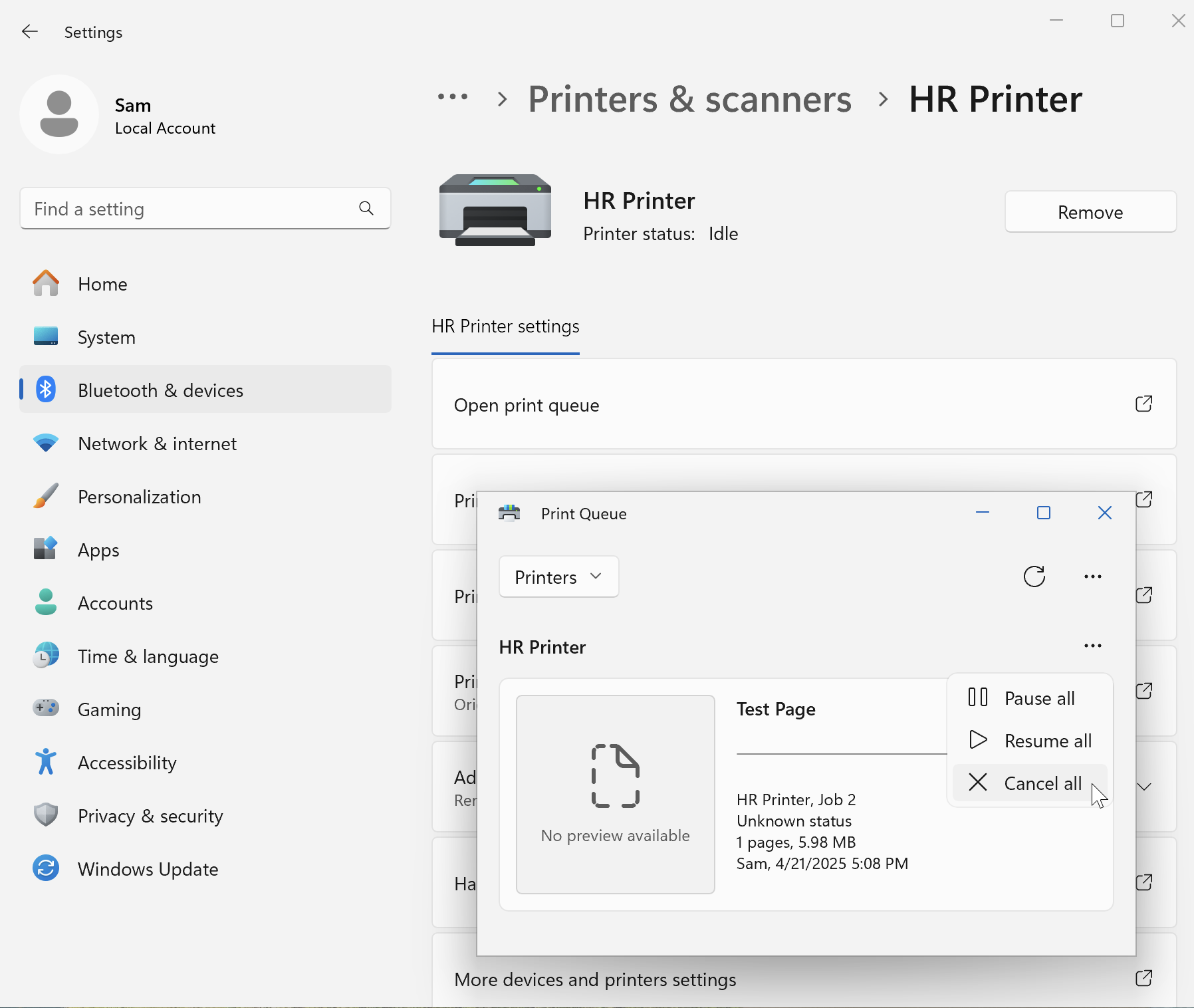
Click the Windows icon, then go to Settings > Bluetooth & Devices > Printers & scanners.
-
Select the printer in question, then click Open print queue.
-
Click the three dots, then select Cancel all.
Remove a print job from a macOS queue
-
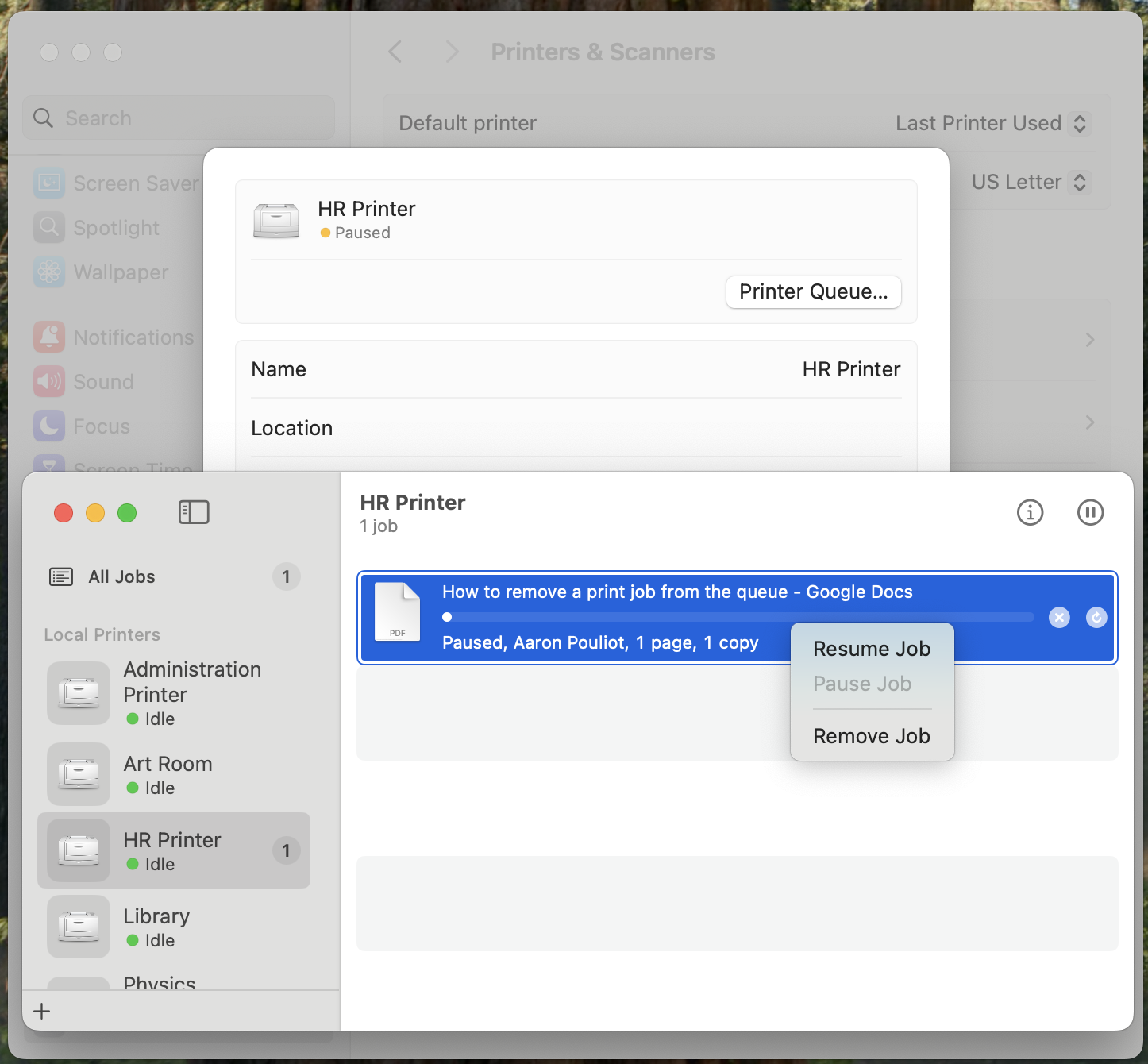
Click the Apple icon, then go to System Settings > Printers & Scanners.
-
Select the printer, then click Printer Queue.
-
Click the job in question, then select Remove Job.
Cancel a print job in PaperCut NG/MF
Whether you’re an end user or an admin, there are a couple of ways to cancel jobs from PaperCut NG or MF before they are released to the printer. Canceling a print job this way will also remove it from the queue on the user’s computer or print server.
Cancel a job in PaperCut NG/MF as a user
-
Log in to the user web interface.
-
Click Jobs Pending Release.
-
Find the job you want to delete and click Cancel.

Cancel a job in PaperCut NG/MF as an admin
-
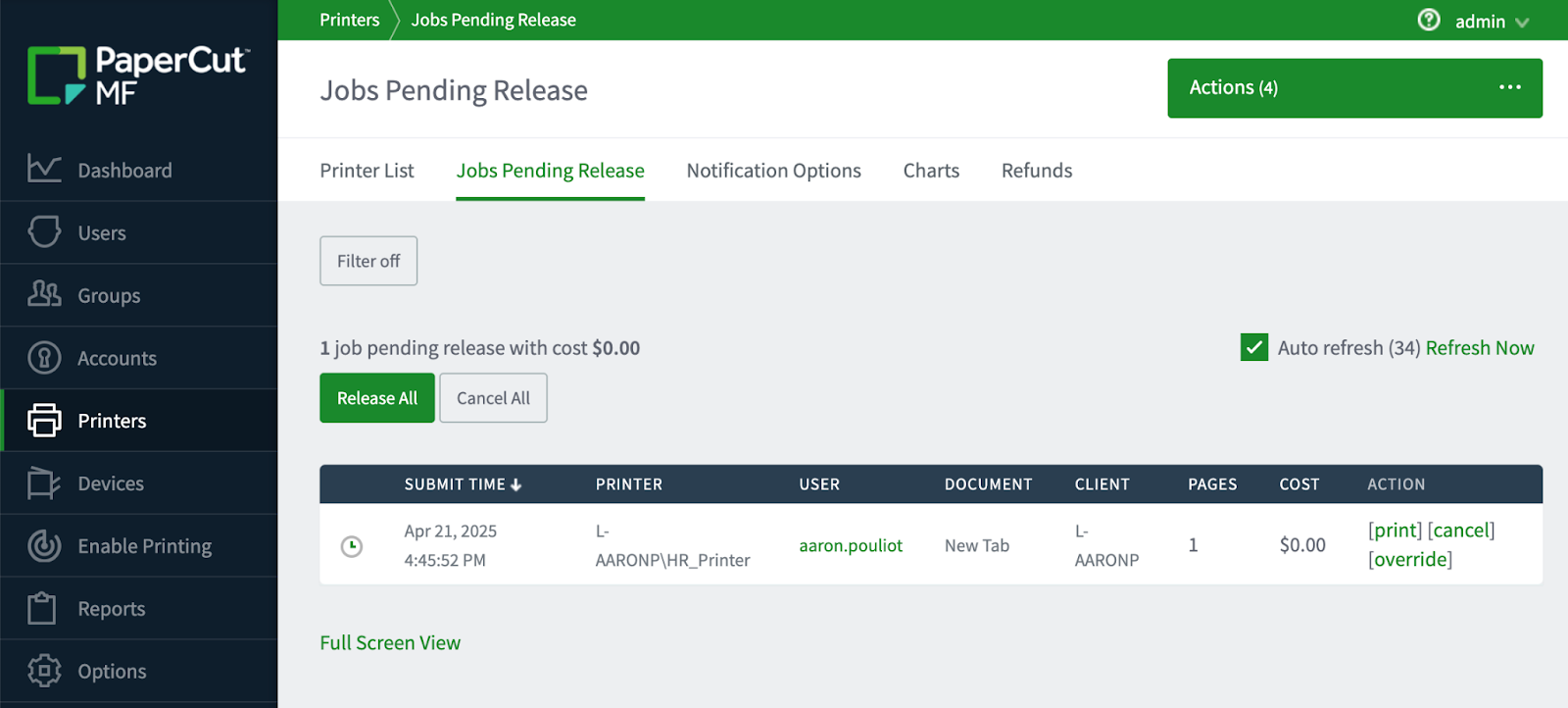
Log in to the admin web interface.
-
Click Printers.
-
Click the Jobs Pending Release tab.
-
Find the job you want to delete and click Cancel.
Remove a print job in PaperCut Hive and Pocket
You can cancel or remove pending print jobs before they are released to the printer.
-
Automatic deletion — the system will automatically delete your print job after a set timeout period. The default timeout is 8 hours, but it can range from 30 minutes to 3 days depending on your organization’s settings. For more info, see About automatic print job timeout and deletion.
-
Via the Mobile App — Swipe on a pending print job in the PaperCut Hive or Pocket mobile app to delete it.

-
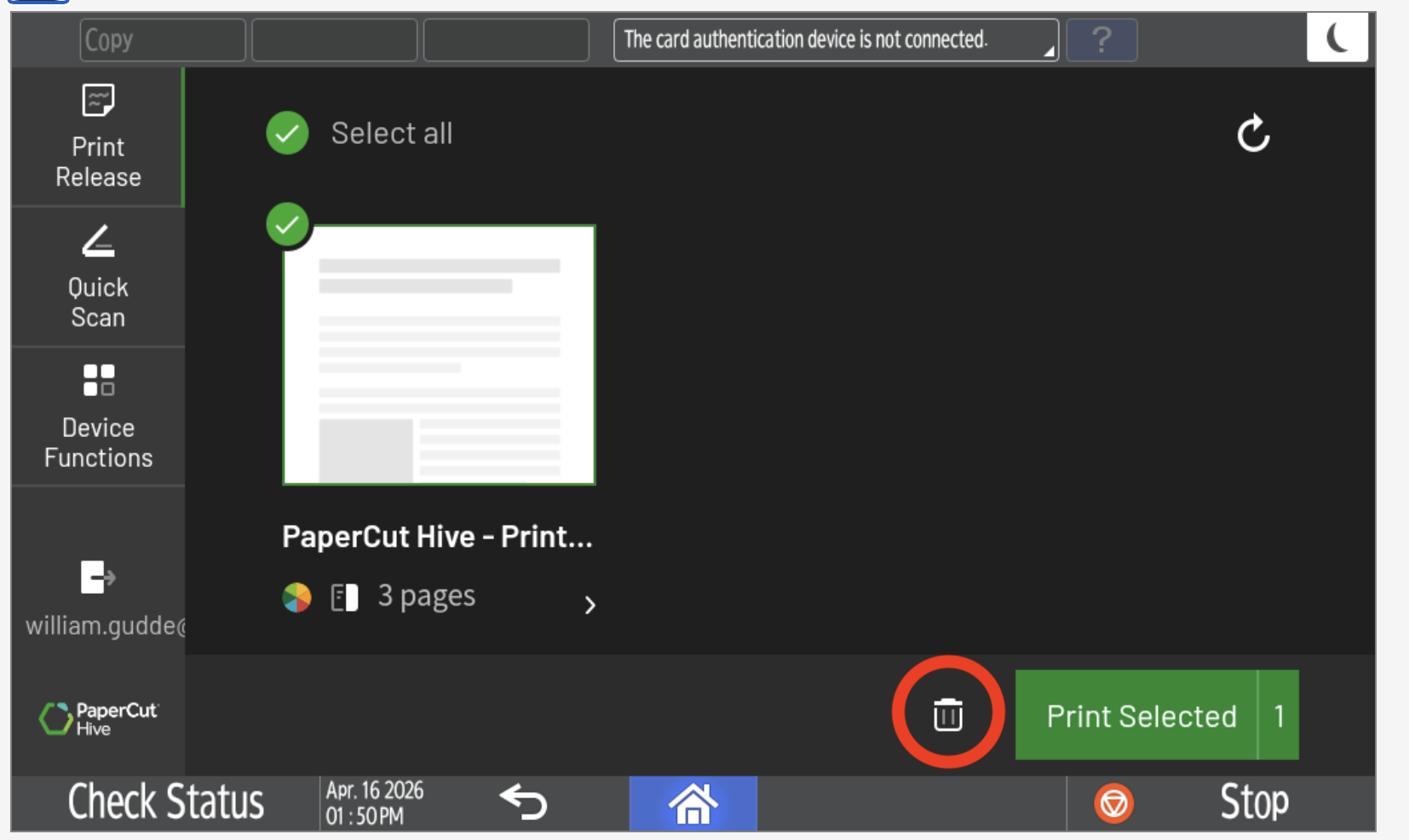
At the copier (Hive only) — Sign in to the MFD to cancel a print job before releasing it. Select the checkbox next to your print job, then select the trash icon.
Canceling a print job on the printer or copier
After the system releases a print job to the printer, the printer takes full control of it. Think of it like dropping a letter into a mailbox; once the printer has the job, PaperCut cannot cancel or recall it.
If a print job is stuck or printing unexpectedly after an error, for example, a paper jam or an out-of-paper status, use the following options:
- Use the copier’s own controls - Printers often have an on-screen menu to access the job status screen or job queue. You or an administrator can cancel the job directly on the printer. Because steps vary by make and model, check the documentation from your printer manufacturer.
- Gently open the paper tray - Opening the paper tray interrupts the print job but does not cancel it. Most printers allow you to open the tray safely mid-print without damaging the hardware.
- Ask for help - Some printers have a support label with a phone number on the front panel. Contact the phone number or your IT department for help. Let them know if you already released the print job from PaperCut.
Category: How-to Articles
Subcategory: Print Queues
Comments
Comments are not available in this preview environment. On papercut.com, this space shows the live Disqus comment thread for this page.