


Contents
Configuring Entra ID permissions to save Integrated Scanning jobs in users’ Microsoft OneDrive and SharePoint
THE PAGE APPLIES TO:




Last updated March 4, 2026
Contents
Microsoft Entra ID (formerly Azure AD) gives administrators control over when end users:
- can authorize applications to access system resources
- must request administrator approval for apps to access system resources.
If administrator approval is required for all applications, when the Microsoft Entra ID admin sets up Integrated Scanning, they must perform an extra setup step to allow users to scan to Microsoft OneDrive with either PaperCut Hive or PaperCut MF.
The first time PaperCut Hive or PaperCut MF users use the scan feature to scan to Microsoft OneDrive, they receive an email asking them to authorize PaperCut.
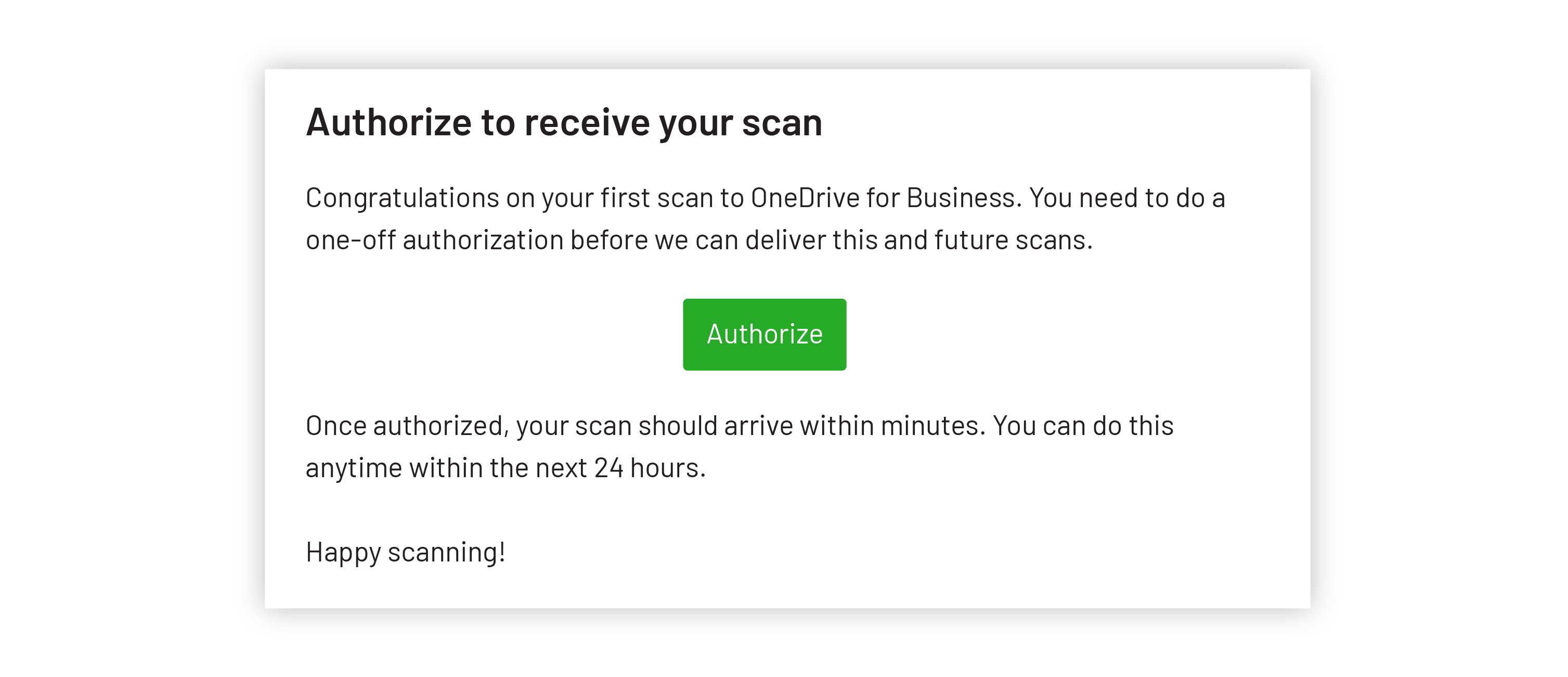
Without this additional configuration, when users click Authorize they’ll see the following screen. It stops them from continuing until an admin gives them approval to use PaperCut to access resources in their organization.

1. Authorize the PaperCut app for your Microsoft Entra ID tenancy
Use the URL for your region (see PaperCut Hive URLs or PaperCut MF URLs below) to authorize the PaperCut application for your Microsoft Entra ID tenancy. Select the correct PaperCut product, data processing or tenancy location, and scan destination.
When visiting the URL, you’ll be prompted to authorize either Scans for PaperCut Hive or Scans for PaperCut MF. Below is an example of the Microsoft screen that’s displayed.
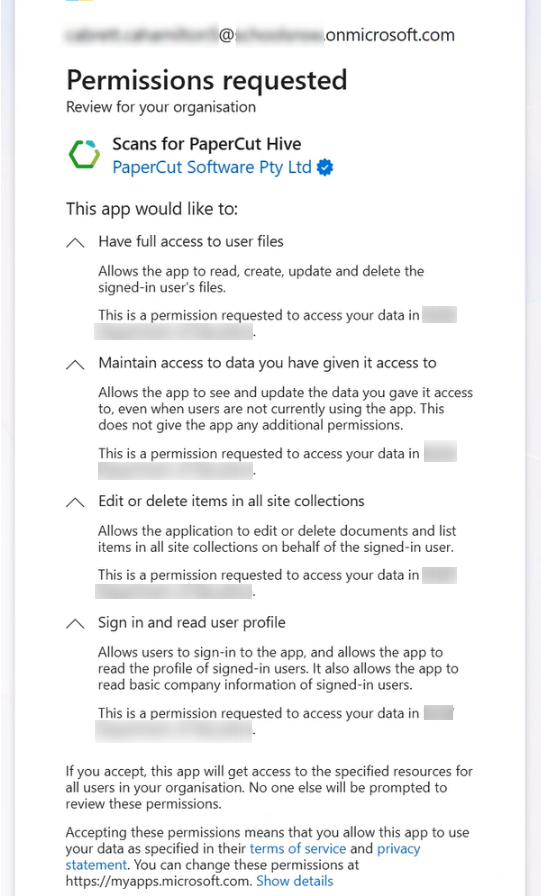
When authorizing Integrated Scanning jobs to OneDrive or SharePoint applications for PaperCut MF or PaperCut Hive, you need to grant specific API permissions via the Microsoft Graph.
For PaperCut to deliver scanned documents to a user’s cloud storage, the PaperCut enterprise apps in Entra ID require the following delegated permissions:
PaperCut enterprise app | Scope | Applies to |
Scans for PaperCut MF |
|
|
PaperCut MF Scan to SharePoint |
|
|
Scans for PaperCut Hive |
|
|
* Files.ReadWrite: Allows the app to read, create, update, and delete the signed-in user’s files.
** Sites.ReadWrite.All: (For SharePoint) Allows the app to edit or delete files in all site collections.
*** offline_access: Allows the app to maintain a connection to the service without requiring the user to re-authenticate every time they scan.
For a full technical breakdown of these scopes, please refer to the Microsoft Permissions Reference .
Admin concerns about permissions clarified
A common concern for administrators is why PaperCut requires “Read/Write” access when the software primarily needs “Write-Only” access to deliver new scans.
There is currently a functional gap between the granular needs of the PaperCut application and the permission structures provided by the Microsoft Graph API.
- No “Write-Only” Scope: Microsoft does not currently offer a specific “Write-Only” or “Create-Only” permission for administrative, tenant-wide consent.
- The Microsoft Standard: To grant an application the right to create a file in a user’s OneDrive or a SharePoint library, Microsoft requires the Files.ReadWrite scope. This automatically includes the ability to read all existing files within that user’s storage.
While the requested permissions are broad by design of the Microsoft API, PaperCut’s interaction is strictly limited:
- Scope of Activity: PaperCut only interacts with the files it creates during a scan job.
- No Data Indexing: The application does not crawl, read, or index existing personal files or corporate data stored in OneDrive or SharePoint.
- Standard Implementation: These permissions are the only options available from an admin-granting perspective within the Microsoft API for these cloud services.
PaperCut Hive URLs
Choose the section based on the hosting location of your PaperCut Hive tenancy.
USA
SharePoint Online and OneDrive for Business
https://login.microsoftonline.com/common/oauth2/authorize?client_id=b692366d-1708-4722-be07-5749639c0432&response_type=code&redirect_uri=https://scan.us.cloud.papercut.com/hive/sharepoint/auth/callback&prompt=admin_consent&msafed=0
Europe (Germany)
SharePoint Online and OneDrive for Business
https://login.microsoftonline.com/common/oauth2/authorize?client_id=b692366d-1708-4722-be07-5749639c0432&response_type=code&redirect_uri=https://scan.eu.cloud.papercut.com/hive/sharepoint/auth/callback&prompt=admin_consent&msafed=0
United Kingdom
SharePoint Online and OneDrive for Business
https://login.microsoftonline.com/common/oauth2/authorize?client_id=b692366d-1708-4722-be07-5749639c0432&response_type=code&redirect_uri=https://scan.uk.cloud.papercut.com/hive/sharepoint/auth/callback&prompt=admin_consent&msafed=0
Australia
SharePoint Online and OneDrive for Business
https://login.microsoftonline.com/common/oauth2/authorize?client_id=b692366d-1708-4722-be07-5749639c0432&response_type=code&redirect_uri=https://scan.au.cloud.papercut.com/hive/sharepoint/auth/callback&prompt=admin_consent&msafed=0
PaperCut MF URLs
In PaperCut MF, the PaperCut Cloud Services hosting region is configured in the admin interface. Check out our Configure advanced Integrated Scanning (config keys) article for more details.
For PaperCut MF, if you offer users both OneDrive and SharePoint destinations you might need to use multiple URLs .
USA
SharePoint Online
https://login.microsoftonline.com/common/oauth2/authorize?client_id=2b028097-6070-40e4-ac47-ce36168e2958&response_type=code&redirect_uri=https://scan.us.cloud.papercut.com/sharepoint/auth/callback&prompt=admin_consent&msafed=0
OneDrive for Business
https://login.microsoftonline.com/common/oauth2/authorize?client_id=539a8c1f-46f5-41c9-aadb-a11b69c077ce&response_type=code&redirect_uri=https://scan.us.cloud.papercut.com/onedrive-business/auth/callback&prompt=admin_consent&msafed=0
Europe (Germany)
SharePoint Online
https://login.microsoftonline.com/common/oauth2/authorize?client_id=2b028097-6070-40e4-ac47-ce36168e2958&response_type=code&redirect_uri=https://scan.eu.cloud.papercut.com/sharepoint/auth/callback&prompt=admin_consent&msafed=0
OneDrive for Business
https://login.microsoftonline.com/common/oauth2/authorize?client_id=539a8c1f-46f5-41c9-aadb-a11b69c077ce&response_type=code&redirect_uri=https://scan.eu.cloud.papercut.com/onedrive-business/auth/callback&prompt=admin_consent&msafed=0
United Kingdom
SharePoint Online
https://login.microsoftonline.com/common/oauth2/authorize?client_id=2b028097-6070-40e4-ac47-ce36168e2958&response_type=code&redirect_uri=https://scan.uk.cloud.papercut.com/sharepoint/auth/callback&prompt=admin_consent&msafed=0
OneDrive for Business
https://login.microsoftonline.com/common/oauth2/authorize?client_id=539a8c1f-46f5-41c9-aadb-a11b69c077ce&response_type=code&redirect_uri=https://scan.uk.cloud.papercut.com/onedrive-business/auth/callback&prompt=admin_consent&msafed=0
Australia
SharePoint Online
https://login.microsoftonline.com/common/oauth2/authorize?client_id=2b028097-6070-40e4-ac47-ce36168e2958&response_type=code&redirect_uri=https://scan.au.cloud.papercut.com/sharepoint/auth/callback&prompt=admin_consent&msafed=0
OneDrive for Business
https://login.microsoftonline.com/common/oauth2/authorize?client_id=539a8c1f-46f5-41c9-aadb-a11b69c077ce&response_type=code&redirect_uri=https://scan.au.cloud.papercut.com/onedrive-business/auth/callback&prompt=admin_consent&msafed=0
2. Perform final checks
After authorization is successful, go to your Microsoft Entra ID admin interface and check that either Scans for PaperCut MF or Scans for PaperCut Hive is listed as an enterprise app .
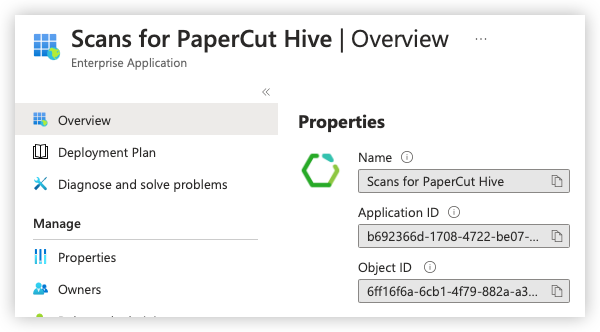
Users can now start scanning to Microsoft OneDrive and SharePoint Online.
Category: PaperCut Pocket and Hive Articles
Subcategory: Pocket & Hive How-to Articles, Integrated Scanning
Keywords: Scan to Cloud, Integrated Scanning, Scanning, OneDrive
Comments