


Contents
ARM64 support in PaperCut NG/MF Print Deploy
THE PAGE APPLIES TO:




Last updated May 15, 2026
Contents
This article explains configuring ARM64 support in PaperCut Print Deploy v1.10.4178 released on auto-update and bundled with MF v26, which provides a native printing experience for Windows on ARM64 devices. It covers:
- upgrading to Print Deploy v1.10.4178
- relaxing the client architecture matching logic
- the workflows for deploying server-hosted and Direct print queues
- how to utilize the PaperCut Global Print Driver (a PostScript printer driver) to ensure cross-platform compatibility across your entire fleet.
- a summary of how ARM64 support works in Print Deploy
After upgrading to Print Deploy v1.10.4178
Mobility Print queues or printer drivers that support both x64 and ARM64 architectures (such as PaperCut Global Print Driver print queues that were cloned using Print Deploy version 10.0+924), will remain visible in the Print Deploy client running on the end-users’ Windows ARM64 computers.
In order to configure print queues with an ARM64 profile so that they can be successfully deployed onto Windows ARM64 computers, there are 2 options:
Option 1 — Modify an existing print queue in the Print Deploy Admin interface
- In the Print Deploy Admin interface, add the PaperCut Global Print Driver to the print queue for the ARM64 architecture. This allows the print queue to be deployed to both x64 and ARM64 computers. Note: this option is only availale for Direct Print queues or Mobility Print queues.
- If you want to use a single print queue to deploy to both your x64 and ARM64 end users, delete any other print queues and ensure that your single print queue has a driver assigned to your x64 and AR64 architecture.
Option 2 — Clone a new print queue
- On an x64 reference computer, set up and clone a new print queue. The steps depend on what type of print queue your organization uses.
- On an ARM64 reference computer, set up and clone a new print queue. It must have the same name as the x64 print queue.
This creates a single queue with 2 profiles, one for each architecture, that you can then deploy within a single zone to an end-user fleet that uses old and new laptops.
Relaxing client architecture matching
Client architecture matching can be relaxed to preserve your existing print queue deployment setup for ARM64 printing whilst you configure your print queues with ARM64 profiles.
- Locate the Print Deploy config file at:
C:\Program Files\PaperCut MF\providers\print-deploy\win\data\config\client.conf.toml - Add the config key
ClientArchitectureMatchingEnabledto this file and set it tofalse. - Restart the Print Deploy Server service.
If you’re new to deploying print queues to ARM64 end-users’ computers
This section is for organizations getting printing working for the first time on ARM64 computers. It covers how to deploy:
- server-hosted shared queues to Print Deploy clients running on ARM64 computers
- Direct print queues to Print Deploy clients running on ARM64 computers
- Mobility Print queues with a manufacturer driver to Print Deploy clients running on ARM64 computers
- Mobility Print queues that were imported into the Print Deploy Admin interface to Print Deploy clients running on ARM64 computers
How to deploy server-hosted shared queues to Print Deploy clients running on ARM64 computers
This section describes how to set up a server queue and deploy it to ARM64 clients.
- Create a new server-hosted shared print queue with a different name from your x64 server print queue. For example, server1\queue-BW-ARM
- Install the PaperCut Global Print Driver on this new queue
- Set up an ARM64 reference machine with a print queue pointing to the shared server queue. Then run the Print Deploy cloner.
- In the Print Deploy Admin interface, find the server queue that was just cloned that will be deployed to ARM64 queues, and select the trash icon to delete the x64 profile.
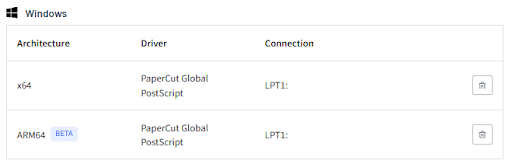
- Add the newly imported server print queue(s) to your configured zone(s) and deploy.
How to deploy Direct print queues to Print Deploy clients running on ARM64 computers
A Direct Print queue sends print jobs from a user’s device (computer) directly to the printer for immediate printing.
Before you can deploy the Direct print queue to any ARM64 computers, you need to add the PaperCut Global Print Driver as an ARM64 profile to it.
- In the Print Deploy Admin interface, navigate to the Direct print queue.
- Find the ARM64 profile and click Add generic driver. This results in:
- x64 end-users printing via the manufacturer driver (or whatever driver is assigned to the x64 profile)
- ARM64 end-users printing via the PaperCut Global Print Driver.

To learn more about what defaults are set when adding the generic driver from the Print Deploy Admin interface, take a look at PaperCut Global Print Driver defaults.
How to deploy Mobility Print queues with a manufacturer driver to Print Deploy clients running on ARM64 computers
If you have set up Mobility Print with an x64-based manufacturer driver, printing won’t work on ARM64 computers. This setup is not compatible with ARM64 computers and end-users will see an error in the Print Deploy client.
To enable printing on the ARM64 computers, you need to add the Global Print Driver as an ARM64 profile in the Print Deploy Admin interface.
- Clone the Mobility Print queues that have the manufacturer driver following these advanced steps.
- In the Print Deploy Admin interface, add the generic Global Print Driver to the ARM64 profile. The same Mobility Print queue will be deployed to both your x64 end-users and your ARM64 end-users:
- x64 end-users will print using the manufacturer driver
- ARM64 end-users will print via the Global Print Driver.

How to deploy Mobility Print queues that were imported into the Print Deploy Admin interface to Print Deploy clients running on ARM64 computers
There’s nothing you need to do! If you have already imported Mobility Print queues via the Print Deploy import wizard, the queues automatically use the PaperCut Global Print Driver and these can be deployed immediately to your ARM64 computers.

How ARM64 support works in Print Deploy
The PaperCut Global Print Driver is compatible with both x64 and ARM64 architectures. It meets the needs of everyday printing for your end-users. When there is no manufacturer ARM64 driver available for a modern ARM64 laptop fleet, Print Deploy allows administrators to use the Global Print Driver.
After a print queue has been set up with printer drivers that work for the both architectures, there’s no more administration overhead! Your end-user clients automatically contact the Print Deploy server, which determines what architecture the client is running, and deploys the compatible driver for that architecture.
It means that end-users don’t need to know what type of laptop they are running. They just get the print queue for their computer so that they can effortlessly print from day one.
Known limitation: Page size is currently not detected based on locale. This will be fixed in our public release.
PaperCut Global Print Driver defaults
When adding the PaperCut Global Print Driver within the Print Deploy Admin interface, the following defaults are set:
- Portrait
- Single-sided
- Color
- Auto tray selection
Note: It doesn’t support advanced finishing options.
More information
- Setting up printing for ARM64 Windows computers
- Windows ARM64 Support across the PaperCut portfolio
- Share ARM64 Drivers from Windows Print Servers
- How PaperCut solves the ARM64 printing problem
Category: How-to Articles
Subcategory: Print Queues
Comments