


Contents
Excel Multiple Print Issues
This page applies to:


Last updated August 20, 2026
Contents
Printing multiple copies of Excel workbooks creates multiple print jobs
In certain scenarios, when printing multiple copies of a workbook, Microsoft Excel may create a separate print job for each copy and send them individually to the printer.
For example, printing 5 copies of a workbook may result in 5 identical jobs being sent to the print queue.
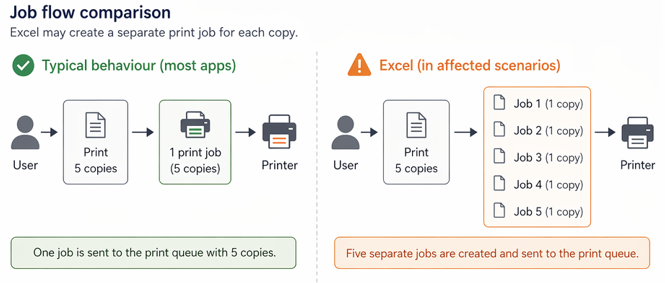
This behaviour differs from many other Windows applications and is not consistent across all environments. It is typically influenced by:
- Printer driver type and configuration
- Excel version
- Workbook structure (e.g. multiple sheets, formatting, collation)
Impact on PaperCut
Because PaperCut processes jobs exactly as they are received, multiple submitted jobs are treated independently.
Popup Client (PaperCut NG / MF)
Users may be prompted to select an account for each job submitted.
- Printing multiple copies can trigger multiple pop-ups
- The “Apply to all jobs” option can be used to assign the same selection across all queued jobs
PaperCut MF (Secure Print / Find-Me)
In MF environments, users will not see multiple pop-ups on their workstation. Instead:
- Each copy appears as a separate job at the device
- Users must release each job individually

Interaction with “Deny duplicate print jobs”
If the “Deny duplicate print jobs submitted within” setting is enabled:
- The first job will be allowed
- Subsequent identical jobs may be automatically denied
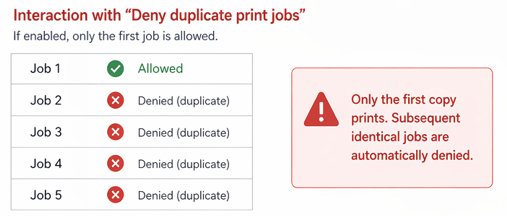
This can result in only a single copy printing, even though multiple copies were requested.
Workarounds / Mitigation
Update Microsoft Office
Newer versions of Excel (e.g. Microsoft 365) are less likely to exhibit this behaviour.
However, upgrading does not guarantee resolution, as job splitting can still occur depending on the printer driver and document structure.
Printer driver considerations
As this behaviour is often driver-dependent, testing with alternative drivers (e.g. different PCL, PostScript, or universal drivers) may reduce or eliminate the issue.

Legacy workaround (older Excel versions only)
Microsoft previously advised disabling “Collate” when printing to prevent multiple job submissions.
Limitations:
- Output must be manually collated
- Users must remember to change this setting each time
- Behaviour is inconsistent and not reliable in modern environments
This behaviour originates from how Excel submits print jobs and is outside of PaperCut’s control. PaperCut will process each job exactly as it is received, which can result in multiple prompts, multiple jobs at the device, or interaction with duplicate job detection.
Category: Troubleshooting Articles
Subcategory: Print Jobs
Comments
Comments are not available in this preview environment. On papercut.com, this space shows the live Disqus comment thread for this page.