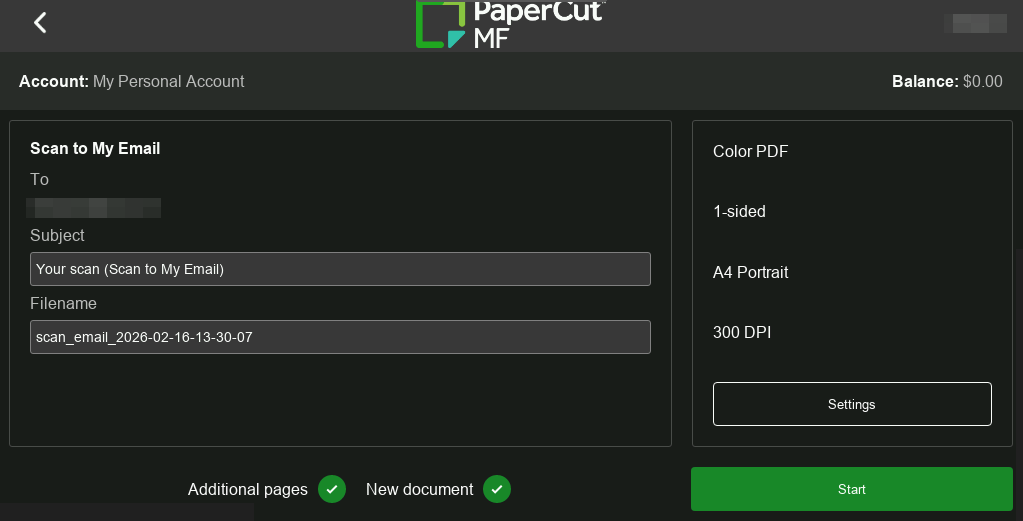

Introducing a dark theme for your PaperCut MF Embedded interface.
This beta project is now complete
Our new Modern Embedded UI (dark theme) is generally available as part of PaperCut MF 26.0. Learn more here.
Overview
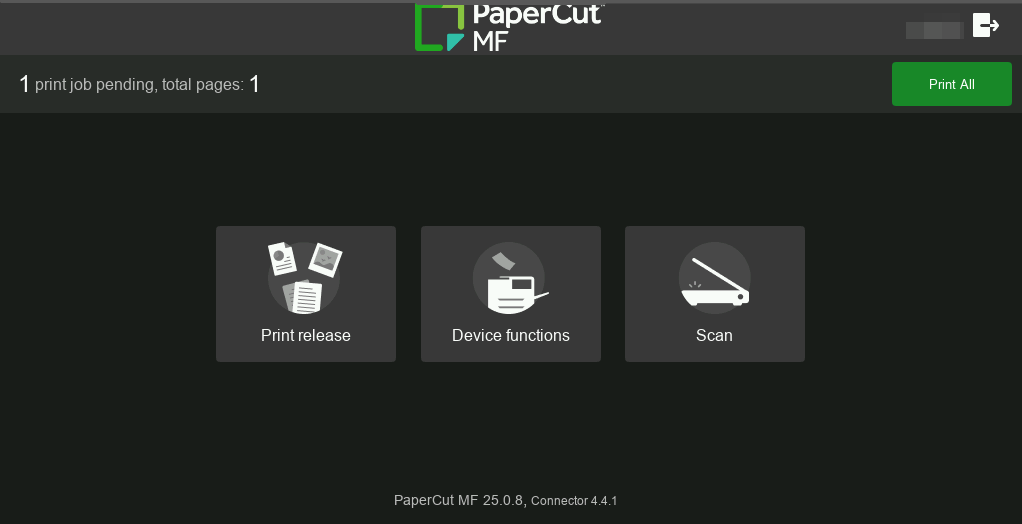
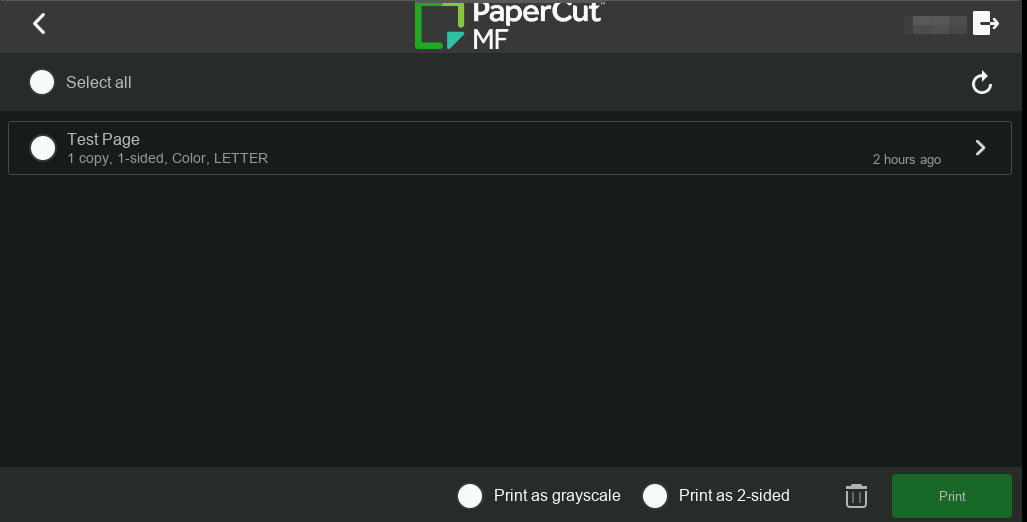
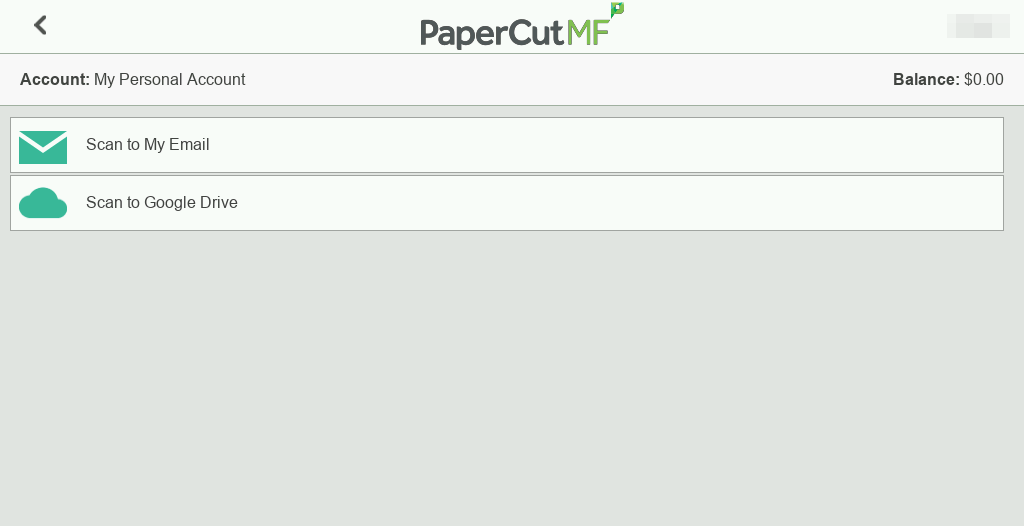
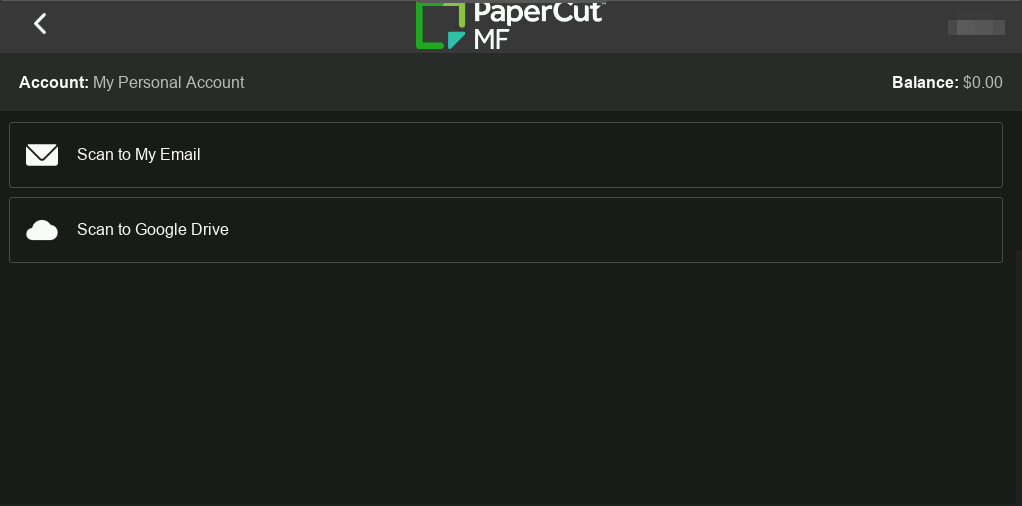
We’ve added a Modern Embedded UI option to the PaperCut MF embedded interface on select MFD platforms. This release introduces a dark-mode that aligns with modern office hardware and user preferences.
Important to know: It’s a skin, not a redesign: This is a dark mode option for the embedded. All buttons, workflows, layouts, and features are identical to the classic UI. It doesn’t change any features or workflows, it’s the same reliable experience, simply with a fresh aesthetic choice.
Key benefits
- Zero functional risk: Because this is a design refresh only, no core workflows or buttons change. Users don’t need to be re-trained on how to print, copy, or scan.
- No upgrade surprises: Existing customers upgrading to MF 26.0 will keep their classic UI automatically. Nothing changes for them unless the administrator actively chooses to opt-in.
- Familiarity for the future: Provides a familiar experience for users as the organization evolves, especially if they plan to move to a cloud-native solution later.
- Control and flexibility: Admins have total control. They can opt-in when ready or toggle back to “Classic” instantly if they prefer, all without a device restart.
Which Brands support the new UI?
The dark theme is only available on the following platforms:
- Canon
- Fujifilm
- Fuji Xerox
- HP
- Konica Minolta
- Sharp
- Toshiba
- Xerox
- Ricoh (v26.0.3 and later)
Brands like Kyocera, Brother, and Lexmark (or white-label of these devices), as well as 3rd party developed applications (e.g. Epson and Riso) do not support the dark theme.
If a customer has a mixed fleet which includes unsupported brands, enabling the dark theme will result in some devices showing the dark mode and others showing the classic UI. If visual consistency is important, we recommend defaulting to the classic UI.
How to change the Embedded Interface in PaperCut MF for all supported devices
Available in PaperCut MF Version 26, follow these instructions to select the default UI for all supported devices:
- Log in to the PaperCut MF admin interface.
- Select Options.
- Scroll down to Device Options.
- Select the desired Interface.

- Scroll to the bottom of the page and select Apply.
Changing the Embedded Interface for an individual device
- Log in to the PaperCut MF admin interface.
- Select Devices.
- Select the Device you wish to change the Embedded Interface for.
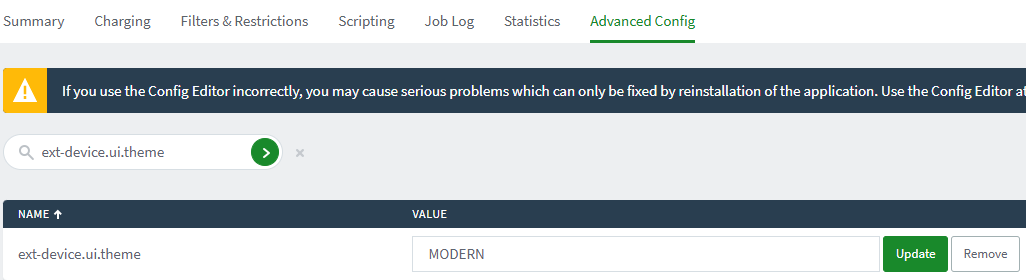
- Select Advanced Config.
- Search for ext-device.ui.theme.
- Enter one of the available options:
GLOBAL - Uses the setting chosen under Options > Device Options.
DEFAULT - If MF v26 is a fresh installation, this will be Modern. If MF v26 is an upgrade of a v25 (or older) install, this will be Classic.
MODERN - Uses the Modern Embedded Interface.
CLASSIC - Uses the Classic Embedded Interface. - Select Update.
- Login as a user and logout to immediately refresh the device to use the desired option.
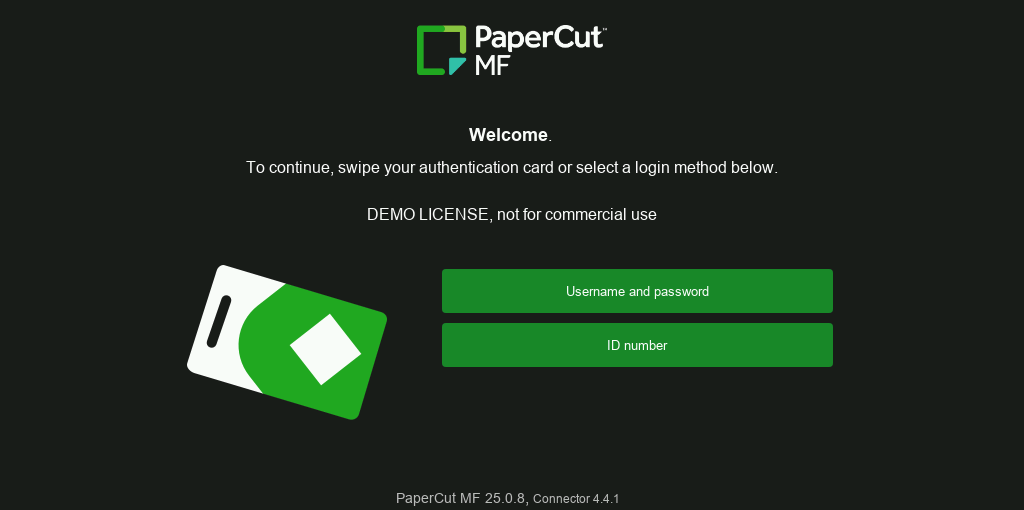
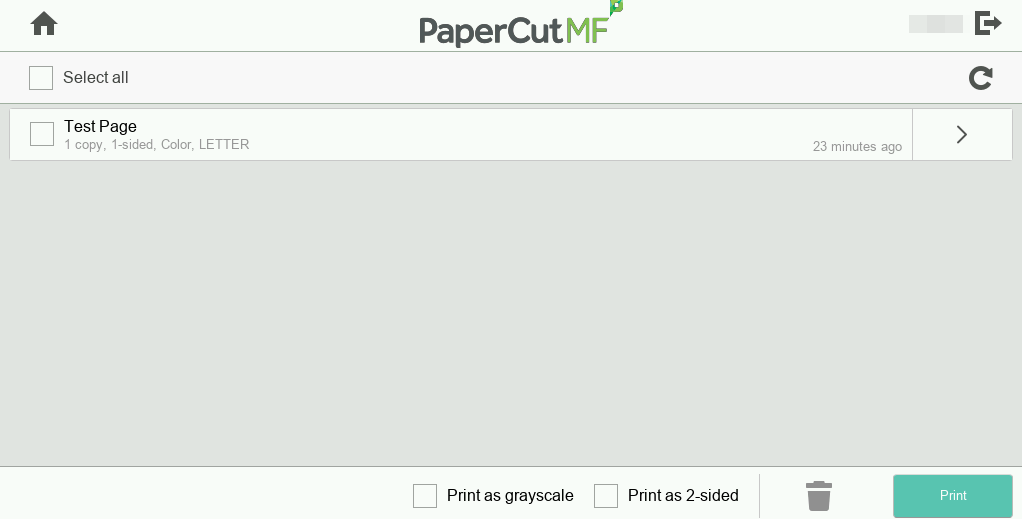
Example screenshots
Login screen
Before
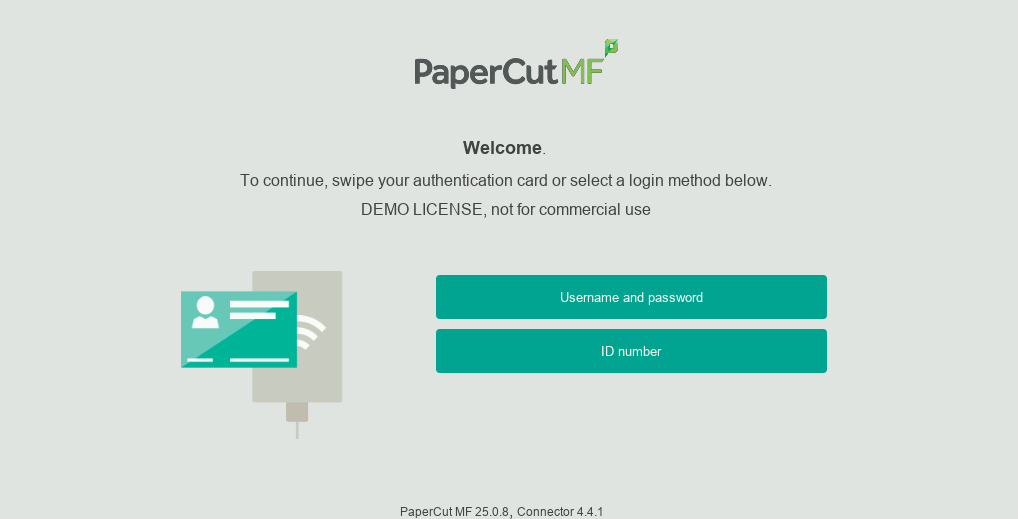
After
Home screen
Before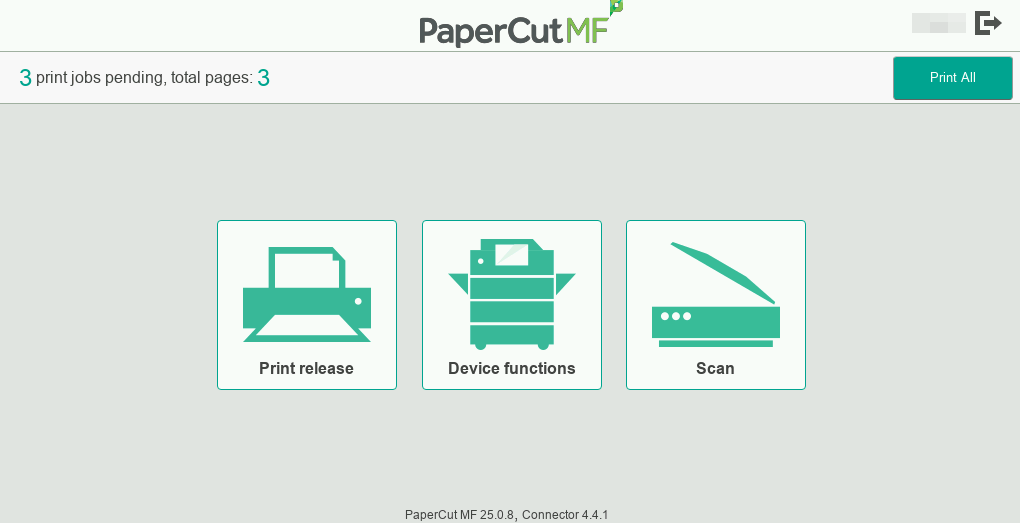
After
Print release
Before
After
Integrated scanning
Before
After
Scan settings
Before
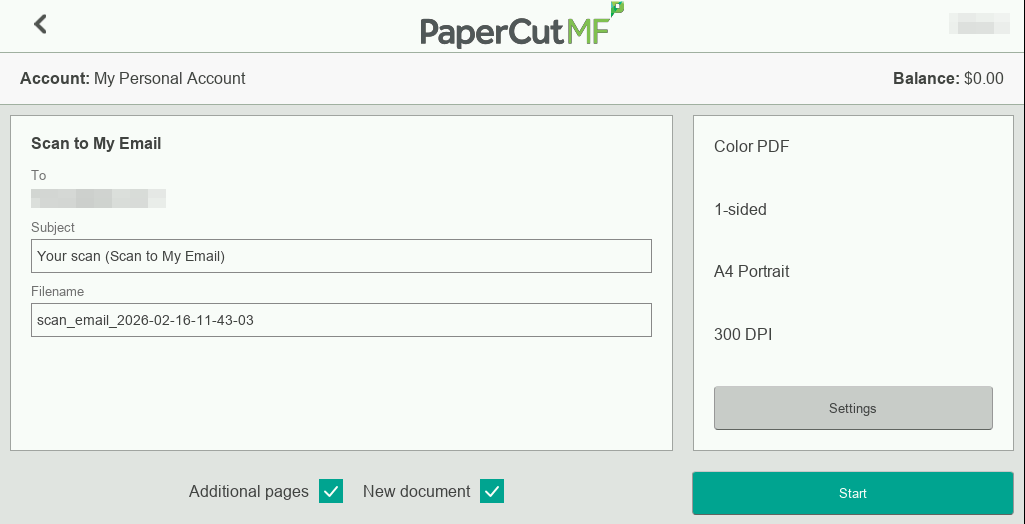
After